Web APIs - 第1天笔记
了解 DOM 的结构并掌握其基本的操作,体验 DOM 的在开发中的作用
- 知道 ECMAScript 与 JavaScript 的关系
- 了解 DOM 的相关概念及DOM 的本质是一个对象
- 掌握查找节点的基本方法
- 掌握节点属性和文本的操作
- 能够使用间歇函数创建定时任务
介绍
知道 ECMAScript 与 JavaScript 的关系,Web APIs 是浏览器扩展的功能。
严格意义上讲,我们在 JavaScript 阶段学习的知识绝大部分属于 ECMAScript 的知识体系,ECMAScript 简称 ES 它提供了一套语言标准规范,如变量、数据类型、表达式、语句、函数等语法规则都是由 ECMAScript 规定的。浏览器将 ECMAScript 大部分的规范加以实现,并且在此基础上又扩展一些实用的功能,这些被扩展出来的内容我们称为 Web APIs。
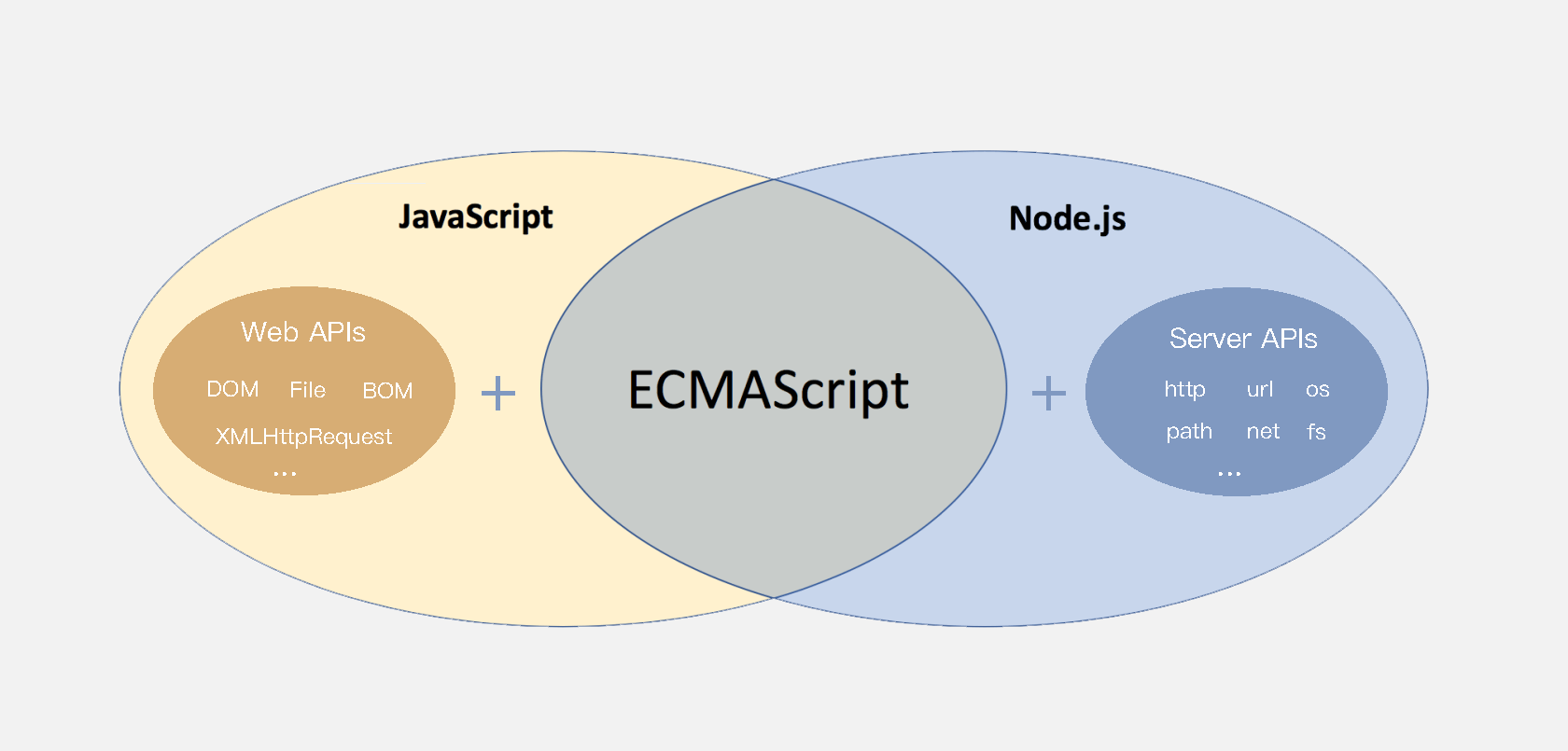
ECMAScript 运行在浏览器中然后再结合 Web APIs 才是真正的 JavaScript,Web APIs 的核心是 DOM 和 BOM。
扩展阅读:ECMAScript 规范在不断的更新中,存在多个不同的版本,早期的版本号采用数字顺序编号如 ECMAScript3、ECMAScript5,后来由于更新速度较快便采用年份做为版本号,如 ECMAScript2017、ECMAScript2018 这种格式,ECMAScript6 是 2015 年发布的,常叫做 EMCAScript2015。
关于 JavaScript 历史的扩展阅读。
知道 DOM 相关的概念,建立对 DOM 的初步认识,学习 DOM 的基本操作,体会 DOM 的作用
DOM(Document Object Model)是将整个 HTML 文档的每一个标签元素视为一个对象,这个对象下包含了许多的属性和方法,通过操作这些属性或者调用这些方法实现对 HTML 的动态更新,为实现网页特效以及用户交互提供技术支撑。
简言之 DOM 是用来动态修改 HTML 的,其目的是开发网页特效及用户交互。
观察一个小例子:
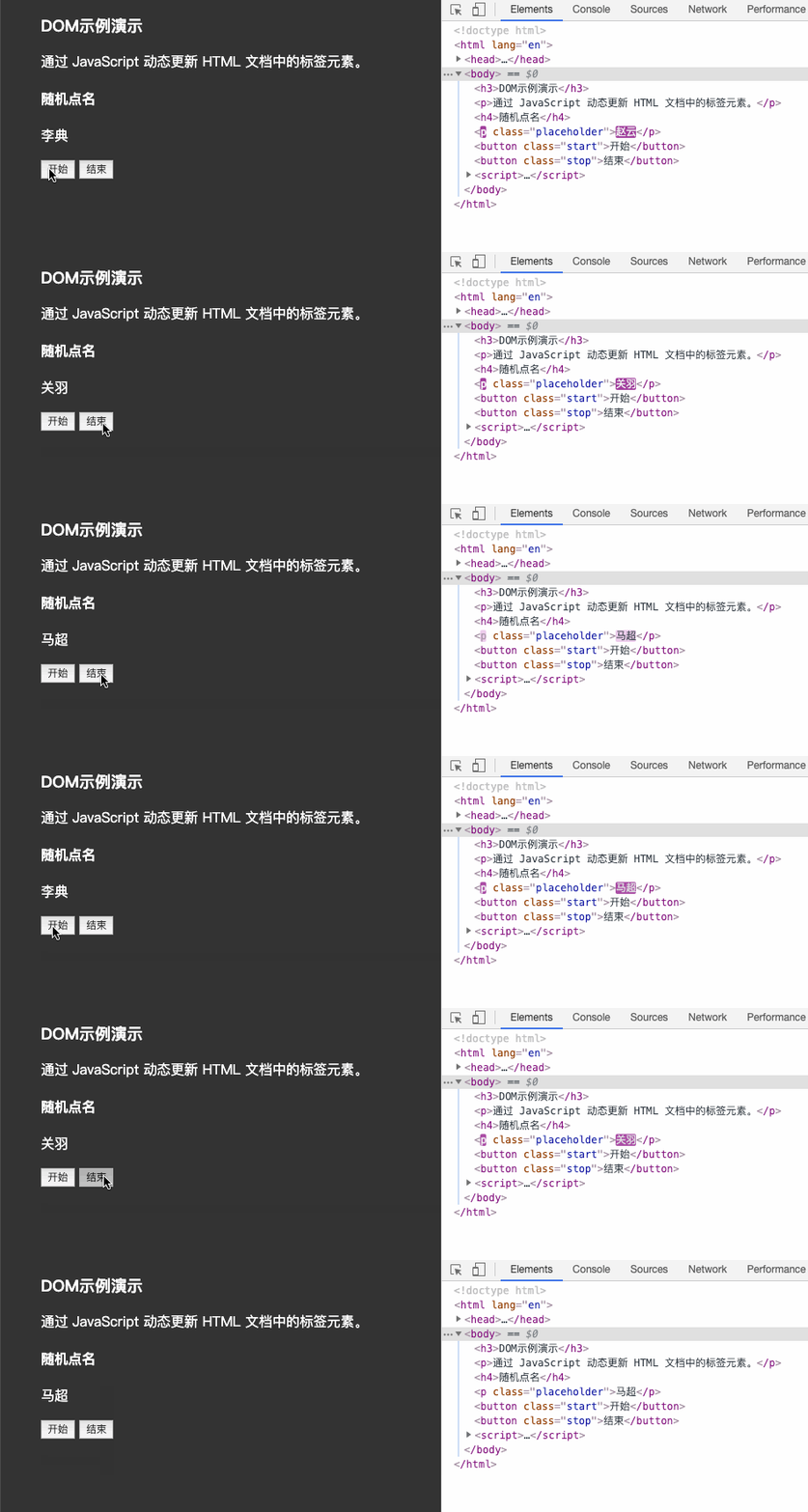
上述的例子中当用户分分别点击【开始】或【结束】按钮后,通过右侧调试窗口可以观察到 html 标签的内容在不断的发生改变,这便是通过 DOM 实现的。
概念
DOM 树
 1
 2
 3
 4
 5
 6
 7
 8
 9
10
11
12
13
|
<!DOCTYPE html>
<html lang="en">
<head>
  <meta charset="UTF-8">
  <meta name="viewport" content="width=device-width, initial-scale=1.0">
  <title>标题</title>
</head>
<body>
  文本
  <a href="">链接名</a>
  <div id="" class="">文本</div>
</body>
</html>
|
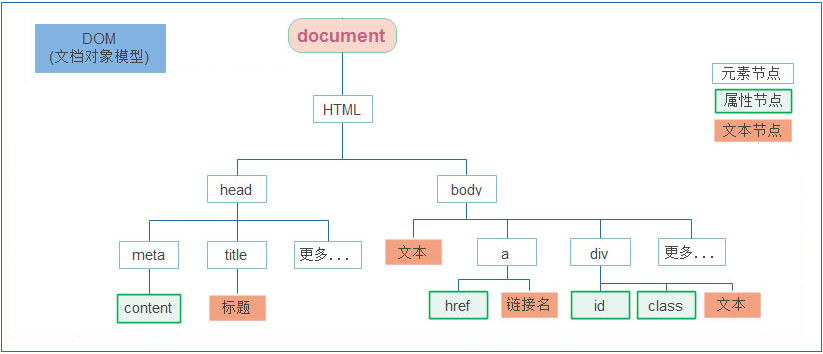
如下图所示,将 HTML 文档以树状结构直观的表现出来,我们称之为文档树或 DOM 树,文档树直观的体现了标签与标签之间的关系。
DOM 节点
节点是文档树的组成部分,每一个节点都是一个 DOM 对象,主要分为元素节点、属性节点、文本节点等。
- 【元素节点】其实就是 HTML 标签,如上图中
head、div、body 等都属于元素节点。
- 【属性节点】是指 HTML 标签中的属性,如上图中
a 标签的 href 属性、div 标签的 class 属性。
- 【文本节点】是指 HTML 标签的文字内容,如
title 标签中的文字。
- 【根节点】特指
html 标签。
- 其它…
document
document 是 JavaScript 内置的专门用于 DOM 的对象,该对象包含了若干的属性和方法,document 是学习 DOM 的核心。
 1
 2
 3
 4
 5
 6
 7
 8
 9
10
11
12
13
|
<script>
  // document 是内置的对象
  // console.log(typeof document);

  // 1. 通过 document 获取根节点
  console.log(document.documentElement); // 对应 html 标签

  // 2. 通过 document 节取 body 节点
  console.log(document.body); // 对应 body 标签

  // 3. 通过 document.write 方法向网页输出内容
  document.write('Hello World!');
</script>
|
上述列举了 document 对象的部分属性和方法,我们先对 document 有一个整体的认识。
获取DOM对象
-
querySelector : 满足条件的第一个元素
这种方式获取的元素可以直接修改
 1
 2
 3
 4
 5
 6
 7
 8
 9
10
11
12
13
14
|
<!DOCTYPE html>
<html lang="zh-CN">
<head>
  <meta charset="UTF-8">
</head>
<body>
  <h3 id="title">查找元素类型节点</h3>
  <p class="para">从整个 DOM 树中查找 DOM 节点是学习 DOM 的第一个步骤。</p>
  <script>
    const h3 = document.querySelector('#title')
    h3.style.color = 'red'
  </script>
</body>
</html>
|
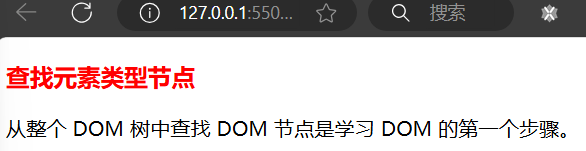
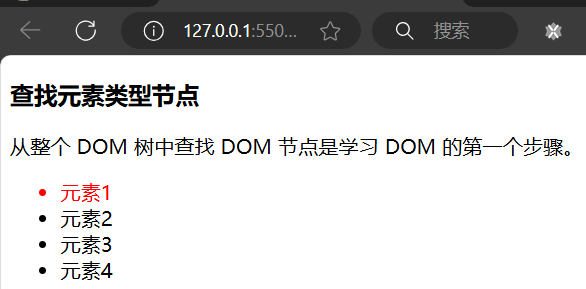
效果:
-
querySelectorAll : 满足条件的元素集合,返回伪数组:有长度有索引号但没有pop()、push()等数组方法的数组
这种方式获取的元素不能直接全部修改,若直接对数组修改会报错
只能通过遍历的方式依次给里面的元素做修改
 1
 2
 3
 4
 5
 6
 7
 8
 9
10
11
12
13
14
15
16
17
18
19
20
21
22
|
<!DOCTYPE html>
<html lang="zh-CN">
<head>
  <meta charset="UTF-8">
</head>
<body>
  <h3 id="title">查找元素类型节点</h3>
  <p class="para">从整个 DOM 树中查找 DOM 节点是学习 DOM 的第一个步骤。</p>
  <ul>
      <li>元素1</li>
      <li>元素2</li>
      <li>元素3</li>
      <li>元素4</li>
  </ul>
  <script>
  	const lis = document.querySelectorAll('li')  // 获取第一个li元素
    console.log(lis)
    //lis.style.color = 'red'	// 会报错
    lis[0].style.color = 'red'	// 每次只能具体修改数组内的某个元素
  </script>
</body>
</html>
|
效果:
-
了解其他方式(因为目前已较少使用)
-
getElementById : 根据id获取一个元素
1
|
document.getElementById('title') // 获取id为title的元素,注意此时不用加#号
|
-
getElementsByTagName : 根据标签获取一类元素,返回伪数组
1
|
document.getElementsByTagName('div') // 获取页面所有的div
|
-
getElementsByClassName : 根据类名获取元素,返回伪数组
1
|
document.getElementsByClassName('head') // 获取页面所有类名为head的元素
|
 1
 2
 3
 4
 5
 6
 7
 8
 9
10
11
12
13
14
15
16
17
18
19
20
21
22
23
24
25
|
<!DOCTYPE html>
<html lang="en">
<head>
  <meta charset="UTF-8">
  <meta name="viewport" content="width=device-width, initial-scale=1.0">
  <title>DOM - 查找节点</title>
</head>
<body>
  <h3 id="title">查找元素类型节点</h3>
  <p class="para">从整个 DOM 树中查找 DOM 节点是学习 DOM 的第一个步骤。</p>
  <ul>
      <li>元素1</li>
      <li>元素2</li>
      <li>元素3</li>
      <li>元素4</li>
  </ul>
  <script>
  	const p = document.querySelector('p')   	// 获取第一个p元素
    const p = document.querySelector('.para')  	// 获取第一个类名为para的元素
    const h3 = document.querySelector('#title')	// 获取id为title的元素
    const li = document.querySelector('ul li')	// 获取第一个ul元素的第一个后代元素li
  	const lis = document.querySelectorAll('li') // 获取所有li元素
  </script>
</body>
</html>
|
总结:
-
querySelector和querySelectorAll的小括号内必须是字符串,即必须加引号
-
document.getElementById 专门获取元素类型节点,根据标签的 id 属性查找
-
任意 DOM 对象都包含 nodeType 属性,用来检检测节点类型
操作元素内容
通过修改 DOM 的文本内容,动态改变网页的内容。
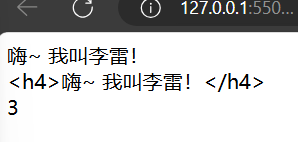
innerText 将文本内容添加/更新到任意标签位置,文本中包含的标签不会被解析。
 1
 2
 3
 4
 5
 6
 7
 8
 9
10
11
12
13
14
15
16
17
18
19
|
<!DOCTYPE html>
<html lang="zh-CN">
<head>
  <meta charset="UTF-8">
</head>
<body>
  <div class="intro1">1</div>
  <div class="intro2">2</div>
  <div>3</div>

  <script>
    // innerText 将文本内容添加/更新到任意标签位置
    const intro1 = document.querySelector('.intro1')
    const intro2 = document.querySelector('.intro2')
    intro1.innerText = '嗨~ 我叫李雷!'
    intro2.innerText = '<h4>嗨~ 我叫李雷!</h4>'
  </script>
</body>
</html>
|
效果:
innerHTML 将文本内容添加/更新到任意标签位置,文本中包含的标签会被解析。
 1
 2
 3
 4
 5
 6
 7
 8
 9
10
11
12
13
14
15
16
17
18
19
|
<!DOCTYPE html>
<html lang="zh-CN">
<head>
  <meta charset="UTF-8">
</head>
<body>
  <div class="intro1">1</div>
  <div class="intro2">2</div>
  <div>3</div>

  <script>
    // innerHTML 将文本内容添加/更新到任意标签位置
    const intro1 = document.querySelector('.intro1')
    const intro2 = document.querySelector('.intro2')
    intro1.innerHTML = '嗨~ 我叫韩梅梅!'
    intro2.innerHTML = '<h4>嗨~ 我叫韩梅梅!</h4>'
  </script>
</body>
</html>
|
效果:
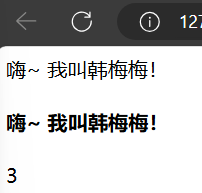
总结:如果文本内容中包含 html 标签时推荐使用 innerHTML,否则建议使用 innerText 属性。
年会抽奖案例
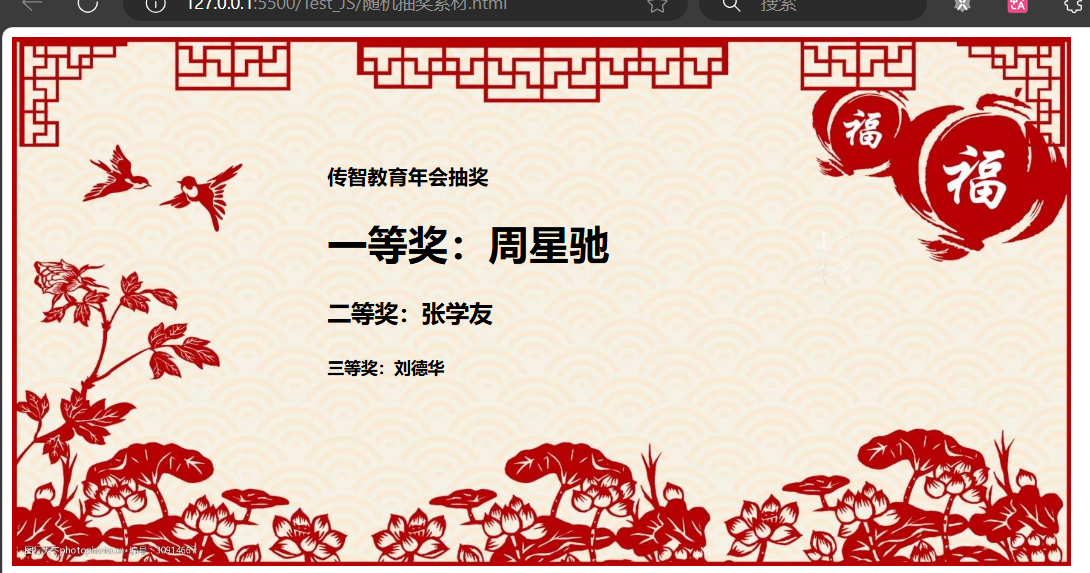
需求:从数组随机抽取一等奖、二等奖和三等奖,显示到对应的标签里面。
分析:
①:声明数组: const personArr = [‘周杰伦’, ‘刘德华’, ‘周星驰’, ‘Pink老师’, ‘张学友’]
②:一等奖:随机生成一个数字(0~数组长度),找到对应数组的名字
③:通过innerText 或者 innerHTML 将名字写入span元素内部
④: 二等奖依次类推
效果图:
代码:
 1
 2
 3
 4
 5
 6
 7
 8
 9
10
11
12
13
14
15
16
17
18
19
20
21
22
23
24
25
26
27
28
29
30
31
32
33
34
35
36
37
38
39
40
41
42
43
44
45
46
47
48
49
50
51
52
53
54
55
56
57
|
<!DOCTYPE html>
<html lang="zh-CN">
<head>
  <meta charset="UTF-8" />
  <title>年会抽奖</title>
  <style>
    .wrapper {
      width: 840px;
      height: 420px;
      background: url(./images/bg01.jpg) no-repeat center / cover;
      padding: 100px 250px;
      box-sizing: border-box;
    }
  </style>
</head>
<body>
  <div class="wrapper">
    <strong>传智教育年会抽奖</strong>
    <h1>一等奖:<span id="one">???</span></h1>
    <h3>二等奖:<span id="two">???</span></h3>
    <h5>三等奖:<span id="three">???</span></h5>
  </div>
  <script>
    // 声明数组
    const personArr = ['周杰伦', '刘德华', '周星驰', 'Pink老师', '张学友']
    // 抽取一等奖
    // 获取随机数,即数组下标
    let random = Math.floor(Math.random() * personArr.length)
    // 获取页面中的一等奖
    const one = document.querySelector('#one')
    // 把名字给一等奖
    one.innerHTML = personArr[random]
    // 从数组中删除被抽中的人
    personArr.splice(random,1)

    // 抽取二等奖
    // 获取随机数,即数组下标
    random = Math.floor(Math.random() * personArr.length)
    // 获取页面中的二等奖
    const two = document.querySelector('#two')
    // 把名字给二等奖
    two.innerHTML = personArr[random]
    // 从数组中删除被抽中的人
    personArr.splice(random,1)

    // 抽取三等奖
    // 获取随机数,即数组下标
    random = Math.floor(Math.random() * personArr.length)
    // 获取页面中的三等奖
    const three = document.querySelector('#three')
    // 把名字给三等奖
    three.innerHTML = personArr[random]
    // 从数组中删除被抽中的人
    personArr.splice(random,1)
  </script>
</body>
</html>
|
操作元素属性
有3种方式可以实现对属性的修改:
常用属性修改
- 直接能过属性名修改,最简洁的语法
1
2
3
4
5
6
7
8
|
<script>
  // 1. 获取 img 对应的 DOM 元素
  const pic = document.querySelector('.pic')
	// 2. 修改属性
  pic.src = './images/lion.webp'
  pic.width = 400;
  pic.alt = '图片不见了...'
</script>
|
控制样式属性
- 应用【修改样式】,通过修改行内样式
style 属性,实现对样式的动态修改。
通过元素节点获得的 style 属性本身的数据类型也是对象,如 box.style.color、box.style.width 分别用来获取元素节点 CSS 样式的 color 和 width 的值。
 1
 2
 3
 4
 5
 6
 7
 8
 9
10
11
12
13
14
15
16
17
18
19
20
|
<!DOCTYPE html>
<html lang="en">
<head>
  <meta charset="UTF-8">
  <meta name="viewport" content="width=device-width, initial-scale=1.0">
  <title>练习 - 修改样式</title>
</head>
<body>
  <div class="box">随便一些文本内容</div>
  <script>
    // 获取 DOM 节点
    const box = document.querySelector('.intro')
    box.style.color = 'red'
    box.style.width = '300px' // 记得加单位
    // css 属性的 - 连接符与 JavaScript 的 减运算符
    // 冲突,所以要改成驼峰法
    box.style.backgroundColor = 'pink'
  </script>
</body>
</html>
|
任何标签都有 style 属性,通过 style 属性可以动态更改网页标签的样式,如要遇到 css 属性中包含字符 - 时,要将 - 去掉并将其后面的字母改成大写,如 background-color 要写成 box.style.backgroundColor
注:页面唯一元素,如body可以直接使用不用获取
- 操作类名(className) 操作CSS
如果修改的样式比较多,直接通过style属性修改比较繁琐,我们可以通过借助于css类名的形式。
 1
 2
 3
 4
 5
 6
 7
 8
 9
10
11
12
13
14
15
16
17
18
19
20
21
22
23
24
25
26
|
<!DOCTYPE html>
<html lang="en">
<head>
  <meta charset="UTF-8">
  <meta name="viewport" content="width=device-width, initial-scale=1.0">
  <title>练习 - 修改样式</title>
    <style>
        .pink {
            background: pink;
            color: hotpink;
        }
    </style>
</head>
<body>
  <div class="box">随便一些文本内容</div>
  <script>
    // 获取 DOM 节点
    const box = document.querySelector('.box')
    // 把box的类名设置为'pink'的类,这样可以快速为box加上pink类的样式
    // 注:会覆盖掉原类名
    box.className = 'pink'
    // 若想保留原来的类名,就在设置时把原类名加上
    box.className = 'box pink'
  </script>
</body>
</html>
|
注意:
1.由于class是关键字, 所以使用className去代替
2.className是使用新值换旧值, 如果需要添加一个类,需要保留之前的类名
- 通过 classList 操作类控制CSS
为了解决className 容易覆盖以前的类名,我们可以通过classList方式追加和删除类名
 1
 2
 3
 4
 5
 6
 7
 8
 9
10
11
12
13
14
15
16
17
18
19
20
21
22
23
24
25
26
27
28
29
30
31
32
33
34
35
36
|
<!DOCTYPE html>
<html lang="en">
<head>
    <meta charset="UTF-8">
    <meta http-equiv="X-UA-Compatible" content="IE=edge">
    <meta name="viewport" content="width=device-width, initial-scale=1.0">
    <title>Document</title>
    <style>
        div {
            width: 200px;
            height: 200px;
            background-color: pink;
        }

        .active {
            width: 300px;
            height: 300px;
            background-color: hotpink;
            margin-left: 100px;
        }
    </style>
</head>
<body>
    <div class="one"></div>
    <script>
        // 1.获取元素
        const box = document.querySelector('div')
        // add是个方法添加类
        box.classList.add('active')
        // remove() 移除类
        box.classList.remove('one')
        // 切换类,有就删除该类名,没有就加上该类名
        box.classList.toggle('one')
    </script>
</body>
</html>
|
随机轮播图案例
需求:当我们刷新页面,页面中的轮播图会显示不同图片以及样式
模块:
①:图片会随机变换
②:底部盒子背景颜色和文字内容会变换
③:小圆点随机一个高亮显示
分析:
①: 准备一个数组对象,里面包含详细信息(素材包含)
②: 随机选择一个数字,选出数组对应的对象,更换图片,底部盒子背景颜色,以及文字内容
③: 利用这个随机数字,让小圆点添加高亮的类(addClass) 利用css 结构伪类选择器
  1
  2
  3
  4
  5
  6
  7
  8
  9
 10
 11
 12
 13
 14
 15
 16
 17
 18
 19
 20
 21
 22
 23
 24
 25
 26
 27
 28
 29
 30
 31
 32
 33
 34
 35
 36
 37
 38
 39
 40
 41
 42
 43
 44
 45
 46
 47
 48
 49
 50
 51
 52
 53
 54
 55
 56
 57
 58
 59
 60
 61
 62
 63
 64
 65
 66
 67
 68
 69
 70
 71
 72
 73
 74
 75
 76
 77
 78
 79
 80
 81
 82
 83
 84
 85
 86
 87
 88
 89
 90
 91
 92
 93
 94
 95
 96
 97
 98
 99
100
101
102
103
104
105
106
107
108
109
110
111
112
113
114
115
116
117
118
119
120
121
122
123
124
125
126
127
128
129
130
131
132
133
134
135
136
137
138
139
140
141
142
143
144
145
146
147
148
149
150
151
152
|
<!DOCTYPE html>
<html lang="zh-CN">
<head>
<meta charset="UTF-8" />
<title>轮播图点击切换</title>
<style>
* {
box-sizing: border-box;
}
.slider {
width: 560px;
height: 400px;
overflow: hidden;
}
.slider-wrapper {
width: 100%;
height: 320px;
}
.slider-wrapper img {
width: 100%;
height: 100%;
display: block;
}
.slider-footer {
height: 80px;
background-color: rgb(100, 67, 68);
padding: 12px 12px 0 12px;
position: relative;
}
.slider-footer .toggle {
position: absolute;
right: 0;
top: 12px;
display: flex;
}
.slider-footer .toggle button {
margin-right: 12px;
width: 28px;
height: 28px;
appearance: none;
border: none;
background: rgba(255, 255, 255, 0.1);
color: #fff;
border-radius: 4px;
cursor: pointer;
}
.slider-footer .toggle button:hover {
background: rgba(255, 255, 255, 0.2);
}
.slider-footer p {
margin: 0;
color: #fff;
font-size: 18px;
margin-bottom: 10px;
}
.slider-indicator {
margin: 0;
padding: 0;
list-style: none;
display: flex;
align-items: center;
}
.slider-indicator li {
width: 8px;
height: 8px;
margin: 4px;
border-radius: 50%;
background: #fff;
opacity: 0.4;
cursor: pointer;
}
.slider-indicator li.active {
width: 12px;
height: 12px;
opacity: 1;
}
</style>
</head>
<body>
<div class="slider">
<div class="slider-wrapper">
<img src="./images/slider01.jpg" alt="" />
</div>
<div class="slider-footer">
<p>对人类来说会不会太超前了?</p>
<ul class="slider-indicator">
<li class="active"></li>
<li></li>
<li></li>
<li></li>
<li></li>
<li></li>
<li></li>
<li></li>
</ul>
<div class="toggle">
<button class="prev"><</button>
<button class="next">></button>
</div>
</div>
</div>
<script>
// 初始数据
const sliderData = [
{ url: './images/slider01.jpg', title: '对人类来说会不会太超前了?', color: 'rgb(100, 67, 68)' },
{ url: './images/slider02.jpg', title: '开启剑与雪的黑暗传说!', color: 'rgb(43, 35, 26)' },
{ url: './images/slider03.jpg', title: '真正的jo厨出现了!', color: 'rgb(36, 31, 33)' },
{ url: './images/slider04.jpg', title: '李玉刚:让世界通过B站看到东方大国文化', color: 'rgb(139, 98, 66)' },
{ url: './images/slider05.jpg', title: '快来分享你的寒假日常吧~', color: 'rgb(67, 90, 92)' },
{ url: './images/slider06.jpg', title: '哔哩哔哩小年YEAH', color: 'rgb(166, 131, 143)' },
{ url: './images/slider07.jpg', title: '一站式解决你的电脑配置问题!!!', color: 'rgb(53, 29, 25)' },
{ url: './images/slider08.jpg', title: '谁不想和小猫咪贴贴呢!', color: 'rgb(99, 72, 114)' },
]
function getRandomInt(N, M) {
return Math.floor(Math.random() * (M - N + 1)) + N
}
// 获得一个随机数
const random = getRandomInt(0, sliderData.length - 1)
// 获取图片
const img = document.querySelector('.slider-wrapper img')
// 修改图片路径
img.src = sliderData[random].url
// 获取文字
const p = document.querySelector('.slider-footer p')
// 修改文字
p.innerHTML = sliderData[random].title
// 获取背景
const footer = document.querySelector('.slider-footer')
// 修改背景颜色
footer.style.backgroundColor = sliderData[random].color
// 获取小圆点
const lis = document.querySelectorAll('.slider-indicator li')
// 把原本小圆点的高亮取消
for (let i = 0; i < lis.length; i++) {
lis[i].classList.remove('active')
}
// 修改对应小圆点高亮
lis[random].classList.toggle('active')
</script>
</body>
</html>
|
效果:

操作表单元素属性
表单很多情况,也需要修改属性,比如点击眼睛,可以看到密码,本质是把表单类型转换为文本框
正常的有属性有取值的跟其他的标签属性没有任何区别
获取:DOM对象.属性名
设置:DOM对象.属性名= 新值
 1
 2
 3
 4
 5
 6
 7
 8
 9
10
11
12
13
14
15
16
17
18
19
20
21
22
23
24
25
26
27
28
29
30
31
32
33
34
35
|
<!DOCTYPE html>
<html lang="en">

<head>
    <meta charset="UTF-8">
    <meta http-equiv="X-UA-Compatible" content="IE=edge">
    <meta name="viewport" content="width=device-width, initial-scale=1.0">
    <title>Document</title>

</head>

<body>
    <input type="text" value="请输入">
    <button disabled>按钮</button>
    <input type="checkbox" name="" id="" class="agree">
    <script>
        // 1. 获取元素
        let input = document.querySelector('input')
        // 2. 取值或者设置值  得到input里面的值可以用 value
        // input.innerHTML 是获取不到东西的
        input.value = '小米手机'
        input.type = 'password'

        // 2. 启用按钮
        let btn = document.querySelector('button')
        // disabled 不可用   =  false  这样可以让按钮启用
        btn.disabled = false
        // 3. 勾选复选框
        let checkbox = document.querySelector('.agree')
        checkbox.checked = true
        // 注:checkbox.checked = 'true' 时,也会选中,是因为'true'被隐式转换成true,属于歪打正着
    </script>
</body>

</html>
|
自定义属性
标准属性: 标签天生自带的属性 比如class id title等, 可以直接使用点语法操作比如: disabled、checked、selected
自定义属性:
在html5中推出来了专门的data-自定义属性
在标签上一律以data-开头
在DOM对象上一律以dataset对象方式获取
 1
 2
 3
 4
 5
 6
 7
 8
 9
10
11
12
13
14
15
16
17
18
19
20
21
22
23
24
|
<!DOCTYPE html>
<html lang="en">

<head>
    <meta charset="UTF-8">
    <meta http-equiv="X-UA-Compatible" content="IE=edge">
    <meta name="viewport" content="width=device-width, initial-scale=1.0">
    <title>Document</title>

</head>

<body>
   <div data-id="1"> 自定义属性 </div>
    <script>
        // 1. 获取元素
        let div = document.querySelector('div')
        // 2. 获取自定义属性值的集合
        console.log(div.dataset)
        // 3. 获取自定义属性某个具体的值
    	console.log(div.dataset.id)
    </script>
</body>

</html>
|
间歇函数
知道间歇函数的作用,利用间歇函数创建定时任务。
setInterval 是 JavaScript 中内置的函数,它的作用是间隔固定的时间自动重复执行另一个函数,也叫定时器函数。
1
2
3
|
setInterval(函数,间隔时间)
// 作用:每隔一段时间调用这个函数
// 间隔时间单位是毫秒
|
例:
 1
 2
 3
 4
 5
 6
 7
 8
 9
10
11
12
13
14
15
16
17
18
19
20
|
<script>
  // 1. 定义一个普通函数
  function repeat() {
    console.log('不知疲倦的执行下去....')
  }

  // 2. 使用 setInterval 调用 repeat 函数,开启定时器
  // 间隔 1000 毫秒,重复调用 repeat
  let n = setInterval(repeat, 1000)
  let m = setInterval(repeat, 1000)
  console.log(n) // 1
  console.log(m) // 2
  // 注:1.函数名不需要加括号;2.定时器返回的是一个id数字

  // 3. 关闭定时器
  clearInterval(n)	// 关闭id为n的定时器

  // 4.重新开启
  n = setInterval(repeat, 1000)
</script>
|
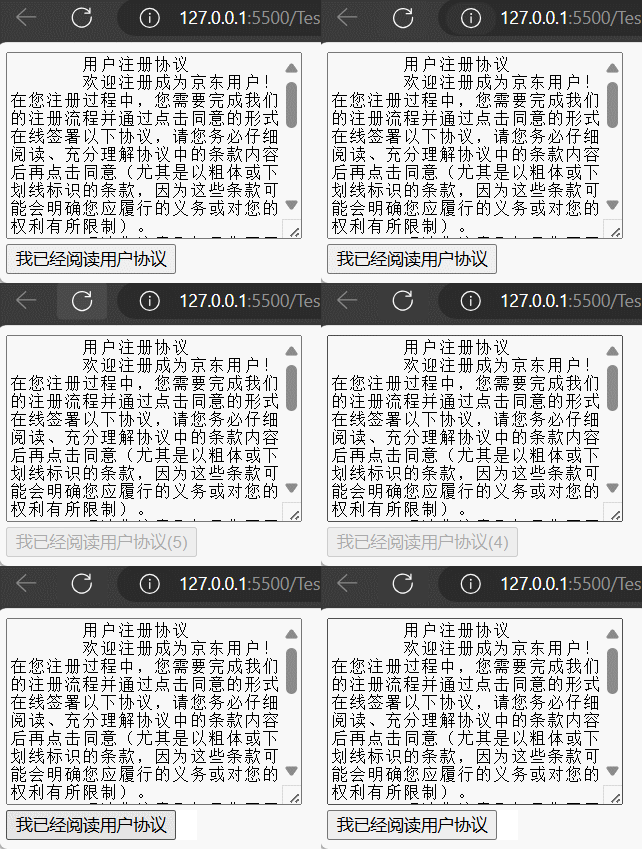
阅读用户协议案例
需求:按钮60秒之后才可以使用
分析:
①:开始先把按钮禁用(disabled 属性)
②:一定要获取元素
③:函数内处理逻辑
秒数开始减减
按钮里面的文字跟着一起变化
如果秒数等于0 停止定时器 里面文字变为 同意 最后 按钮可以点击
效果图:
代码:
 1
 2
 3
 4
 5
 6
 7
 8
 9
10
11
12
13
14
15
16
17
18
19
20
21
22
23
24
25
26
27
28
29
30
31
|
<!DOCTYPE html>
<html lang="zh-CN">
<head>
    <meta charset="UTF-8">
    <title>Document</title>
</head>
<body>
    <textarea name="" id="" cols="30" rows="10">
        用户注册协议
        欢迎注册成为京东用户!在您注册过程中,您需要完成我们的注册流程并通过点击同意的形式在线签署以下协议,请您务必仔细阅读、充分理解协议中的条款内容后再点击同意(尤其是以粗体或下划线标识的条款,因为这些条款可能会明确您应履行的义务或对您的权利有所限制)。
        【请您注意】如果您不同意以下协议全部或任何条款约定,请您停止注册。您停止注册后将仅可以浏览我们的商品信息但无法享受我们的产品或服务。如您按照注册流程提示填写信息,阅读并点击同意上述协议且完成全部注册流程后,即表示您已充分阅读、理解并接受协议的全部内容,并表明您同意我们可以依据协议内容来处理您的个人信息,并同意我们将您的订单信息共享给为完成此订单所必须的第三方合作方(详情查看
    </textarea>
    <br>
    <button class="btn" disabled>我已经阅读用户协议(5)</button>
    <script>
        // 获取元素
        const btn = document.querySelector('button')
        // 倒计时
        let i = 5
        let n = setInterval(function() {
            i--
            btn.innerHTML = `我已经阅读用户协议(${i})`
            if (i === 0) {  // 5s后,关闭倒计时,并开启按钮
                clearInterval(n)
                btn.innerHTML = '我已经阅读用户协议'
                btn.disabled = false
            }
        }, 1000)
    </script>
</body>
</html>
|
今日单词
| 单词 |
说明 |
解释 |
| setInterval |
定时器 |
setInterval(repeat, 1000) |
|
|
|
|
|
|
综合案例
轮播图定时器版
需求:每隔一秒钟切换一个图片
分析:
①:准备一个数组对象,里面包含详细信息(素材包含)
②:获取元素
③:设置定时器函数
设置一个变量++
找到变量对应的对象
更改图片、文字信息
激活小圆点:移除上一个高亮的类名,当前变量对应的小圆点添加类
④:处理图片自动复原从头播放(放到变量++后面,紧挨)
如果图片播放到最后一张, 就是大于等于数组的长度
则把变量重置为0
效果图:

代码:
  1
  2
  3
  4
  5
  6
  7
  8
  9
 10
 11
 12
 13
 14
 15
 16
 17
 18
 19
 20
 21
 22
 23
 24
 25
 26
 27
 28
 29
 30
 31
 32
 33
 34
 35
 36
 37
 38
 39
 40
 41
 42
 43
 44
 45
 46
 47
 48
 49
 50
 51
 52
 53
 54
 55
 56
 57
 58
 59
 60
 61
 62
 63
 64
 65
 66
 67
 68
 69
 70
 71
 72
 73
 74
 75
 76
 77
 78
 79
 80
 81
 82
 83
 84
 85
 86
 87
 88
 89
 90
 91
 92
 93
 94
 95
 96
 97
 98
 99
100
101
102
103
104
105
106
107
108
109
110
111
112
113
114
115
116
117
118
119
120
121
122
123
124
125
126
127
128
129
130
131
132
133
134
135
136
137
138
139
140
141
142
143
144
145
146
147
148
|
<!DOCTYPE html>
<html lang="zh-CN">
<head>
<meta charset="UTF-8" />
<title>综合5</title>
<style>
* {
box-sizing: border-box;
}
.slider {
width: 560px;
height: 400px;
overflow: hidden;
}
.slider-wrapper {
width: 100%;
height: 320px;
}
.slider-wrapper img {
width: 100%;
height: 100%;
display: block;
}
.slider-footer {
height: 80px;
background-color: rgb(100, 67, 68);
padding: 12px 12px 0 12px;
position: relative;
}
.slider-footer .toggle {
position: absolute;
right: 0;
top: 12px;
display: flex;
}
.slider-footer .toggle button {
margin-right: 12px;
width: 28px;
height: 28px;
appearance: none;
border: none;
background: rgba(255, 255, 255, 0.1);
color: #fff;
border-radius: 4px;
cursor: pointer;
}
.slider-footer .toggle button:hover {
background: rgba(255, 255, 255, 0.2);
}
.slider-footer p {
margin: 0;
color: #fff;
font-size: 18px;
margin-bottom: 10px;
}
.slider-indicator {
margin: 0;
padding: 0;
list-style: none;
display: flex;
align-items: center;
}
.slider-indicator li {
width: 8px;
height: 8px;
margin: 4px;
border-radius: 50%;
background: #fff;
opacity: 0.4;
cursor: pointer;
}
.slider-indicator li.active {
width: 12px;
height: 12px;
opacity: 1;
}
</style>
</head>
<body>
<div class="slider">
<div class="slider-wrapper">
<img src="./images/slider01.jpg" alt="" />
</div>
<div class="slider-footer">
<p>对人类来说会不会太超前了?</p>
<ul class="slider-indicator">
<li class="active"></li>
<li></li>
<li></li>
<li></li>
<li></li>
<li></li>
<li></li>
<li></li>
</ul>
<div class="toggle">
<button class="prev"><</button>
<button class="next">></button>
</div>
</div>
</div>
<script>
// 1. 初始数据
const sliderData = [
{ url: './images/slider01.jpg', title: '对人类来说会不会太超前了?', color: 'rgb(100, 67, 68)' },
{ url: './images/slider02.jpg', title: '开启剑与雪的黑暗传说!', color: 'rgb(43, 35, 26)' },
{ url: './images/slider03.jpg', title: '真正的jo厨出现了!', color: 'rgb(36, 31, 33)' },
{ url: './images/slider04.jpg', title: '李玉刚:让世界通过B站看到东方大国文化', color: 'rgb(139, 98, 66)' },
{ url: './images/slider05.jpg', title: '快来分享你的寒假日常吧~', color: 'rgb(67, 90, 92)' },
{ url: './images/slider06.jpg', title: '哔哩哔哩小年YEAH', color: 'rgb(166, 131, 143)' },
{ url: './images/slider07.jpg', title: '一站式解决你的电脑配置问题!!!', color: 'rgb(53, 29, 25)' },
{ url: './images/slider08.jpg', title: '谁不想和小猫咪贴贴呢!', color: 'rgb(99, 72, 114)' },
]
// 获取元素
const img = document.querySelector('.slider-wrapper img')
const div = document.querySelector('.slider-footer')
const p = document.querySelector('.slider-footer p')
const lis = document.querySelectorAll('.slider-indicator li')
// 开启定时器
let i = 0
let n = setInterval(function() {
i++
// 切换图片和文字和文字的背景颜色
// 页面默认就是第一张图,所以从第二张图开始切换
img.src = sliderData[i].url
p.innerHTML = sliderData[i].title
div.style.backgroundColor = sliderData[i].color
// 切换高亮的小圆点
document.querySelector('.active').classList.remove('active') // 删除当前高亮的小圆点
lis[i].classList.add('active') // 使与图文相匹配的小圆点高亮
if (i === sliderData.length - 1) {// 实现无限循环的效果
i = -1
}
}, 1000)
</script>
</body>
</html>
|
Web APIs - 第2天
学会通过为DOM注册事件来实现可交互的网页特效。
- 能够判断函数运行的环境并确字 this 所指代的对象
- 理解事件的作用,知道应用事件的 3 个步骤
学习会为 DOM 注册事件,实现简单可交互的网页特交。
事件
事件是编程语言中的术语,它是用来描述程序的行为或状态的,一旦行为或状态发生改变,便立即调用一个函数。
例如:用户使用【鼠标点击】网页中的一个按钮、用户使用【鼠标拖拽】网页中的一张图片
事件监听
结合 DOM 使用事件时,需要为 DOM 对象添加事件监听,等待事件发生(触发)时,便立即调用一个函数。
addEventListener 是 DOM 对象专门用来添加事件监听的方法,它的两个参数分别为【事件类型】和【事件回调】。
 1
 2
 3
 4
 5
 6
 7
 8
 9
10
11
12
13
14
15
16
17
18
19
20
21
22
23
24
25
26
27
|
<!DOCTYPE html>
<html lang="en">
<head>
  <meta charset="UTF-8">
  <meta name="viewport" content="width=device-width, initial-scale=1.0">
  <title>事件监听</title>
</head>
<body>
  <h3>事件监听</h3>
  <p id="text">为 DOM 元素添加事件监听,等待事件发生,便立即执行一个函数。</p>
  <button id="btn">点击改变文字颜色</button>
  <script>
    // 1. 获取 button 对应的 DOM 对象
    const btn = document.querySelector('#btn')

    // 2. 添加事件监听
    btn.addEventListener('click', function () {
      console.log('等待事件被触发...')
      // 改变 p 标签的文字颜色
      let text = document.getElementById('text')
      text.style.color = 'red'
    })

    // 3. 只要用户点击了按钮,事件便触发了!!!
  </script>
</body>
</html>
|
完成事件监听分成3个步骤:
- 获取 DOM 元素
- 通过
addEventListener 方法为 DOM 节点添加事件监听
- 等待事件触发,如用户点击了某个按钮时便会触发
click 事件类型
- 事件触发后,相对应的回调函数会被执行
大白话描述:所谓的事件无非就是找个机会(事件触发)调用一个函数(回调函数)。
事件类型
click 译成中文是【点击】的意思,它的含义是监听(等着)用户鼠标的单击操作,除了【单击】还有【双击】dblclick
 1
 2
 3
 4
 5
 6
 7
 8
 9
10
11
|
<script>
  // 双击事件类型
  btn.addEventListener('dblclick', function () {
    console.log('等待事件被触发...');
    // 改变 p 标签的文字颜色
    const text = document.querySelector('.text')
    text.style.color = 'red'
  })

  // 只要用户双击击了按钮,事件便触发了!!!
</script>
|
结论:【事件类型】决定了事件被触发的方式,如 click 代表鼠标单击,dblclick 代表鼠标双击。
事件处理程序
addEventListener 的第2个参数是函数,这个函数会在事件被触发时立即被调用,在这个函数中可以编写任意逻辑的代码,如改变 DOM 文本颜色、文本内容等。
 1
 2
 3
 4
 5
 6
 7
 8
 9
10
11
12
|
<script>
  // 双击事件类型
  btn.addEventListener('dblclick', function () {
    console.log('等待事件被触发...')

    const text = document.querySelector('.text')
    // 改变 p 标签的文字颜色
    text.style.color = 'red'
    // 改变 p 标签的文本内容
    text.style.fontSize = '20px'
  })
</script>
|
结论:【事件处理程序】决定了事件触发后应该执行的逻辑。
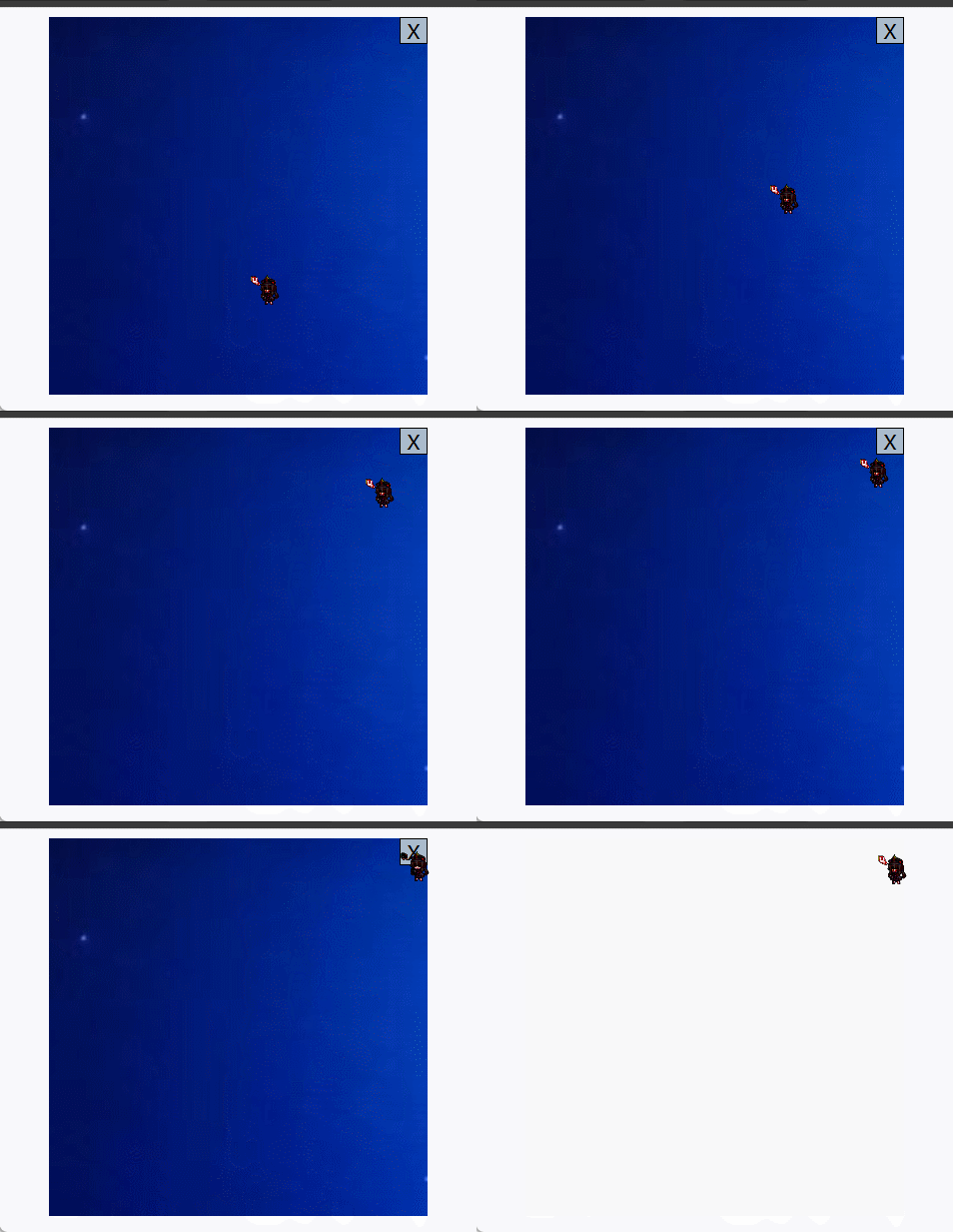
案例:关闭广告
效果图:
代码:
 1
 2
 3
 4
 5
 6
 7
 8
 9
10
11
12
13
14
15
16
17
18
19
20
21
22
23
24
25
26
27
28
29
30
31
32
33
34
35
36
|
<!DOCTYPE html>
<html lang="zh-CN">
<head>
  <meta charset="UTF-8">
  <style>
    .ad {
      height: 300px;
      width: 300px;
      background-color: #ccc;
      margin: auto;
      background-image: url(../双金!.jpg);
    }
    .close {
      height: 20px;
      width: 20px;
      text-align: center;
      background-color: #abc;
      border: 1px solid black;
      float: right;
      cursor: pointer;
    }
  </style>
</head>
<body>
  <div class="ad">
    <div class="close">X</div>
  </div>
  <script>
    const close = document.querySelector('.close')
    close.addEventListener('click',function() {
      const ad = document.querySelector('.ad')
      ad.style.display = 'none'
    })
  </script>
</body>
</html>
|
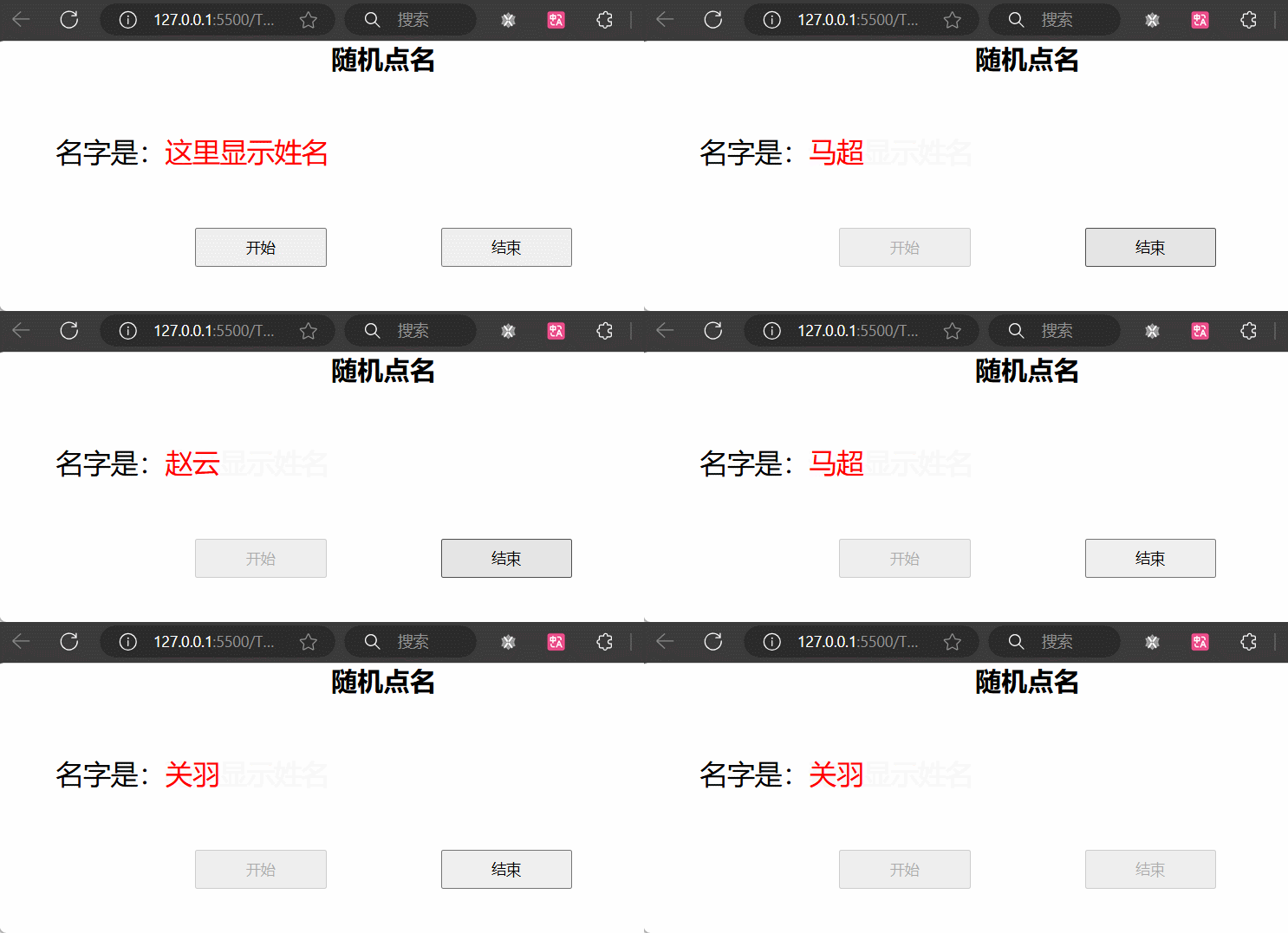
案例:随机点名
业务分析:
① 点击开始按钮随机抽取数组的一个数据,放到页面中
② 点击结束按钮删除数组当前抽取的一个数据
③ 当抽取到最后一个数据的时候,两个按钮同时禁用(写点开始里面,只剩最后一个数据不用抽了)
核心:利用定时器快速展示,停止定时器结束展示
效果图:
 1
 2
 3
 4
 5
 6
 7
 8
 9
10
11
12
13
14
15
16
17
18
19
20
21
22
23
24
25
26
27
28
29
30
31
32
33
34
35
36
37
38
39
40
41
42
43
44
45
46
47
48
49
50
51
52
53
54
55
56
57
58
59
60
61
62
63
64
65
66
67
68
69
70
71
72
73
74
75
76
77
78
79
80
81
82
83
84
85
|
<!DOCTYPE html>
<html lang="zh-CN">
<head>
    <meta charset="UTF-8">
    <title>Document</title>
    <style>
        * {
            margin: 0;
            padding: 0;
        }

        h2 {
            text-align: center;
        }

        .box {
            width: 600px;
            margin: 50px auto;
            display: flex;
            font-size: 25px;
            line-height: 40px;
        }

        .name {

            width: 450px;
            height: 40px;
            color: red;

        }

        .btns {
            text-align: center;
        }

        .btns button {
            width: 120px;
            height: 35px;
            margin: 0 50px;
        }
    </style>
</head>
<body>
    <h2>随机点名</h2>
    <div class="box">
        <span>名字是:</span>
        <div class="name">这里显示姓名</div>
    </div>
    <div class="btns">
        <button class="start">开始</button>
        <button class="end">结束</button>
    </div>
    <script>
        // 数据数组
        const arr = ['马超', '黄忠', '赵云', '关羽', '张飞']
        // 获取元素
        const start = document.querySelector('.start')
        const end = document.querySelector('.end')
        const name = document.querySelector('.name')
        // 添加点击事件
        let timerId
        let random
        start.addEventListener('click',function() {
            timerId = setInterval(function() {
                random = Math.floor(Math.random() * arr.length)
                name.innerHTML = arr[random]
                // 就剩一人时就不用再抽了,禁用按钮并关闭定时器
                if (arr.length === 1) {
                    start.disabled = end.disabled = true
                    clearInterval(timerId)
                }
            }, 10)
            // 防止重复点击形成bug
            start.disabled = true
        })
        end.addEventListener('click',function() {
            clearInterval(timerId)
            // 删除抽中的数组元素
            arr.splice(random,1)
            // 解除开始按钮的禁用
            start.disabled = false
        })
    </script>
</body>
</html>
|
事件类型
将众多的事件类型分类可分为:鼠标事件、键盘事件、表单事件、焦点事件等,我们逐一展开学习。
鼠标事件
鼠标事件是指跟鼠标操作相关的事件,如单击、双击、移动等。
mouseenter监听鼠标是否移入 DOM 元素
 1
 2
 3
 4
 5
 6
 7
 8
 9
10
11
12
13
14
15
16
17
18
|
<body>
  <h3>鼠标事件</h3>
  <p>监听与鼠标相关的操作</p>
  <hr>
  <div class="box"></div>
  <script>
    // 需要事件监听的 DOM 元素
    const box = document.querySelector('.box');

    // 监听鼠标是移入当前 DOM 元素
    box.addEventListener('mouseenter', function () {
      // 修改文本内容
      this.innerText = '鼠标移入了...';
      // 修改光标的风格
      this.style.cursor = 'move';
    })
  </script>
</body>
|
mouseleave 监听鼠标是否移出 DOM 元素
 1
 2
 3
 4
 5
 6
 7
 8
 9
10
11
12
13
14
15
16
|
<body>
  <h3>鼠标事件</h3>
  <p>监听与鼠标相关的操作</p>
  <hr>
  <div class="box"></div>
  <script>
    // 需要事件监听的 DOM 元素
    const box = document.querySelector('.box');

    // 监听鼠标是移出当前 DOM 元素
    box.addEventListener('mouseleave', function () {
      // 修改文本内容
      this.innerText = '鼠标移出了...';
    })
  </script>
</body>
|
鼠标经过事件:
mouseover 和 mouseout 会有冒泡效果
mouseenter 和 mouseleave 没有冒泡效果 (推荐)
键盘事件
keydown 键盘按下触发(按住不放会一直触发)
keyup 键盘抬起触发
焦点事件
focus 获得焦点
blur 失去焦点
文本框输入事件
input 用户输入事件
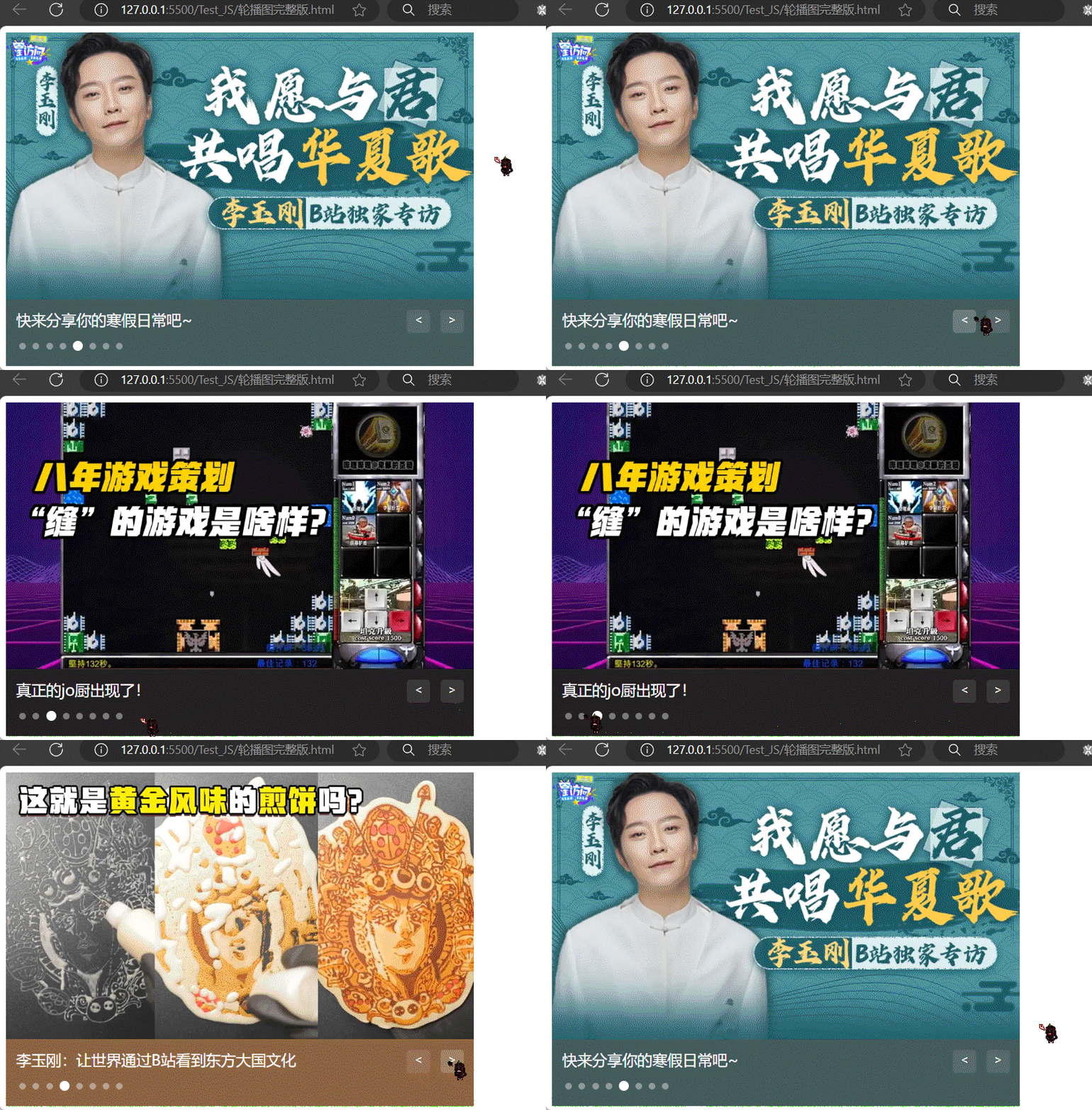
案例:轮播图点击切换
需求:当点击左右的按钮,可以切换轮播图,鼠标不在轮播图上时自动轮播,鼠标在轮播图上时停止轮播,点击小圆点跳转至对应轮播图
分析:
①:右侧按钮点击,变量++,如果大于等于8,则复原0
②:左侧按钮点击,变量–,如果小于0,则复原最后一张
③:鼠标经过暂停定时器
④:鼠标离开开启定时器
效果图:
代码:
  1
  2
  3
  4
  5
  6
  7
  8
  9
 10
 11
 12
 13
 14
 15
 16
 17
 18
 19
 20
 21
 22
 23
 24
 25
 26
 27
 28
 29
 30
 31
 32
 33
 34
 35
 36
 37
 38
 39
 40
 41
 42
 43
 44
 45
 46
 47
 48
 49
 50
 51
 52
 53
 54
 55
 56
 57
 58
 59
 60
 61
 62
 63
 64
 65
 66
 67
 68
 69
 70
 71
 72
 73
 74
 75
 76
 77
 78
 79
 80
 81
 82
 83
 84
 85
 86
 87
 88
 89
 90
 91
 92
 93
 94
 95
 96
 97
 98
 99
100
101
102
103
104
105
106
107
108
109
110
111
112
113
114
115
116
117
118
119
120
121
122
123
124
125
126
127
128
129
130
131
132
133
134
135
136
137
138
139
140
141
142
143
144
145
146
147
148
149
150
151
152
153
154
155
156
157
158
159
160
161
162
163
164
165
166
167
168
169
170
171
172
173
174
175
176
177
178
179
180
181
182
183
184
185
186
187
188
189
190
191
192
193
194
195
196
|
<!DOCTYPE html>
<html lang="zh-CN">
<head>
<meta charset="UTF-8" />
<title>轮播图点击切换</title>
<style>
* {
box-sizing: border-box;
}
.slider {
width: 560px;
height: 400px;
overflow: hidden;
}
.slider-wrapper {
width: 100%;
height: 320px;
}
.slider-wrapper img {
width: 100%;
height: 100%;
display: block;
}
.slider-footer {
height: 80px;
background-color: rgb(100, 67, 68);
padding: 12px 12px 0 12px;
position: relative;
}
.slider-footer .toggle {
position: absolute;
right: 0;
top: 12px;
display: flex;
}
.slider-footer .toggle button {
margin-right: 12px;
width: 28px;
height: 28px;
appearance: none;
border: none;
background: rgba(255, 255, 255, 0.1);
color: #fff;
border-radius: 4px;
cursor: pointer;
}
.slider-footer .toggle button:hover {
background: rgba(255, 255, 255, 0.2);
}
.slider-footer p {
margin: 0;
color: #fff;
font-size: 18px;
margin-bottom: 10px;
}
.slider-indicator {
margin: 0;
padding: 0;
list-style: none;
display: flex;
align-items: center;
}
.slider-indicator li {
width: 8px;
height: 8px;
margin: 4px;
border-radius: 50%;
background: #fff;
opacity: 0.4;
cursor: pointer;
}
.slider-indicator li.active {
width: 12px;
height: 12px;
opacity: 1;
}
</style>
</head>
<body>
<div class="slider">
<div class="slider-wrapper">
<img src="./images/slider01.jpg" alt="" />
</div>
<div class="slider-footer">
<p>对人类来说会不会太超前了?</p>
<ul class="slider-indicator">
<li class="active"></li>
<li></li>
<li></li>
<li></li>
<li></li>
<li></li>
<li></li>
<li></li>
</ul>
<div class="toggle">
<button class="prev"><</button>
<button class="next">></button>
</div>
</div>
</div>
<script>
// 初始数据
const data = [
{ url: './images/slider01.jpg', title: '对人类来说会不会太超前了?', color: 'rgb(100, 67, 68)' },
{ url: './images/slider02.jpg', title: '开启剑与雪的黑暗传说!', color: 'rgb(43, 35, 26)' },
{ url: './images/slider03.jpg', title: '真正的jo厨出现了!', color: 'rgb(36, 31, 33)' },
{ url: './images/slider04.jpg', title: '李玉刚:让世界通过B站看到东方大国文化', color: 'rgb(139, 98, 66)' },
{ url: './images/slider05.jpg', title: '快来分享你的寒假日常吧~', color: 'rgb(67, 90, 92)' },
{ url: './images/slider06.jpg', title: '哔哩哔哩小年YEAH', color: 'rgb(166, 131, 143)' },
{ url: './images/slider07.jpg', title: '一站式解决你的电脑配置问题!!!', color: 'rgb(53, 29, 25)' },
{ url: './images/slider08.jpg', title: '谁不想和小猫咪贴贴呢!', color: 'rgb(99, 72, 114)' },
]
// 获取元素
const img = document.querySelector('.slider-wrapper img')
const p = document.querySelector('.slider-footer p')
const lis = document.querySelectorAll('.slider-indicator li')
const slider_footer = document.querySelector('.slider-footer')
const prev = document.querySelector('.prev')
const next = document.querySelector('.next')
const slider = document.querySelector('.slider')
// 声明一个渲染函数方便复用
function sliderChange(i) {
// 更换图片、文字和背景颜色
img.src = data[i].url
p.innerHTML = data[i].title
slider_footer.style.backgroundColor = data[i].color
// 修改高亮的小圆点
document.querySelector('.slider-indicator .active').classList.remove('active')
document.querySelector(`.slider-indicator li:nth-child(${i + 1})`).classList.add('active')
}
// 点击事件
let i = 0
// 右边按钮被点击时
next.addEventListener('click', function() {
i++
// 若i大于等于数组长度(即超过最后一个时)就复原为0
// 为什么不用等于,而用大于等于?防止点太快,程序没反应过来就到再下一个了导致bug
i = i >= data.length ? 0 : i
// 调用渲染函数
sliderChange(i)
})
// 左边按钮被点击时
prev.addEventListener('click',function() {
i--
// 若i小于0(比第一个还前面)就回到最后一个
i = i < 0 ? data.length - 1 : i
// 调用渲染函数
sliderChange(i)
})
// 自动播放
let timerId = setInterval(function() {
// 自动播放和点击右按钮效果一样,可以利用JS自动调用点击事件
next.click()
}, 2000)
// 鼠标事件
// 鼠标经过大盒子时停止定时器
slider.addEventListener('mouseenter', function() {
clearInterval(timerId)
})
// 鼠标离开大盒子时开启定时器
slider.addEventListener('mouseleave', function() {
// 这里也写一次关闭定时器,防止某些情况下出现bug,反正加上没坏处
clearInterval(timerId)
// 重新开启定时器
timerId = setInterval(function() {
// 自动播放和点击右按钮效果一样,可以利用JS自动调用点击事件
next.click()
}, 2000)
})
// 点击小圆点跳转至对应轮播图
for (let j = 0; j < data.length; j++) {
lis[j].addEventListener('click', function() {
// 把全局变量i和当前被点击的j匹配上
// 不匹配上就会出现各玩各的bug
i = j
sliderChange(i)
})
}
</script>
</body>
</html>
|
案例:搜索框
需求:当表单得到焦点,显示下拉菜单,失去焦点隐藏下来菜单
分析:
①:开始下拉菜单要进行隐藏
②:表单获得焦点 focus,则显示下拉菜单,并且文本框变色(添加类)
③:表单失去焦点,反向操作
效果图:
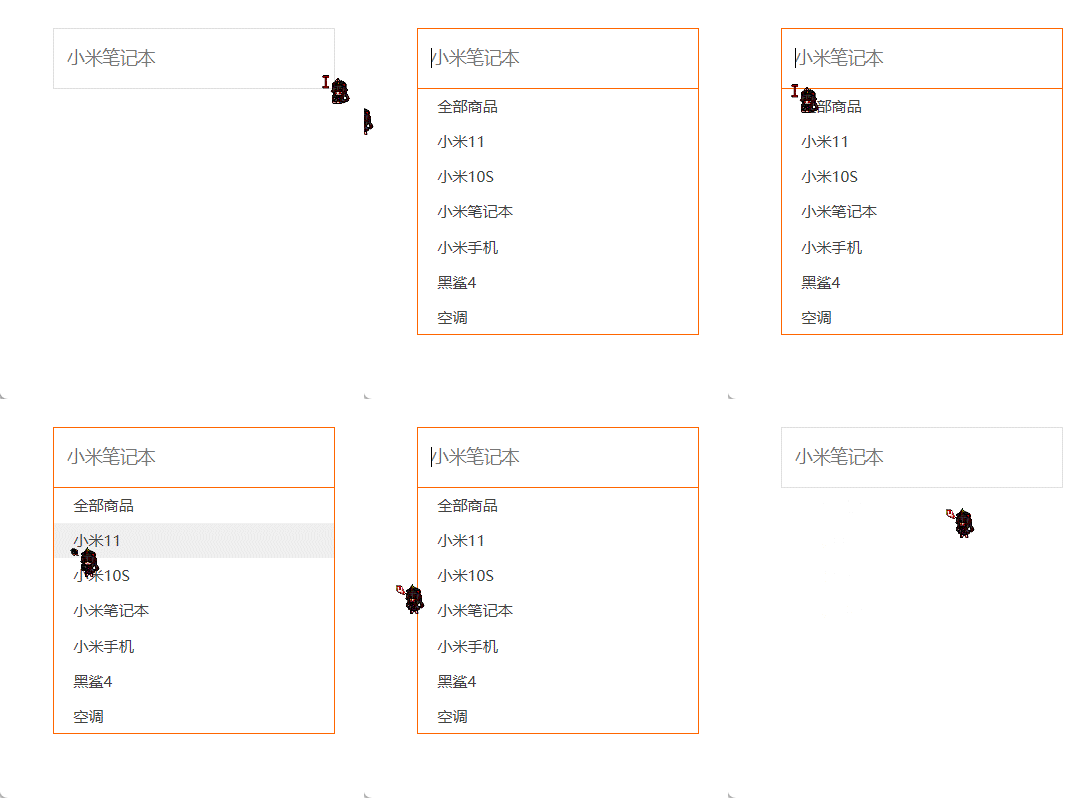
代码:
 1
 2
 3
 4
 5
 6
 7
 8
 9
10
11
12
13
14
15
16
17
18
19
20
21
22
23
24
25
26
27
28
29
30
31
32
33
34
35
36
37
38
39
40
41
42
43
44
45
46
47
48
49
50
51
52
53
54
55
56
57
58
59
60
61
62
63
64
65
66
67
68
69
70
71
72
73
74
75
76
77
78
79
80
81
82
83
84
85
86
87
88
89
90
91
92
93
|
<!DOCTYPE html>
<html lang="zh-CN">
<head>
    <meta charset="UTF-8">
    <title>Document</title>
    <style>
        * {
            margin: 0;
            padding: 0;
            box-sizing: border-box;
        }

        ul {

            list-style: none;
        }

        .mi {
            position: relative;
            width: 223px;
            margin: 100px auto;
        }

        .mi input {
            width: 223px;
            height: 48px;
            padding: 0 10px;
            font-size: 14px;
            line-height: 48px;
            border: 1px solid #e0e0e0;
            outline: none;
        }

        .mi .search {
            border: 1px solid #ff6700;
        }

        .result-list {
            display: none;
            position: absolute;
            left: 0;
            top: 48px;
            width: 223px;
            border: 1px solid #ff6700;
            border-top: 0;
            background: #fff;
        }

        .result-list a {
            display: block;
            padding: 6px 15px;
            font-size: 12px;
            color: #424242;
            text-decoration: none;
        }

        .result-list a:hover {
            background-color: #eee;
        }
    </style>
</head>
<body>
    <div class="mi">
        <input type="search" placeholder="小米笔记本">
        <ul class="result-list">
            <li><a href="#">全部商品</a></li>
            <li><a href="#">小米11</a></li>
            <li><a href="#">小米10S</a></li>
            <li><a href="#">小米笔记本</a></li>
            <li><a href="#">小米手机</a></li>
            <li><a href="#">黑鲨4</a></li>
            <li><a href="#">空调</a></li>
        </ul>
    </div>
    <script>
        // 获取元素
        const input = document.querySelector('[type=search]')
        const ul = document.querySelector('.result-list')
        // 监听事件:获得焦点
        input.addEventListener('focus', function() {
            // 显示ul
            ul.style.display = 'block'  // 原本是none
            // 添加一个带有颜色边框的类名
            input.classList.add('search')
        })
        // 监听事件:失去焦点
        input.addEventListener('blur', function() {
            ul.style.display = 'none'
            input.classList.remove('search')
        })
    </script>
</body>
</html>
|
案例:评论字数统计
需求:用户输入文字,可以计算用户输入的字数
分析:
①:判断用输入事件 input
②:不断取得文本框里面的字符长度, 文本域.value.length
③:把获得数字给下面文本框
效果图:
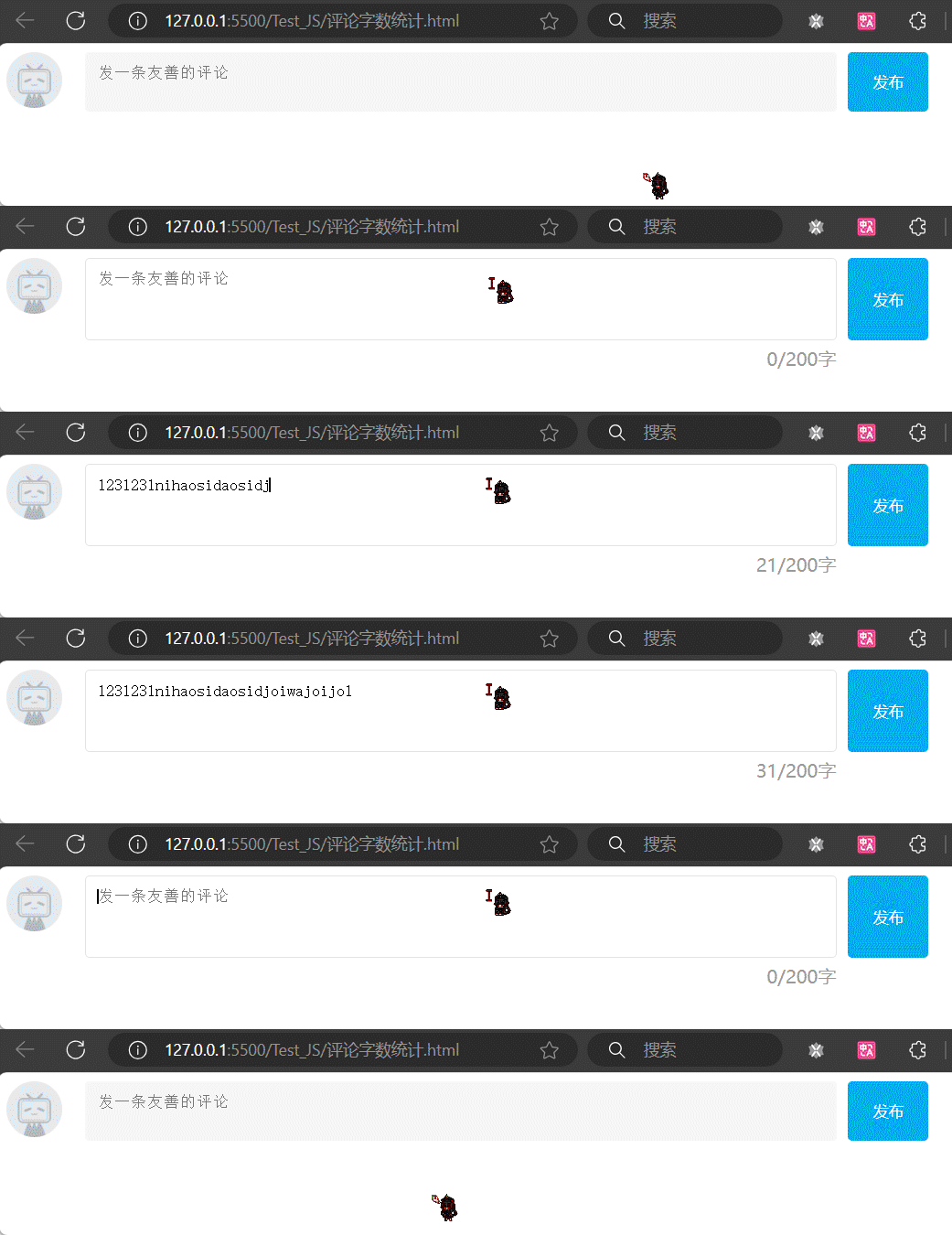
  1
  2
  3
  4
  5
  6
  7
  8
  9
 10
 11
 12
 13
 14
 15
 16
 17
 18
 19
 20
 21
 22
 23
 24
 25
 26
 27
 28
 29
 30
 31
 32
 33
 34
 35
 36
 37
 38
 39
 40
 41
 42
 43
 44
 45
 46
 47
 48
 49
 50
 51
 52
 53
 54
 55
 56
 57
 58
 59
 60
 61
 62
 63
 64
 65
 66
 67
 68
 69
 70
 71
 72
 73
 74
 75
 76
 77
 78
 79
 80
 81
 82
 83
 84
 85
 86
 87
 88
 89
 90
 91
 92
 93
 94
 95
 96
 97
 98
 99
100
101
102
103
104
105
106
107
108
109
110
111
112
113
114
115
116
117
118
119
120
121
122
123
124
125
126
127
128
129
130
131
132
133
|
<!DOCTYPE html>
<html lang="zh-CN">
<head>
  <meta charset="UTF-8">
  <title>评论字数统计</title>
  <style>
    .wrapper {
      min-width: 400px;
      max-width: 800px;
      display: flex;
      justify-content: flex-end;
    }

    .avatar {
      width: 48px;
      height: 48px;
      border-radius: 50%;
      overflow: hidden;
      background: url(./images/avatar.jpg) no-repeat center / cover;
      margin-right: 20px;
    }

    .wrapper textarea {
      outline: none;
      border-color: transparent;
      resize: none;
      background: #f5f5f5;
      border-radius: 4px;
      flex: 1;
      padding: 10px;
      transition: all 0.5s;
      height: 30px;
    }

    .wrapper textarea:focus {
      border-color: #e4e4e4;
      background: #fff;
      height: 50px;
    }

    .wrapper button {
      background: #00aeec;
      color: #fff;
      border: none;
      border-radius: 4px;
      margin-left: 10px;
      width: 70px;
      cursor: pointer;
    }

    .wrapper .total {
      margin-right: 80px;
      color: #999;
      margin-top: 5px;
      opacity: 0;
      transition: all 0.5s;
    }

    .list {
      min-width: 400px;
      max-width: 800px;
      display: flex;
    }

    .list .item {
      width: 100%;
      display: flex;
    }

    .list .item .info {
      flex: 1;
      border-bottom: 1px dashed #e4e4e4;
      padding-bottom: 10px;
    }

    .list .item p {
      margin: 0;
    }

    .list .item .name {
      color: #FB7299;
      font-size: 14px;
      font-weight: bold;
    }

    .list .item .text {
      color: #333;
      padding: 10px 0;
    }

    .list .item .time {
      color: #999;
      font-size: 12px;
    }
  </style>
</head>
<body>
  <div class="wrapper">
    <i class="avatar"></i>
    <textarea id="tx" placeholder="发一条友善的评论" rows="2" maxlength="200"></textarea>
    <button>发布</button>
  </div>
  <div class="wrapper">
    <span class="total">0/200字</span>
  </div>
  <div class="list">
    <div class="item" style="display: none;">
      <i class="avatar"></i>
      <div class="info">
        <p class="name">清风徐来</p>
        <p class="text">大家都辛苦啦,感谢各位大大的努力,能圆满完成真是太好了[笑哭][支持]</p>
        <p class="time">2022-10-10 20:29:21</p>
      </div>
    </div>
  </div>
  <script>
    const tx = document.querySelector('#tx')
    const total = document.querySelector('.total')
    // 当文本域获得了焦点,就让 total 显示出来
    tx.addEventListener('focus', function() {
      total.style.opacity = 1
    })
    // 当文本域失去了焦点,就让 total 隐藏起来
    tx.addEventListener('blur', function() {
      total.style.opacity = 0
    })
    // 检测用户输入
    tx.addEventListener('input', function() {
      total.innerHTML = `${tx.value.length}/200字`
    })
  </script>
</body>
</html>
|
事件对象
任意事件类型被触发时与事件相关的信息会被以对象的形式记录下来,我们称这个对象为事件对象。
 1
 2
 3
 4
 5
 6
 7
 8
 9
10
11
12
13
14
15
16
17
18
|
<body>
  <h3>事件对象</h3>
  <p>任意事件类型被触发时与事件相关的信息会被以对象的形式记录下来,我们称这个对象为事件对象。</p>
  <hr>
  <div class="box"></div>
  <script>
    // 获取 .box 元素
    const box = document.querySelector('.box')

    // 添加事件监听
    box.addEventListener('click', function (e) {
      console.log('任意事件类型被触发后,相关信息会以对象形式被记录下来...');

      // 事件回调函数的第1个参数即所谓的事件对象
      console.log(e)
    })
  </script>
</body>
|
事件对象效果展示:
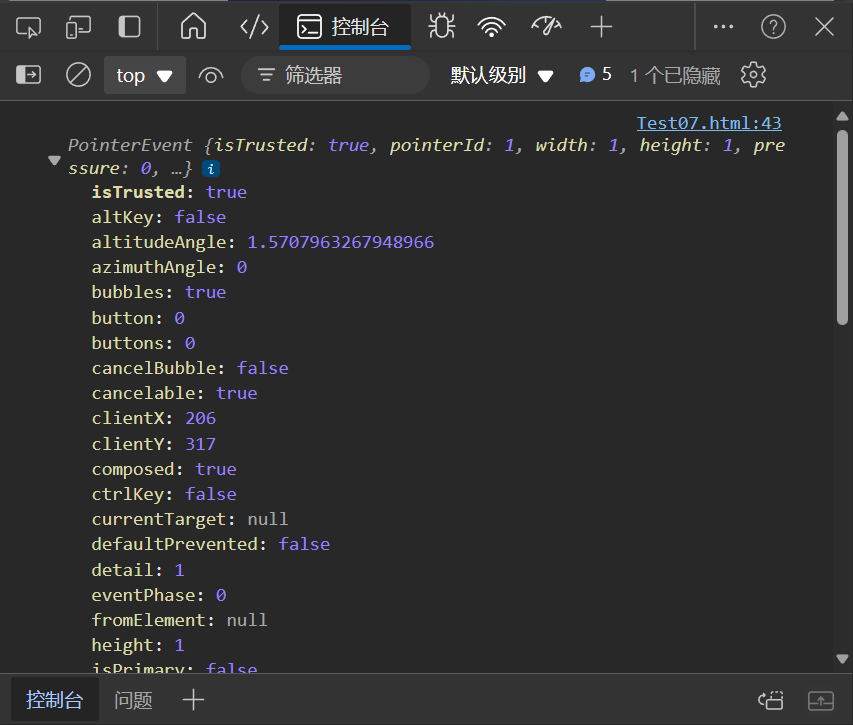
事件回调函数的【第1个参数】即所谓的事件对象,通常习惯性的将这个对数命名为 event、ev 、e 。
接下来简单看一下事件对象中包含了哪些有用的信息:
e.type 获取当前事件的类型e.clientX/e.clientY 获取光标相对浏览器可见窗口左上角的位置e.offsetX/e.offsetY 获取光标相于当前 DOM 元素左上角的位置e.key 获取用户按下的键盘键的值
注:在事件回调函数内部通过 window.event 同样可以获取事件对象。
例:
 1
 2
 3
 4
 5
 6
 7
 8
 9
10
11
12
13
14
15
16
17
|
<!DOCTYPE html>
<html lang="zh-CN">
<head>
  <meta charset="UTF-8">
</head>
<body>
    <input type="text">
	<script>
	const input = document.querySelector('input')
    input.addEventListener('keyup', function(e) {
      if (e.key == 'Enter') {
    	  console.log('按了回车键才触发')
      }
    })
	</script>
</body>
</html>
|
效果:
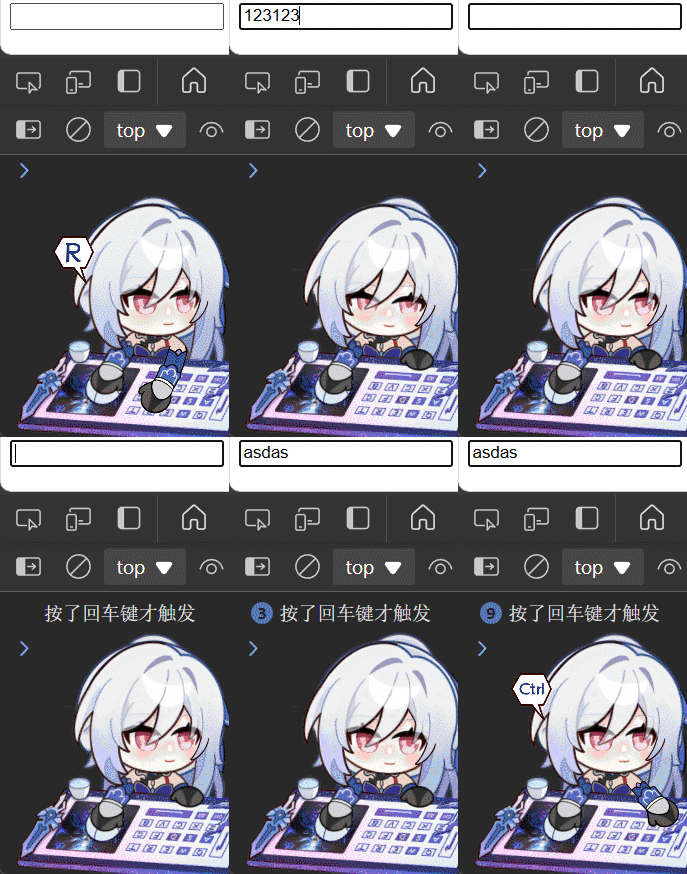
补充:trim方法
作用:去除文本最前面与最后面的所有空格
 1
 2
 3
 4
 5
 6
 7
 8
 9
10
11
12
13
14
|
<!DOCTYPE html>
<html lang="zh-CN">
<head>
  <meta charset="UTF-8">
</head>
<body>
  <script>
    const str = '    你   好     '
    console.log(str) //    你   好
    console.log(str.trim()) //你   好

  </script>
</body>
</html>
|
案例:回车发布评论
需求:按下回车键盘,可以发布信息
分析:
①:用到按下键盘事件 keydown 或者 keyup 都可以
②:如果用户按下的是回车键盘,则发布信息
③:让留言信息模块显示,把拿到的数据渲染到对应标签内部
效果图:
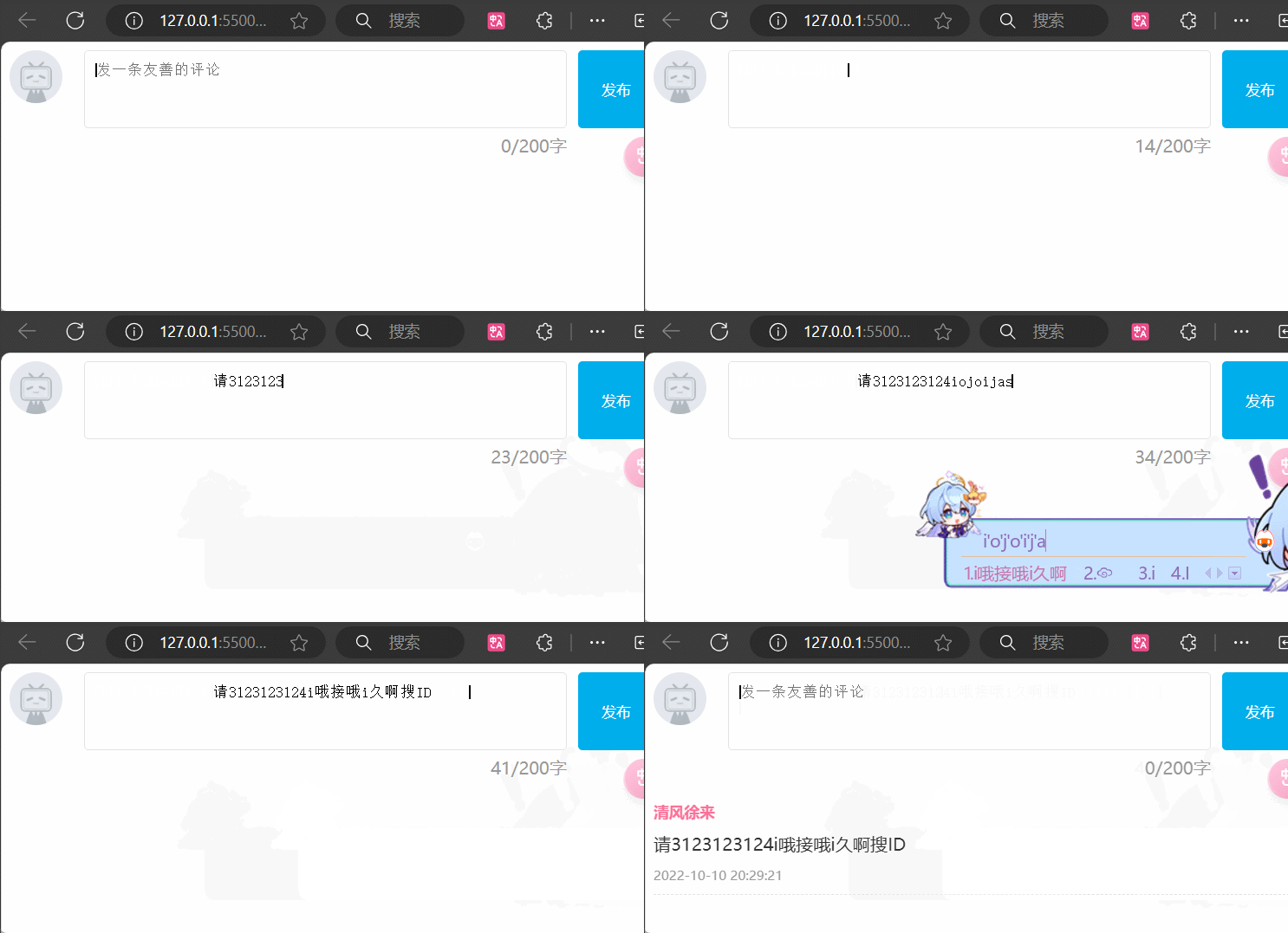
代码:
  1
  2
  3
  4
  5
  6
  7
  8
  9
 10
 11
 12
 13
 14
 15
 16
 17
 18
 19
 20
 21
 22
 23
 24
 25
 26
 27
 28
 29
 30
 31
 32
 33
 34
 35
 36
 37
 38
 39
 40
 41
 42
 43
 44
 45
 46
 47
 48
 49
 50
 51
 52
 53
 54
 55
 56
 57
 58
 59
 60
 61
 62
 63
 64
 65
 66
 67
 68
 69
 70
 71
 72
 73
 74
 75
 76
 77
 78
 79
 80
 81
 82
 83
 84
 85
 86
 87
 88
 89
 90
 91
 92
 93
 94
 95
 96
 97
 98
 99
100
101
102
103
104
105
106
107
108
109
110
111
112
113
114
115
116
117
118
119
120
121
122
123
124
125
126
127
128
129
130
131
132
133
134
135
136
137
138
139
140
141
142
143
144
145
146
147
148
149
150
151
152
153
154
|
<!DOCTYPE html>
<html lang="zh-CN">
<head>
  <meta charset="UTF-8">
  <title>回车发布评论</title>
  <style>
    .wrapper {
      min-width: 400px;
      max-width: 800px;
      display: flex;
      justify-content: flex-end;
    }

    .avatar {
      width: 48px;
      height: 48px;
      border-radius: 50%;
      overflow: hidden;
      background: url(./images/avatar.jpg) no-repeat center / cover;
      margin-right: 20px;
    }

    .wrapper textarea {
      outline: none;
      border-color: transparent;
      resize: none;
      background: #f5f5f5;
      border-radius: 4px;
      flex: 1;
      padding: 10px;
      transition: all 0.5s;
      height: 30px;
    }

    .wrapper textarea:focus {
      border-color: #e4e4e4;
      background: #fff;
      height: 50px;
    }

    .wrapper button {
      background: #00aeec;
      color: #fff;
      border: none;
      border-radius: 4px;
      margin-left: 10px;
      width: 70px;
      cursor: pointer;
    }

    .wrapper .total {
      margin-right: 80px;
      color: #999;
      margin-top: 5px;
      opacity: 0;
      transition: all 0.5s;
    }

    .list {
      min-width: 400px;
      max-width: 800px;
      display: flex;
    }

    .list .item {
      width: 100%;
      display: flex;
    }

    .list .item .info {
      flex: 1;
      border-bottom: 1px dashed #e4e4e4;
      padding-bottom: 10px;
    }

    .list .item p {
      margin: 0;
    }

    .list .item .name {
      color: #FB7299;
      font-size: 14px;
      font-weight: bold;
    }

    .list .item .text {
      color: #333;
      padding: 10px 0;
    }

    .list .item .time {
      color: #999;
      font-size: 12px;
    }
  </style>
</head>
<body>
  <div class="wrapper">
    <i class="avatar"></i>
    <textarea id="tx" placeholder="发一条友善的评论" rows="2" maxlength="200"></textarea>
    <button>发布</button>
  </div>
  <div class="wrapper">
    <span class="total">0/200字</span>
  </div>
  <div class="list">
    <div class="item" style="display: none;">
      <i class="avatar"></i>
      <div class="info">
        <p class="name">清风徐来</p>
        <p class="text">大家都辛苦啦,感谢各位大大的努力,能圆满完成真是太好了[笑哭][支持]</p>
        <p class="time">2022-10-10 20:29:21</p>
      </div>
    </div>
  </div>
  <script>
    const tx = document.querySelector('#tx')
    const total = document.querySelector('.total')
    const item = document.querySelector('.list .item')
    const text = document.querySelector('.info .text')
    const time = document.querySelector('.info .time')
    // 当文本域获得了焦点,就让 total 显示出来
    tx.addEventListener('focus', function() {
      total.style.opacity = 1
    })
    // 当文本域失去了焦点,就让 total 隐藏起来
    tx.addEventListener('blur', function() {
      total.style.opacity = 0
    })
    // 检测用户输入
    tx.addEventListener('input', function() {
      total.innerHTML = `${tx.value.length}/200字`
    })

    // 按下回车发布评论
    tx.addEventListener('keyup', function(e) {
      // 只有按下的是回车键才触发
      if (e.key === 'Enter') {
        // 如果用户除了空格什么也没输入tx.value.trim()返回的就是空
        if (tx.value.trim() !== '') {
          // 把评论的内容替换为文本域的内容,并且此时文本域的内容以及被清空了首尾的空格
          text.innerHTML = tx.value
          // 显示评论,原本是设为none隐藏起来的
          item.style.display = 'block'
        }
        // 按下回车清空文本域
        tx.value = ''
        // 把字数统计也复原
        total.innerHTML = `${tx.value.length}/200字`
      }
    })
  </script>
</body>
</html>
|
环境对象
能够分析判断函数运行在不同环境中 this 所指代的对象。
环境对象指的是函数内部特殊的变量 this ,它代表着当前函数运行时所处的环境。
 1
 2
 3
 4
 5
 6
 7
 8
 9
10
11
12
13
14
15
16
17
18
19
20
21
22
23
24
25
26
|
<script>
  // 声明函数
  function sayHi() {
    // this 是一个变量
    console.log(this);
  }

  // 声明一个对象
  let user = {
    name: '张三',
    sayHi: sayHi // 此处把 sayHi 函数,赋值给 sayHi 属性
  }

  let person = {
    name: '李四',
    sayHi: sayHi
  }

  // 直接调用
  sayHi() // window
  window.sayHi() // window

  // 做为对象方法调用
  user.sayHi()// user
  person.sayHi()// person
</script>
|
结论:
this 本质上是一个变量,数据类型为对象- 函数的调用方式不同
this 变量的值也不同
- 【谁调用
this 就是谁】是判断 this 值的粗略规则
- 函数直接调用时实际上
window.sayHi() 所以 this 的值为 window
用法示例:
 1
 2
 3
 4
 5
 6
 7
 8
 9
10
11
12
13
14
15
|
<html lang="zh-CN">
<head>
  <meta charset="UTF-8">
</head>
<body>
  <button>按钮</button>
  <script>
    const btn = document.querySelector('button')
    // 点击按钮,按钮自己变红
    btn.addEventListener('click', function(e) {
      this.style.color = 'red'
    })
  </script>
</body>
</html>
|
回调函数
如果将函数 A 做为参数传递给函数 B 时,我们称函数 A 为回调函数。
 1
 2
 3
 4
 5
 6
 7
 8
 9
10
11
12
13
14
15
16
17
|
<script>
  // 声明 foo 函数
  function foo(arg) {
    console.log(arg);
  }

  // 普通的值做为参数
  foo(10);
  foo('hello world!');
  foo(['html', 'css', 'javascript']);

  function bar() {
    console.log('函数也能当参数...');
  }
  // 函数也可以做为参数!!!!
  foo(bar);
</script>
|
函数 bar 做参数传给了 foo 函数,bar 就是所谓的回调函数了!!!
我们回顾一下间歇函数 setInterval
1
2
3
4
5
6
7
|
<script>
	function fn() {
    console.log('我是回调函数...');
  }
  // 调用定时器
  setInterval(fn, 1000);
</script>
|
fn 函数做为参数传给了 setInterval ,这便是回调函数的实际应用了,结合刚刚学习的函数表达式上述代码还有另一种更常见写法。
 1
 2
 3
 4
 5
 6
 7
 8
 9
10
11
|
<script>
  // 调用定时器,匿名函数做为参数
  setInterval(function () {
    console.log('我是回调函数...');
  }, 1000);

   // 监听函数也是回调函数
   btn.addEventListener('click', function(e) {
      console.log('我也是回调函数')
   })
</script>
|
结论:
- 回调函数本质还是函数,只不过把它当成参数使用
- 使用匿名函数做为回调函数比较常见
综合案例:Tab栏切换
需求:鼠标经过不同的选项卡,底部可以显示 不同的内容
分析:
①:主要核心是类的切换, 设定一个当前类,可以让当前元素高亮
②:鼠标经过当前选项卡,先移除其余元素身上的当前类,而只给当前元素添加类,
③:注意,当前类只能有一个
效果图:
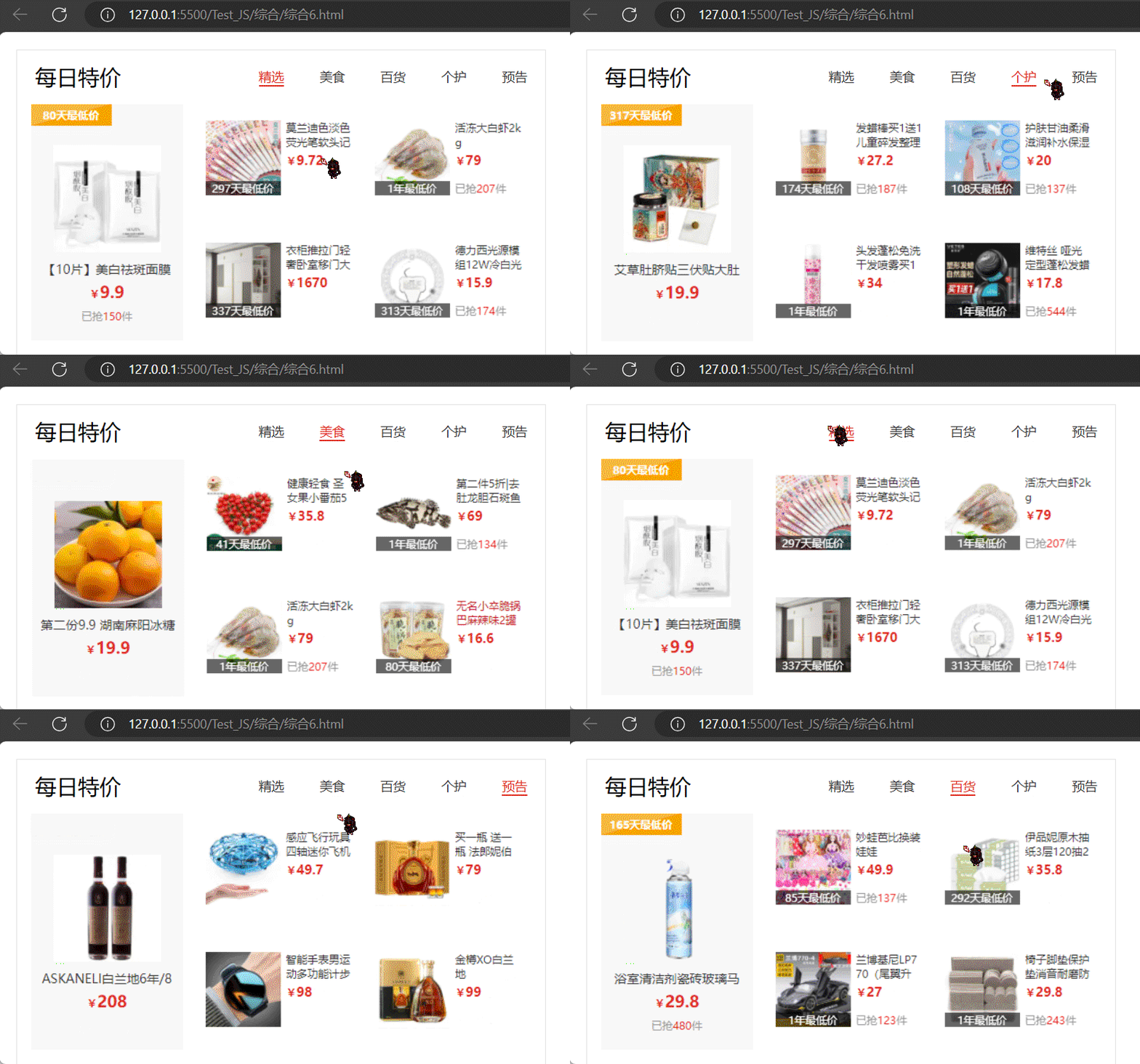
代码:
  1
  2
  3
  4
  5
  6
  7
  8
  9
 10
 11
 12
 13
 14
 15
 16
 17
 18
 19
 20
 21
 22
 23
 24
 25
 26
 27
 28
 29
 30
 31
 32
 33
 34
 35
 36
 37
 38
 39
 40
 41
 42
 43
 44
 45
 46
 47
 48
 49
 50
 51
 52
 53
 54
 55
 56
 57
 58
 59
 60
 61
 62
 63
 64
 65
 66
 67
 68
 69
 70
 71
 72
 73
 74
 75
 76
 77
 78
 79
 80
 81
 82
 83
 84
 85
 86
 87
 88
 89
 90
 91
 92
 93
 94
 95
 96
 97
 98
 99
100
101
102
103
104
105
106
107
108
|
<!DOCTYPE html>
<html lang="zh-CN">
<head>
  <meta charset="UTF-8" />
  <title>综合6:tab栏切换</title>
  <style>
    * {
      margin: 0;
      padding: 0;
    }

    .tab {
      width: 590px;
      height: 340px;
      margin: 20px;
      border: 1px solid #e4e4e4;
    }

    .tab-nav {
      width: 100%;
      height: 60px;
      line-height: 60px;
      display: flex;
      justify-content: space-between;
    }

    .tab-nav h3 {
      font-size: 24px;
      font-weight: normal;
      margin-left: 20px;
    }

    .tab-nav ul {
      list-style: none;
      display: flex;
      justify-content: flex-end;
    }

    .tab-nav ul li {
      margin: 0 20px;
      font-size: 14px;
    }

    .tab-nav ul li a {
      text-decoration: none;
      border-bottom: 2px solid transparent;
      color: #333;
    }

    .tab-nav ul li a.active {
      border-color: #e1251b;
      color: #e1251b;
    }

    .tab-content {
      padding: 0 16px;
    }

    .tab-content .item {
      display: none;
    }

    .tab-content .item.active {
      display: block;
    }
  </style>
</head>
<body>
  <div class="tab">
    <div class="tab-nav">
      <h3>每日特价</h3>
      <ul>
        <li><a class="active" href="javascript:;">精选</a></li>
        <li><a href="javascript:;">美食</a></li>
        <li><a href="javascript:;">百货</a></li>
        <li><a href="javascript:;">个护</a></li>
        <li><a href="javascript:;">预告</a></li>
      </ul>
    </div>
    <div class="tab-content">
      <div class="item active"><img src="./images/tab00.png" alt="" /></div>
      <div class="item"><img src="./images/tab01.png" alt="" /></div>
      <div class="item"><img src="./images/tab02.png" alt="" /></div>
      <div class="item"><img src="./images/tab03.png" alt="" /></div>
      <div class="item"><img src="./images/tab04.png" alt="" /></div>
    </div>
  </div>
  <script>
    // 给五个链接绑定鼠标经过事件
    const as = document.querySelectorAll('.tab-nav ul li a')
    for (let i = 0; i < as.length; i++) {
      // 当鼠标经过时发生变化
      as[i].addEventListener('mouseenter',function() {
        // 先移除之前的高亮链接
        document.querySelector('.tab-nav .active').classList.remove('active')
        // 把鼠标经过的链接设为高亮,此时的this是as[i]
        this.classList.add('active')

        // 让下方的图片也替换为对应的图片
        // 先把之前的图片隐藏
        document.querySelector('.tab-content .active').classList.remove('active')
        // 把鼠标经过的链接的对应图片显示
        document.querySelector(`.tab-content .item:nth-child(${i + 1})`).classList.add('active')
      })
    }
  </script>
</body>
</html>
|
综合案例:全选按钮
需求:用户点击全选,则下面复选框全部选择,取消全选则全部取消;当下方复选框全部被勾选时,全选框也自动被勾选,当有至少一个复选框没勾选时,自动取消全选框的勾选状态
分析:
①:全选复选框点击,可以得到当前按钮的 checked
②:把下面所有的小复选框状态checked,改为和全选复选框一致
③:遍历下面的所有的checkbox,添加点击事件
④:检查小复选框选中的个数,是不是等于 小复选框总的个数,
⑤: 把结果给全选按钮
⑥: 利用css 复选框选择器 input:checked
效果图:
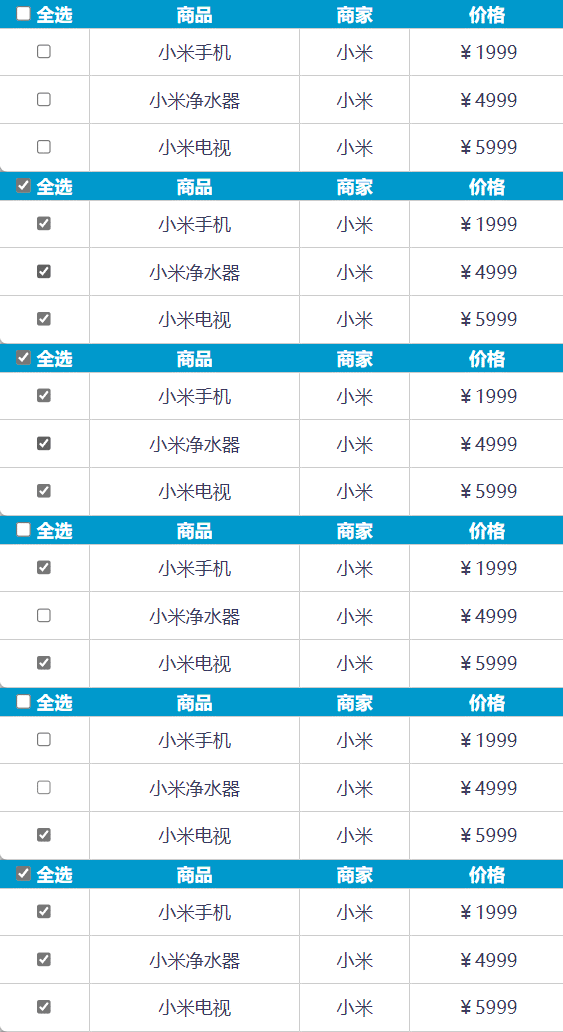
代码:
  1
  2
  3
  4
  5
  6
  7
  8
  9
 10
 11
 12
 13
 14
 15
 16
 17
 18
 19
 20
 21
 22
 23
 24
 25
 26
 27
 28
 29
 30
 31
 32
 33
 34
 35
 36
 37
 38
 39
 40
 41
 42
 43
 44
 45
 46
 47
 48
 49
 50
 51
 52
 53
 54
 55
 56
 57
 58
 59
 60
 61
 62
 63
 64
 65
 66
 67
 68
 69
 70
 71
 72
 73
 74
 75
 76
 77
 78
 79
 80
 81
 82
 83
 84
 85
 86
 87
 88
 89
 90
 91
 92
 93
 94
 95
 96
 97
 98
 99
100
101
102
103
|
<!DOCTYPE html>
<html>
<head lang="zh-CN">
  <meta charset="UTF-8">
  <title></title>
  <style>
    * {
      margin: 0;
      padding: 0;
    }

    table {
      border-collapse: collapse;
      border-spacing: 0;
      border: 1px solid #c0c0c0;
      width: 500px;
      margin: 100px auto;
      text-align: center;
    }

    th {
      background-color: #09c;
      font: bold 16px "微软雅黑";
      color: #fff;
      height: 24px;
    }

    td {
      border: 1px solid #d0d0d0;
      color: #404060;
      padding: 10px;
    }

    .allCheck {
      width: 80px;
    }
  </style>
</head>
<body>
  <table>
    <tr>
      <th class="allCheck">
        <input type="checkbox" name="" id="checkAll"> <span class="all">全选</span>
      </th>
      <th>商品</th>
      <th>商家</th>
      <th>价格</th>
    </tr>
    <tr>
      <td>
        <input type="checkbox" name="check" class="ck">
      </td>
      <td>小米手机</td>
      <td>小米</td>
      <td>¥1999</td>
    </tr>
    <tr>
      <td>
        <input type="checkbox" name="check" class="ck">
      </td>
      <td>小米净水器</td>
      <td>小米</td>
      <td>¥4999</td>
    </tr>
    <tr>
      <td>
        <input type="checkbox" name="check" class="ck">
      </td>
      <td>小米电视</td>
      <td>小米</td>
      <td>¥5999</td>
    </tr>
  </table>
  <script>
    // 获取全选框(大复选框)
    const checkAll = document.querySelector('#checkAll')
    // 获取所有小复选框
    const cks = document.querySelectorAll('.ck')
    // 点击全选框事件
    checkAll.addEventListener('click', function() {
      // 使小复选框的状态与多选框保持一致
      for (let i = 0; i < cks.length; i++) {
        cks[i].checked = this.checked
      }
    })
    // 小复选框控制全选框
    // 给所有的小复选框添加点击事件
    for (let i = 0; i < cks.length; i++) {
      cks[i].addEventListener('click', function() {
        // 判断选中的小复选框个数是否等于小复选框总数
        if (document.querySelectorAll('.ck:checked').length === cks.length) {
          checkAll.checked = true
        }
        else {
          checkAll.checked = false
        }
        // 上述判断语句可以浓缩为下方代码,但为了便于理解,使用if语句
        // checkAll.checked = document.querySelectorAll('.ck:checked').length === cks.length
      })
    }
  </script>
</body>
</html>
|
Web APIs - 第3天
进一步学习 事件进阶,实现更多交互的网页特效,结合事件流的特征优化事件执行的效率
事件流
事件流是对事件执行过程的描述,了解事件的执行过程有助于加深对事件的理解,提升开发实践中对事件运用的灵活度。
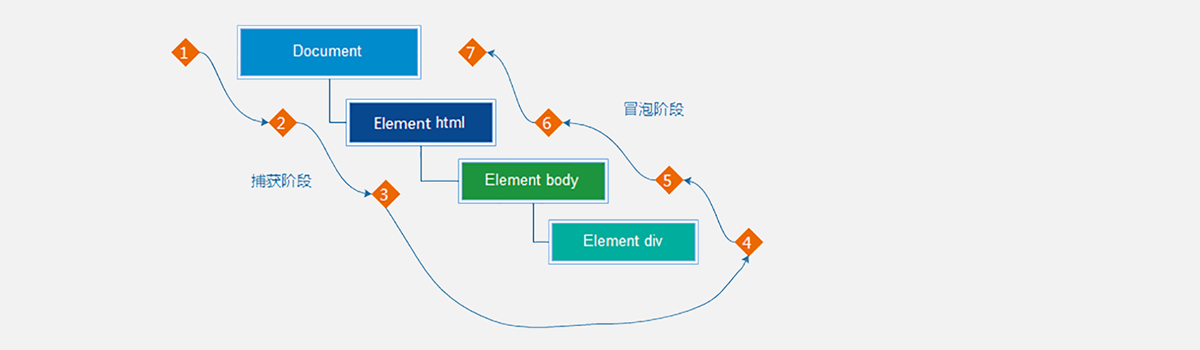
如上图所示,任意事件被触发时总会经历两个阶段:【捕获阶段】和【冒泡阶段】。
简言之,捕获阶段是【从父到子】的传导过程,冒泡阶段是【从子向父】的传导过程。
捕获和冒泡
了解了什么是事件流之后,我们来看事件流是如何影响事件执行的:
 1
 2
 3
 4
 5
 6
 7
 8
 9
10
11
12
13
14
15
16
17
18
19
20
21
22
23
24
25
26
27
28
29
30
31
32
33
34
35
36
37
38
39
40
|
<body>
  <h3>事件流</h3>
  <p>事件流是事件在执行时的底层机制,主要体现在父子盒子之间事件的执行上。</p>
  <div class="outer">
    <div class="inner">
      <div class="child"></div>
    </div>
  </div>
  <script>
    // 获取嵌套的3个节点
    const outer = document.querySelector('.outer');
    const inner = document.querySelector('.inner');
    const child = document.querySelector('.child');

    // html 元素添加事件
    document.documentElement.addEventListener('click', function () {
      console.log('html...')
    })

    // body 元素添加事件
    document.body.addEventListener('click', function () {
      console.log('body...')
    })

    // 外层的盒子添加事件
    outer.addEventListener('click', function () {
      console.log('outer...')
    })

    // 中间的盒子添加事件
    outer.addEventListener('click', function () {
      console.log('inner...')
    })

    // 内层的盒子添加事件
    outer.addEventListener('click', function () {
      console.log('child...')
    })
  </script>
</body>
|
执行上述代码后发现,当单击事件触发时,其祖先元素的单击事件也【相继触发】,这是为什么呢?
结合事件流的特征,我们知道当某个元素的事件被触发时,事件总是会先经过其祖先才能到达当前元素,然后再由当前元素向祖先传递,事件在流动的过程中遇到相同的事件便会被触发。
再来关注一个细节就是事件相继触发的【执行顺序】,事件的执行顺序是可控制的,即可以在捕获阶段被执行,也可以在冒泡阶段被执行。
如果事件是在冒泡阶段执行的,我们称为冒泡模式,它会先执行子盒子事件再去执行父盒子事件,默认是冒泡模式。
如果事件是在捕获阶段执行的,我们称为捕获模式,它会先执行父盒子事件再去执行子盒子事件。
 1
 2
 3
 4
 5
 6
 7
 8
 9
10
11
12
13
14
15
16
17
18
19
20
21
22
|
<body>
  <h3>事件流</h3>
  <p>事件流是事件在执行时的底层机制,主要体现在父子盒子之间事件的执行上。</p>
  <div class="outer">
    <div class="inner"></div>
  </div>
  <script>
    // 获取嵌套的3个节点
    const outer = document.querySelector('.outer')
    const inner = document.querySelector('.inner')

    // 外层的盒子
    outer.addEventListener('click', function () {
      console.log('outer...')
    }, true) // true 表示在捕获阶段执行事件

    // 中间的盒子
    outer.addEventListener('click', function () {
      console.log('inner...')
    }, true)
  </script>
</body>
|
结论:
addEventListener 第3个参数决定了事件是在捕获阶段触发还是在冒泡阶段触发addEventListener 第3个参数为 true 表示捕获阶段触发,false 表示冒泡阶段触发,默认值为 false- 事件流只会在父子元素具有相同事件类型时才会产生影响
- 绝大部分场景都采用默认的冒泡模式(其中一个原因是早期 IE 不支持捕获)
阻止冒泡
阻止冒泡是指阻断事件的流动,保证事件只在当前元素被执行,而不再去影响到其对应的祖先元素。
 1
 2
 3
 4
 5
 6
 7
 8
 9
10
11
12
13
14
15
16
17
18
19
20
21
22
23
24
25
26
27
28
29
30
31
32
33
34
35
36
|
<body>
  <h3>阻止冒泡</h3>
  <p>阻止冒泡是指阻断事件的流动,保证事件只在当前元素被执行,而不再去影响到其对应的祖先元素。</p>
  <div class="outer">
    <div class="inner">
      <div class="child"></div>
    </div>
  </div>
  <script>
    // 获取嵌套的3个节点
    const outer = document.querySelector('.outer')
    const inner = document.querySelector('.inner')
    const child = document.querySelector('.child')

    // 外层的盒子
    outer.addEventListener('click', function () {
      console.log('outer...')
    })

    // 中间的盒子
    inner.addEventListener('click', function (ev) {
      console.log('inner...')

      // 阻止事件冒泡
      ev.stopPropagation()
    })

    // 内层的盒子
    child.addEventListener('click', function (ev) {
      console.log('child...')

      // 借助事件对象,阻止事件向上冒泡
      ev.stopPropagation()
    })
  </script>
</body>
|
结论:事件对象中的 ev.stopPropagation 方法,专门用来阻止事件冒泡。
鼠标经过事件:
mouseover 和 mouseout 会有冒泡效果
mouseenter 和 mouseleave 没有冒泡效果 (推荐)
阻止默认行为
在某些情况下,我们需要阻止默认行为的发生,比如在为满足特定条件时,阻止链接的跳转
语法:e.preventDefault()
1
2
3
4
5
6
7
8
9
|
form.addEventListener('submit', function(e) {
    // 阻止表单默认提交行为
    e.preventDefault()
})

a.addEventListener('click', function(e) {
    // 阻止超链接默认跳转行为
    e.preventDefault()
})
|
解绑事件
解绑后,不会再触发事件
 1
 2
 3
 4
 5
 6
 7
 8
 9
10
11
12
13
14
15
16
|
// 绑定事件1
btn.onclick = function() {
    alert('点击了')
}
// 解绑事件1
btn.onclick = null


// 绑定事件2
function fn() {
  alert('点击了')
}
btn.addEventListener('click', fn)//回调函数,即函数作为参数时无需加()
// 解绑事件2
// 注:匿名函数无法被解绑
btn.removeEventListener('click', fn)
|
事件委托
事件委托是利用事件流的特征解决一些现实开发需求的知识技巧,主要的作用是提升程序效率。
大量的事件监听是比较耗费性能的,如下代码所示
 1
 2
 3
 4
 5
 6
 7
 8
 9
10
11
|
<script>
  // 假设页面中有 10000 个 button 元素
  const buttons = document.querySelectorAll('table button');

  for(let i = 0; i <= buttons.length; i++) {
    // 为 10000 个 button 元素添加了事件
    buttons.addEventListener('click', function () {
      // 省略具体执行逻辑...
    })
  }
</script>
|
利用事件流的特征,可以对上述的代码进行优化,事件的的冒泡模式总是会将事件流向其父元素的,如果父元素监听了相同的事件类型,那么父元素的事件就会被触发并执行,正是利用这一特征对上述代码进行优化,如下代码所示:
 1
 2
 3
 4
 5
 6
 7
 8
 9
10
|
<script>
  // 假设页面中有 10000 个 button 元素
  let buttons = document.querySelectorAll('table button');

  // 假设上述的 10000 个 buttom 元素共同的祖先元素是 table
  let parents = document.querySelector('table');
  parents.addEventListener('click', function () {
    console.log('点击任意子元素都会触发事件...');
  })
</script>
|
我们的最终目的是保证只有点击 button 子元素才去执行事件的回调函数,如何判断用户点击是哪一个子元素呢?
事件对象中的属性 target 或 srcElement属性表示真正触发事件的元素,它是一个元素类型的节点。
 1
 2
 3
 4
 5
 6
 7
 8
 9
10
11
12
13
14
15
|
<script>
  // 假设页面中有 10000 个 button 元素
  const buttons = document.querySelectorAll('table button')

  // 假设上述的 10000 个 buttom 元素共同的祖先元素是 table
  const parents = document.querySelector('table')
  parents.addEventListener('click', function (ev) {
    // console.log(ev.target);
    // 只有 button 元素才会真正去执行逻辑
    if(ev.target.tagName === 'BUTTON') {
      // 执行的逻辑
      ev.target.style.color = 'red'
    }
  })
</script>
|
优化过的代码只对祖先元素添加事件监听,相比对 10000 个元素添加事件监听执行效率要高许多!!!
案例练习:tab栏切换优化版
需求:优化程序,将tab切换案例改为事件委托写法
思路:
①:给a的父级 注册点击事件,采取事件委托方式
②: 如果点击的是A , 则进行排他思想,删除添加类
③: 注意判断的方式 利用 e.target.tagName
④: 因为没有索引号了,所以这里我们可以自定义属性,给5个链接添加序号
⑤: 下面大盒子获取索引号的方式 e.target.dataset.id 号, 然后进行排他思想
效果图:
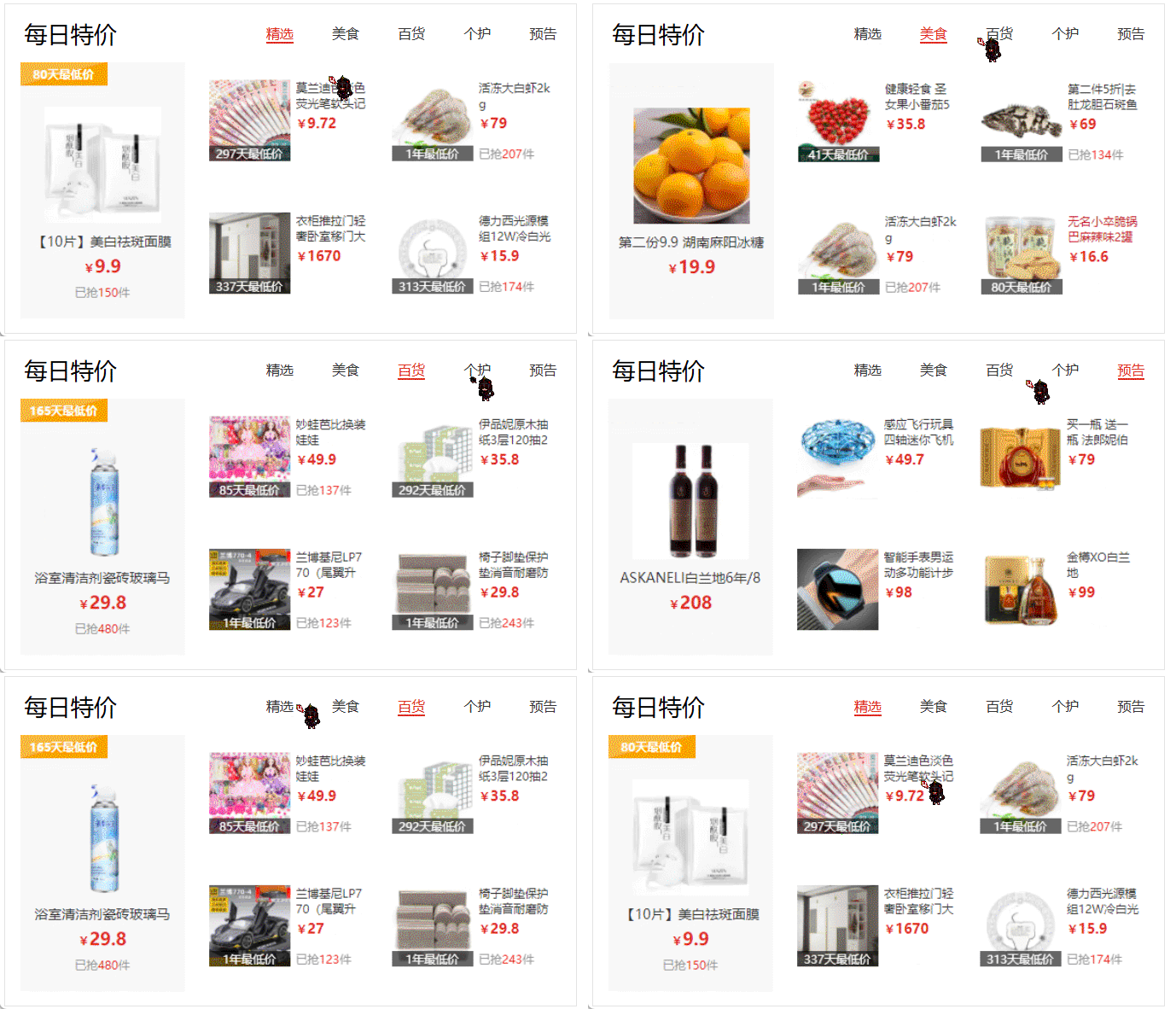
代码:
  1
  2
  3
  4
  5
  6
  7
  8
  9
 10
 11
 12
 13
 14
 15
 16
 17
 18
 19
 20
 21
 22
 23
 24
 25
 26
 27
 28
 29
 30
 31
 32
 33
 34
 35
 36
 37
 38
 39
 40
 41
 42
 43
 44
 45
 46
 47
 48
 49
 50
 51
 52
 53
 54
 55
 56
 57
 58
 59
 60
 61
 62
 63
 64
 65
 66
 67
 68
 69
 70
 71
 72
 73
 74
 75
 76
 77
 78
 79
 80
 81
 82
 83
 84
 85
 86
 87
 88
 89
 90
 91
 92
 93
 94
 95
 96
 97
 98
 99
100
101
102
103
104
105
106
107
|
<!DOCTYPE html>
<html lang="zh-CN">
<head>
  <meta charset="UTF-8" />
  <title>tab栏切换</title>
  <style>
    * {
      margin: 0;
      padding: 0;
    }

    .tab {
      width: 590px;
      height: 340px;
      margin: 20px;
      border: 1px solid #e4e4e4;
    }

    .tab-nav {
      width: 100%;
      height: 60px;
      line-height: 60px;
      display: flex;
      justify-content: space-between;
    }

    .tab-nav h3 {
      font-size: 24px;
      font-weight: normal;
      margin-left: 20px;
    }

    .tab-nav ul {
      list-style: none;
      display: flex;
      justify-content: flex-end;
    }

    .tab-nav ul li {
      margin: 0 20px;
      font-size: 14px;
    }

    .tab-nav ul li a {
      text-decoration: none;
      border-bottom: 2px solid transparent;
      color: #333;
    }

    .tab-nav ul li a.active {
      border-color: #e1251b;
      color: #e1251b;
    }

    .tab-content {
      padding: 0 16px;
    }

    .tab-content .item {
      display: none;
    }

    .tab-content .item.active {
      display: block;
    }
  </style>
</head>
<body>
  <div class="tab">
    <div class="tab-nav">
      <h3>每日特价</h3>
      <ul>
        <li><a class="active" href="javascript:;" data-id="1">精选</a></li>
        <li><a href="javascript:;" data-id="2">美食</a></li>
        <li><a href="javascript:;" data-id="3">百货</a></li>
        <li><a href="javascript:;" data-id="4">个护</a></li>
        <li><a href="javascript:;" data-id="5">预告</a></li>
      </ul>
    </div>
    <div class="tab-content">
      <div class="item active"><img src="./images/tab00.png" alt="" /></div>
      <div class="item"><img src="./images/tab01.png" alt="" /></div>
      <div class="item"><img src="./images/tab02.png" alt="" /></div>
      <div class="item"><img src="./images/tab03.png" alt="" /></div>
      <div class="item"><img src="./images/tab04.png" alt="" /></div>
    </div>
  </div>
  <script>
    // 采取事件委托的形式进行切换
    // 获取顶部链接的父元素ul
    const ul = document.querySelector('.tab-nav ul')
    // 为ul添加事件
    ul.addEventListener('click', function(e) {
      // 判断点击的是否是想要的
      if (e.target.tagName === 'A') {
        // 修改高亮的链接
        document.querySelector('.tab-nav .active').classList.remove('active')
        e.target.classList.add('active')
        // 修改下方的图片
        document.querySelector('.tab-content .active').classList.remove('active')
        const i = e.target.dataset.id
        document.querySelector(`.tab-content .item:nth-child(${i})`).classList.add('active')
      }
    })
  </script>
</body>
</html>
|
其他事件
页面加载事件
有些时候需要等页面资源全部处理完了做一些事情
有些时候需要等页面资源全部处理完了做一些事情
老代码喜欢把 script 写在 head 中,这时候直接找 dom 元素找不到
第一种:事件名:load
加载外部资源(如图片、外联CSS和JavaScript等)加载完毕时触发的事件
监听页面所有资源加载完毕:给 window 添加 load 事件
1
2
3
|
window.addEventListener('load', function() {
    // xxxxx
})
|
注意:不光可以监听整个页面资源加载完毕,也可以针对某个资源绑定load事件
第二种:事件名:DOMContentLoaded
当初始的 HTML 文档被完全加载和解析完成之后,DOMContentLoaded 事件被触发,而无需等待样式表、图像等完全加载
监听页面DOM加载完毕:给 document 添加 DOMContentLoaded 事件
1
2
3
|
document.addEventListener('DOMContentLoaded', function() {
  // 执行的操作
})
|
元素滚动事件
滚动条在滚动的时候持续触发的事件
1
2
3
|
window.addEventListener('scroll', function() {
    // xxxxx
})
|
获取位置:
获取被卷去的大小
获取元素内容往左、往上滚出去看不到的距离
这两个值是可读写的
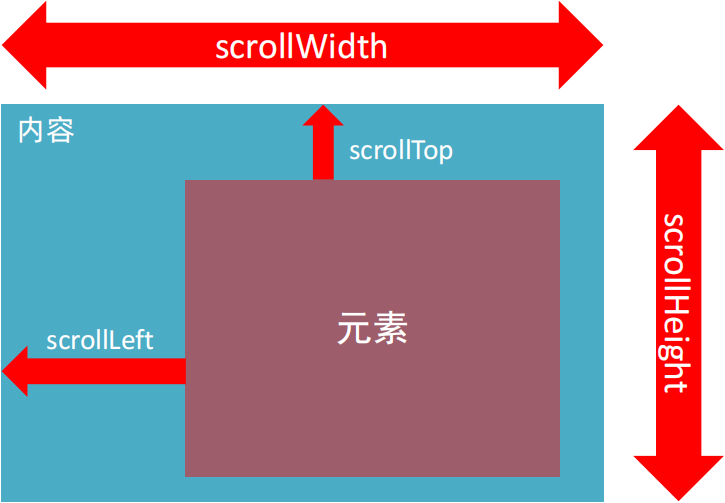
1
2
3
|
div.addEventListener('scroll', function() {
  console.log(this.scrollTop)
})
|
开发中,我们经常检测页面滚动的距离,比如页面滚动100像素,就可以显示一个元素,或者固定一个元素
1
2
3
4
5
|
window.addEventListener('scroll', function() {
    // 获取html的写法:document.documentElement
    const n = document.documentElement.scrollTop // 得到的是不带单位的数字
    console.log(n)
})
|

滚动到指定的坐标
scrollTo() 方法可把内容滚动到指定的坐标
语法:元素.scrollTo(x, y)
1
2
|
// 让页面滚动到y轴1000像素的位置
window.scrollTo(0, 1000)
|
案例:页面滚动显示隐藏侧边栏
需求:当页面滚动大于300像素的距离时候,就显示侧边栏,否则隐藏侧边栏
分析:
①:需要用到页面滚动事件
②:检测页面被卷去的头部,如果大于300,就让侧边栏显示
③:显示和隐藏配合css过渡,利用opacity加渐变效果
 1
 2
 3
 4
 5
 6
 7
 8
 9
10
11
12
13
14
|
    // 获取元素
    const elevator = document.querySelector('.xtx-elevator')
    const backTop = document.querySelector('#backTop')
    // 当页面滚动大于300像素,就显示电梯导航
    // 给页面添加滚动事件
    window.addEventListener('scroll', function() {
      // 被卷去的头部大于300时显示导航,否则隐藏
      const n = document.documentElement.scrollTop
      elevator.style.opacity = n >= 300 ? 1 : 0
    })
    // 导航的点击返回页面顶部按钮
    backTop.addEventListener('click', function() {
      document.documentElement.scrollTop = 0
    })
|
页面尺寸事件
会在窗口尺寸改变的时候触发事件:
1
2
3
|
window.addEventListener('resize', function() {
    // xxxxx
})
|
获取元素宽高
获取宽高:
获取元素的可见部分宽高(不包含边框,margin,滚动条等,包含padding)
clientWidth和clientHeight
1
2
3
4
|
window.addEventListener('resize', function() {
  let w = document.documentElement.clientWidth
  console.log(w) // 以数字形式输出当前的窗口宽度,隐藏单位是像素
})
|
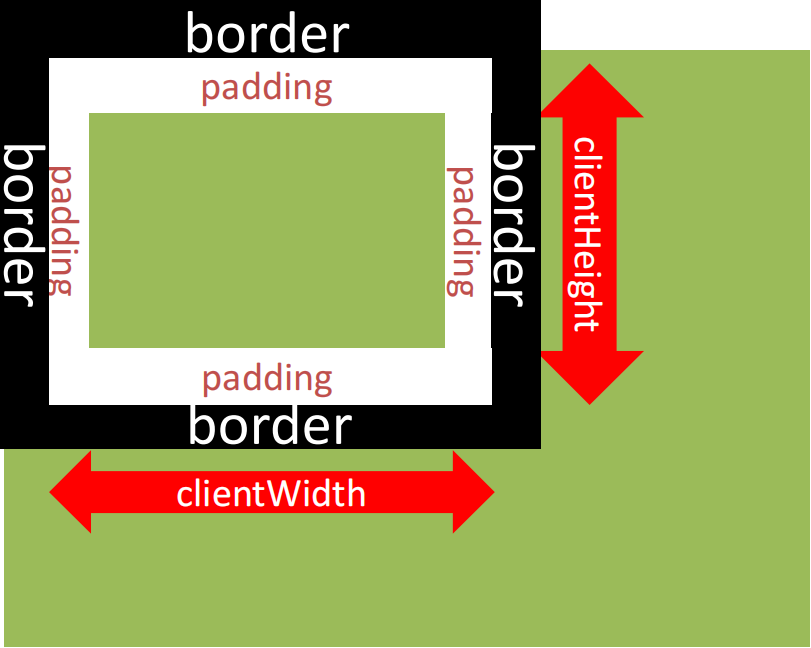
元素尺寸与位置
前面案例滚动多少距离,都是我们自己算的,最好是页面滚动到某个元素,就可以做某些事。
简单说,就是通过js的方式,得到元素在页面中的位置
这样我们可以做,页面滚动到这个位置,就可以做某些操作,省去计算了
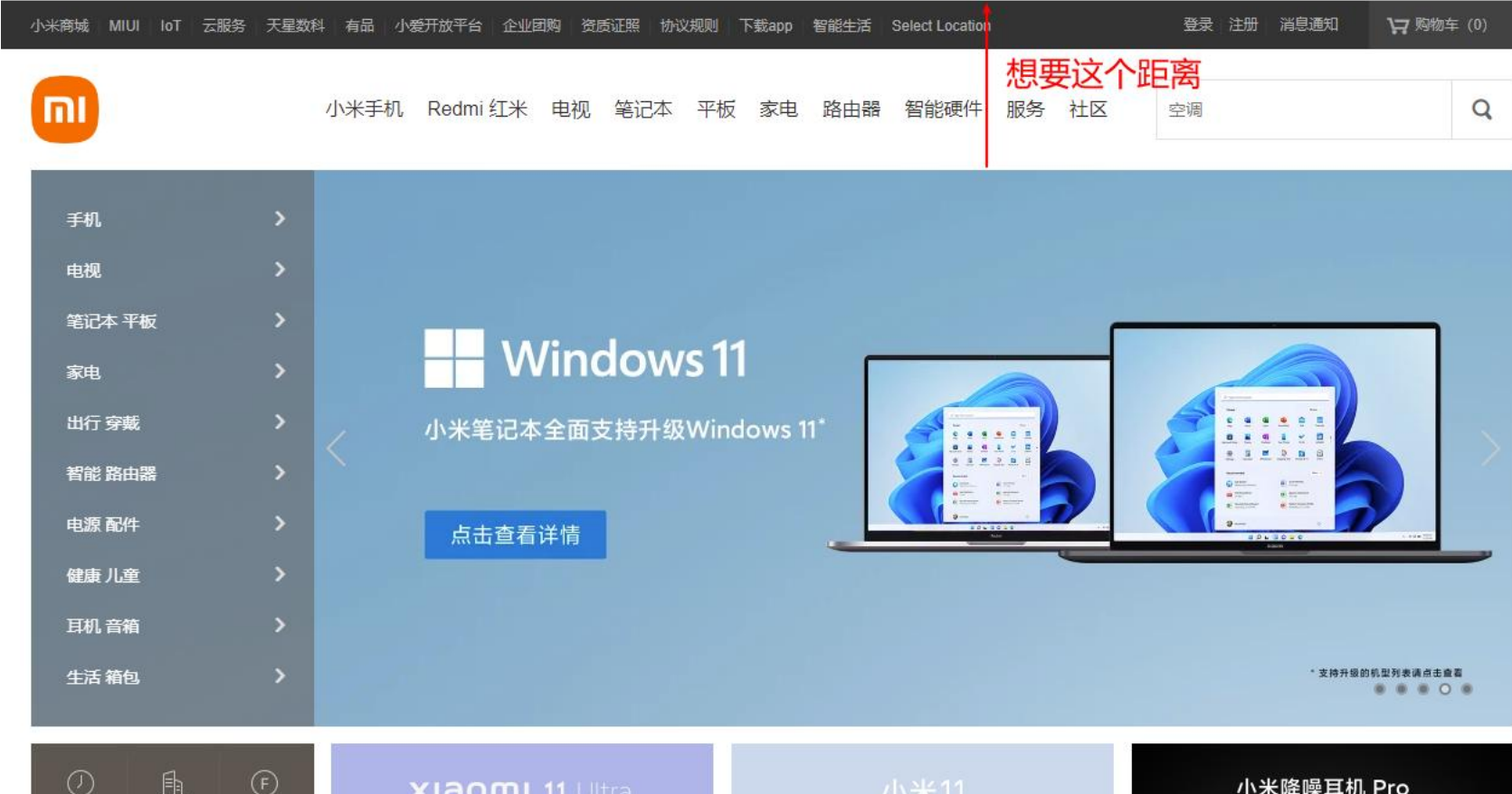
获取元素的自身宽高、包含元素自身设置的宽高、padding、border
通过:offsetWidth和offsetHeight
获取出来的是数值,方便计算
注意:获取的是可视宽高, 如果盒子是隐藏的,获取的结果是0
法1:
获取元素距离自己定位父级元素的左、上距离,即受祖先元素影响(类似绝对定位)
offsetLeft和offsetTop 注意是只读属性
例:
 1
 2
 3
 4
 5
 6
 7
 8
 9
10
11
12
13
14
15
16
17
18
19
20
21
22
23
24
25
26
27
28
29
30
31
32
|
<!DOCTYPE html>
<html lang="zh-CN">
<head>
  <meta charset="UTF-8">
  <title>Document</title>
  <style>
    div {
      width: 200px;
      height: 200px;
      background-color: pink;
      margin: 100px;
      position: relative;
    }
    p {
      width: 100px;
      height: 100px;
      background-color: wheat;
      margin: 50px;
    }
  </style>
</head>
<body>
  <div>
    <p></p>
  </div>
  <script>
    const div = document.querySelector('div')
    const p = document.querySelector('p')
    console.log(p.offsetLeft) //父亲开启定位前:158,开启定位后50
  </script>
</body>
</html>
|
法2:
element.getBoundingClientRect()方法返回元素的大小及其相对于视口的位置
例:
 1
 2
 3
 4
 5
 6
 7
 8
 9
10
11
12
13
14
15
16
17
18
19
20
21
22
23
24
25
|
<!DOCTYPE html>
<html lang="zh-CN">
<head>
  <meta charset="UTF-8">
  <title>Document</title>
  <style>
    div {
      width: 200px;
      height: 200px;
      background-color: pink;
      margin: 100px;
      position: relative;
    }
  </style>
</head>
<body>
  <div>
    <p></p>
  </div>
  <script>
    const div = document.querySelector('div')
    console.log(div.getBoundingClientRect()) // 返回值见图
  </script>
</body>
</html>
|
效果图:
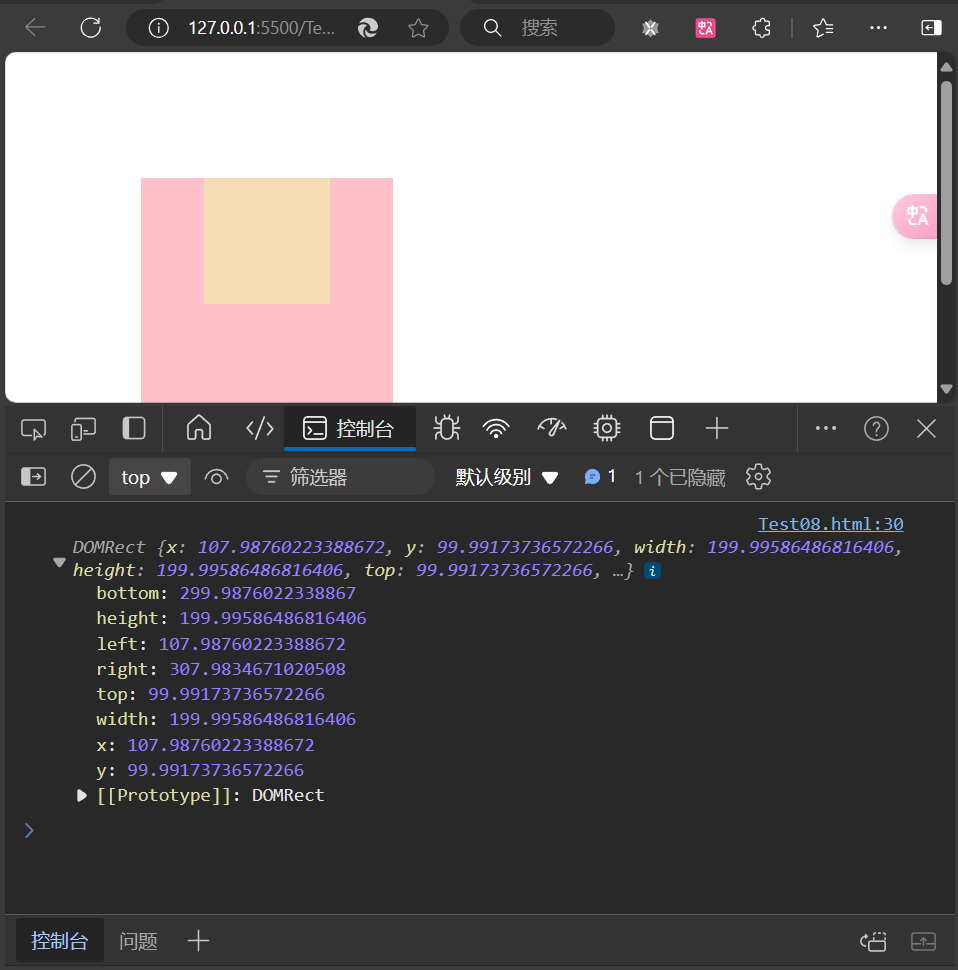
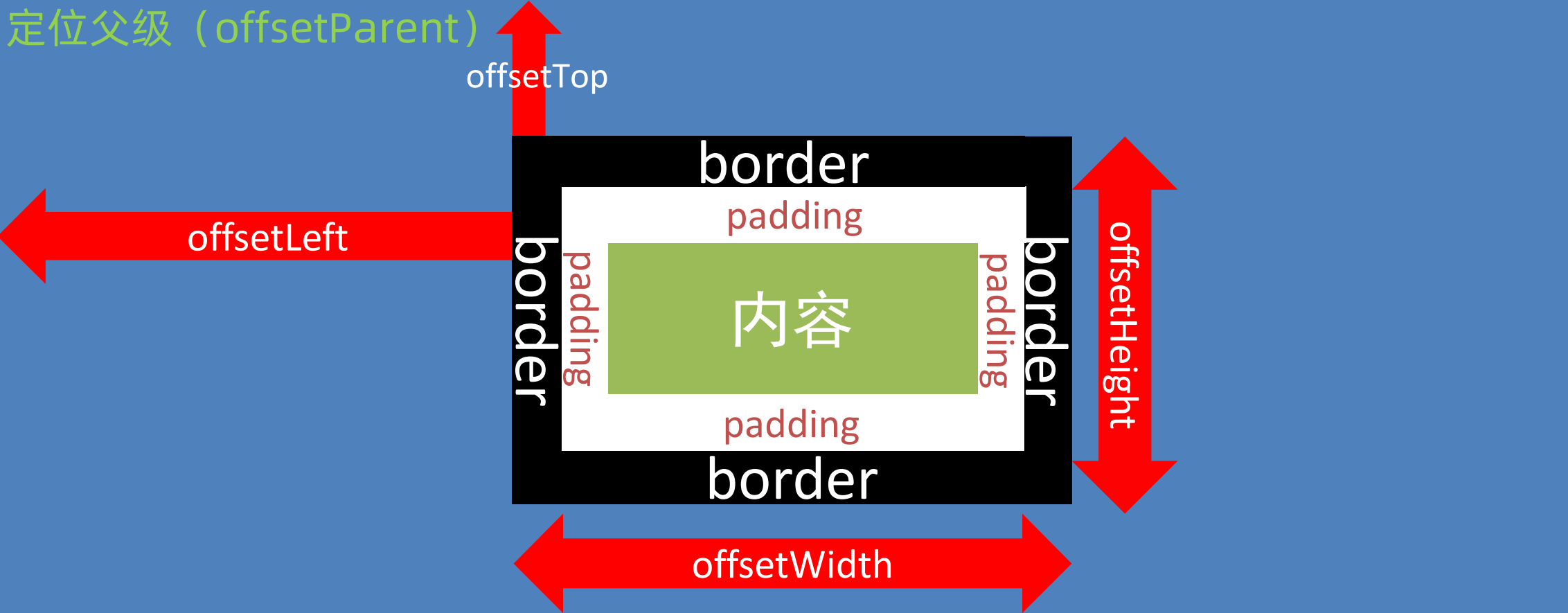
总结:
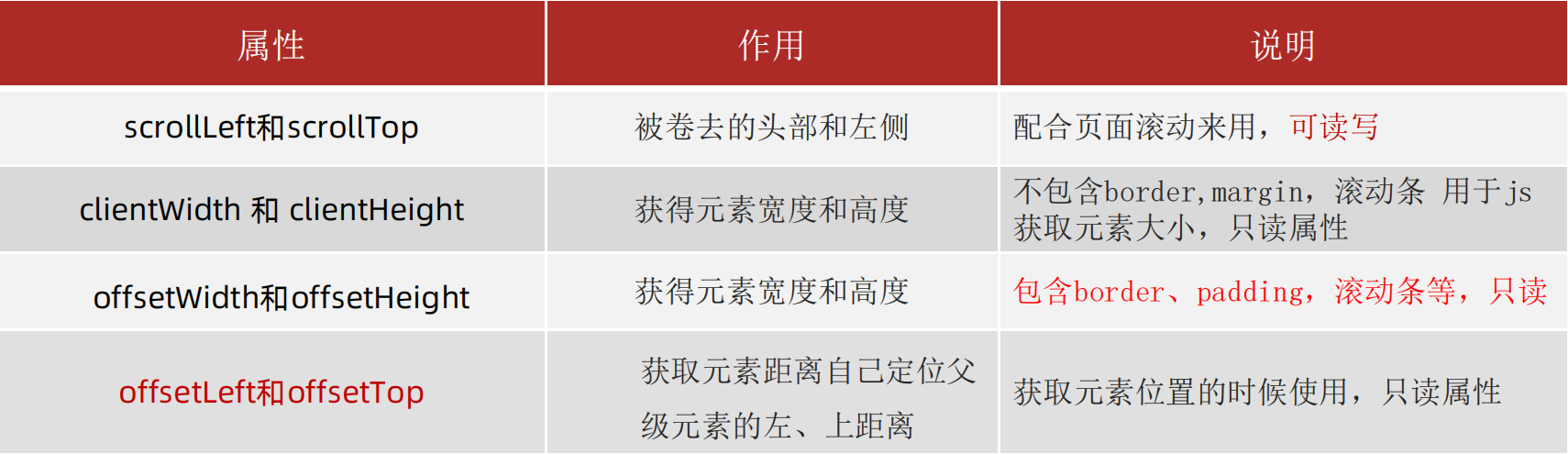
案例练习:仿京东固定导航栏
需求:当页面滚动到秒杀模块,导航栏自动滑入,否则滑出
分析:
①:用到页面滚动事件
②:检测页面滚动大于等于 秒杀模块的位置 则滑入,否则滑出
③:主要移动的是秒杀模块的顶部位置
效果图:
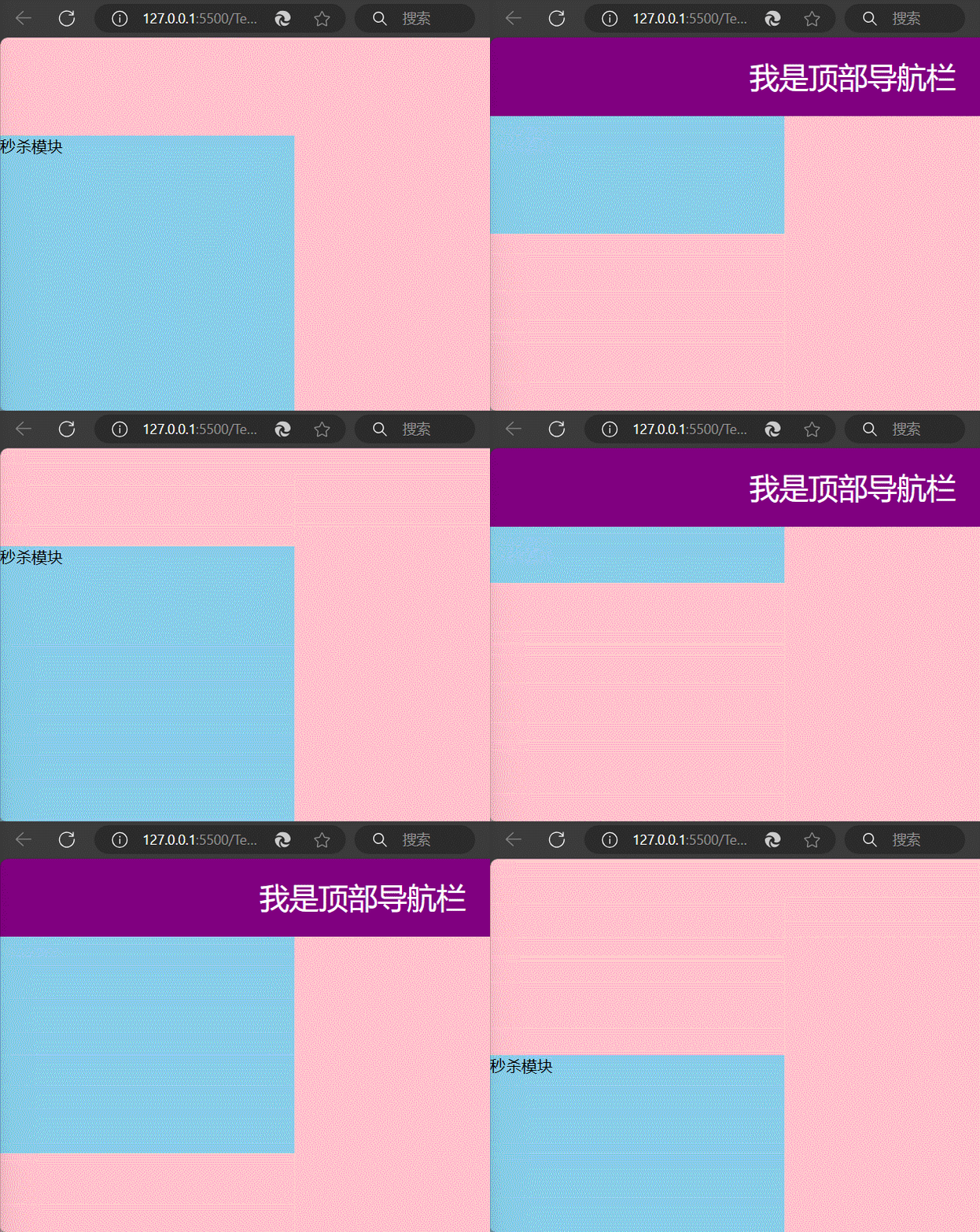
代码:
 1
 2
 3
 4
 5
 6
 7
 8
 9
10
11
12
13
14
15
16
17
18
19
20
21
22
23
24
25
26
27
28
29
30
31
32
33
34
35
36
37
38
39
40
41
42
43
44
45
46
47
48
49
50
51
52
53
54
55
56
57
58
59
60
61
62
63
64
65
66
67
68
69
70
71
72
73
74
75
76
77
78
79
80
81
82
83
84
85
86
87
88
89
|
<!DOCTYPE html>
<html lang="zh-CN">
<head>
    <meta charset="UTF-8">
    <title>Document</title>
    <style>
        * {
            margin: 0;
            padding: 0;
            box-sizing: border-box;
        }

        .content {
            overflow: hidden;
            width: 1000px;
            height: 3000px;
            background-color: pink;
            margin: 0 auto;
        }

        .backtop {
            display: none;
            width: 50px;
            left: 50%;
            margin: 0 0 0 505px;
            position: fixed;
            bottom: 60px;
            z-index: 100;
        }

        .backtop a {
            height: 50px;
            width: 50px;
            background: url(./images/bg2.png) 0 -600px no-repeat;
            opacity: 0.35;
            overflow: hidden;
            display: block;
            text-indent: -999em;
            cursor: pointer;
        }

        .header {
            position: fixed;
            top: -80px;
            left: 0;
            width: 100%;
            height: 80px;
            background-color: purple;
            text-align: center;
            color: #fff;
            line-height: 80px;
            font-size: 30px;
            transition: all .3s;
        }

        .sk {
            width: 300px;
            height: 300px;
            background-color: skyblue;
            margin-top: 500px;
        }
    </style>
</head>
<body>
    <div class="header">我是顶部导航栏</div>
    <div class="content">
        <div class="sk">秒杀模块</div>
    </div>
    <div class="backtop">
        <img src="./images/close2.png" alt="">
        <a href="javascript:;"></a>
    </div>
    <script>
        const sk = document.querySelector('.sk')
        const header = document.querySelector('.header')
        // 页面滚动事件
        window.addEventListener('scroll', function() {
            // 当页面滚动到秒杀模块的时候,就改变顶部导航栏的top值
            // 页面被卷去的头部 >= 秒杀模块的位置(offsetTop)时,显示导航栏
            const n = document.documentElement.scrollTop
            if (n >= sk.offsetTop) {
                header.style.top = 0
            } else {
                header.style.top = '-80px'
            }
        })
    </script>
</body>
</html>
|
案例练习:b站个人主页导航栏
需求:导航条会随着鼠标位置移动,鼠标离开后,导航条会自动回到当前访问栏下面
效果图:
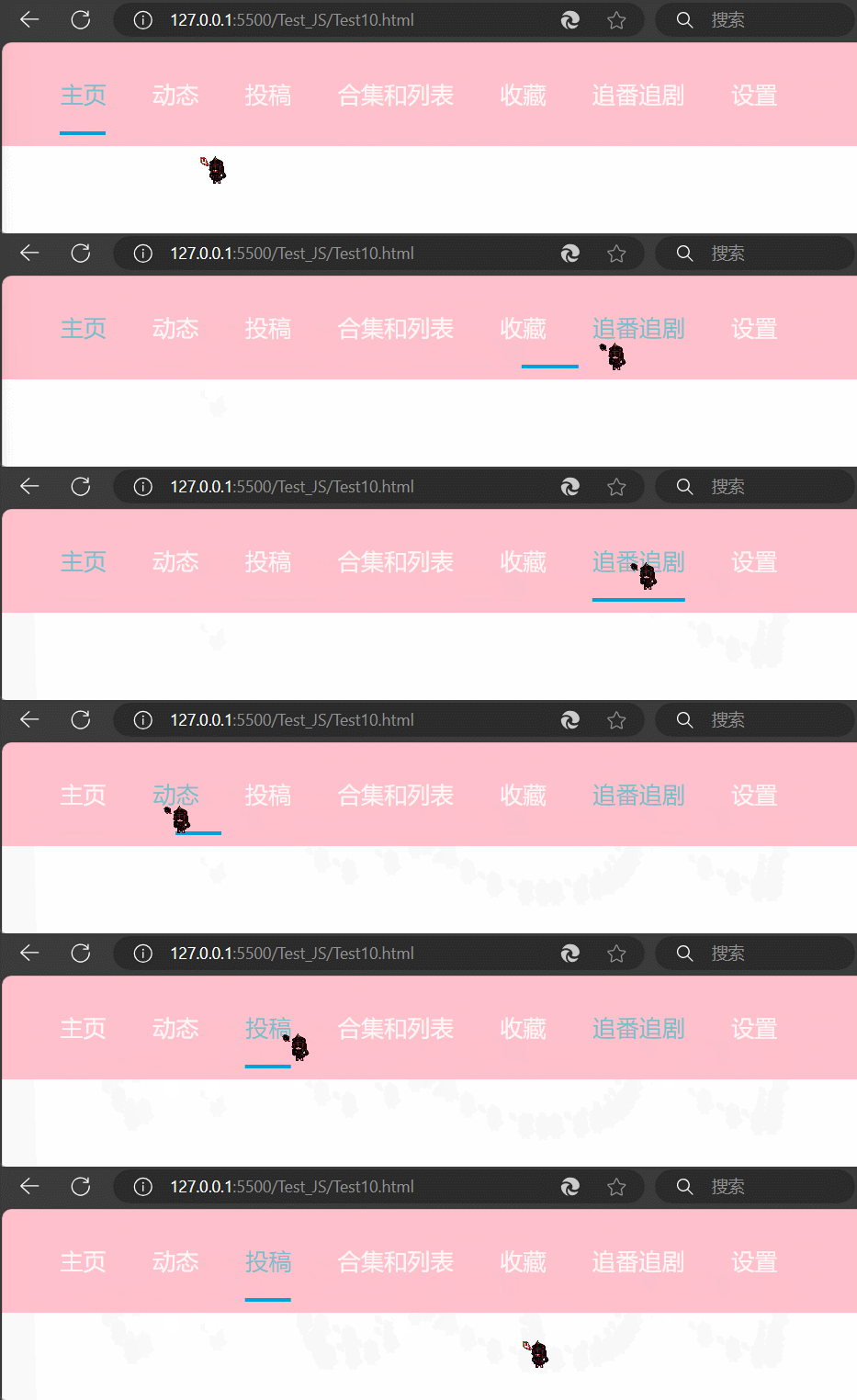
代码:
  1
  2
  3
  4
  5
  6
  7
  8
  9
 10
 11
 12
 13
 14
 15
 16
 17
 18
 19
 20
 21
 22
 23
 24
 25
 26
 27
 28
 29
 30
 31
 32
 33
 34
 35
 36
 37
 38
 39
 40
 41
 42
 43
 44
 45
 46
 47
 48
 49
 50
 51
 52
 53
 54
 55
 56
 57
 58
 59
 60
 61
 62
 63
 64
 65
 66
 67
 68
 69
 70
 71
 72
 73
 74
 75
 76
 77
 78
 79
 80
 81
 82
 83
 84
 85
 86
 87
 88
 89
 90
 91
 92
 93
 94
 95
 96
 97
 98
 99
100
101
102
103
104
105
106
107
108
109
110
111
112
113
114
115
116
117
118
119
120
121
|
<!DOCTYPE html>
<html lang="zh-CN">
<head>
  <meta charset="UTF-8">
  <title>导航栏</title>
  <style>
    body {
      margin: 0;
      padding: 0;
    }
    .clearfix::after {
      content: '';
      display: block;
      clear: both;
    }
    .navigation {
      width: 100%;
      height: 90px;
      background-color: pink;
      position: relative;
    }
    a {
      float: left;
      color: rgb(255, 246, 246);
      text-decoration: none;
      margin-right: 40px;
      font-size: 20px;
      line-height: 90px;
    }
    .wrapper {
      width: 90%;
      margin: auto;
      text-align: center;
    }
    .cursor {
      position: absolute;
      bottom: 10px;
      height: 3px;
      background-color: #00a1d6;
      transition: all .2s ease;
      width: 0px;
      left: 0px;
    }
    .active {
      color: rgb(122, 190, 203);
    }
    a:hover {
      color: rgb(122, 190, 203);
    }
  </style>
</head>
<body>
  <div class="navigation">
    <div class="wrapper clearfix">
      <a href="" class="active">主页</a>
      <a href="">动态</a>
      <a href="">投稿</a>
      <a href="">合集和列表</a>
      <a href="">收藏</a>
      <a href="">追番追剧</a>
      <a href="">设置</a>
    </div>
    <div class="cursor"></div>
  </div>
  <script>
    const cursor = document.querySelector('.cursor')
    const wrapper = document.querySelector('.wrapper')
    // 设置导航条的默认位置
    cursor.style.left = `${document.querySelector('.active').offsetLeft}px`
    // 设置导航条的默认宽度
    cursor.style.width = `${document.querySelector('.active').offsetWidth}px`
    // 当鼠标进入wrapper时触发事件
    wrapper.addEventListener('mouseover', function(e) {
      // 当目标是a标签时执行
      if (e.target.tagName === 'A') {
        // 当前导航条距离左边的距离
        const nowLeft = parseInt(cursor.style.left)
        // 需要移动的距离
        const changeX = e.target.offsetLeft - nowLeft
        // 下面的导航条移动到对应位置
        cursor.style.transform = `translateX(${changeX}px)`
        // 宽度也变成元素的宽度
        cursor.style.width = `${e.target.offsetWidth}px`
      }
    })

    // 当鼠标离开wrapper时触发事件
    wrapper.addEventListener('mouseleave', function() {
      // 当前导航条距离左边的距离
      const nowLeft = parseInt(cursor.style.left)
      // 需要移动的距离
      const changeX = document.querySelector('.active').offsetLeft - nowLeft
      // 导航条回到active类所在元素的位置
      cursor.style.transform = `translateX(${changeX}px)`
      // 导航条长度也变成active类所在元素的宽度
      cursor.style.width = `${document.querySelector('.active').offsetWidth}px`
    })

    // 当鼠标点击wrapper时触发事件
    wrapper.addEventListener('click', function(e) {
      // 当目标是a标签时执行
      if (e.target.tagName === 'A') {
        // 先删除原本的active类
        document.querySelector('.active').classList.remove('active')
        // 为点击的元素添加active类
        e.target.classList.add('active')
        // 当前导航条距离左边的距离
        const nowLeft = parseInt(cursor.style.left)
        // 需要移动的距离
        const changeX = e.target.offsetLeft - nowLeft
        // 下面的导航条移动到对应位置
        cursor.style.transform = `translateX(${changeX}px)`
        // 宽度也变成元素的宽度
        cursor.style.width = `${e.target.offsetWidth}px`
      }
      // 阻止页面跳转
      e.preventDefault()
    })
  </script>
</body>
</html>
|
综合案例:电梯导航完整版
需求:点击不同的模块,页面可以自动跳转不同的位置
①:显示隐藏电梯盒子和返回顶部已经完成,可以放到自执行函数里面,防止变量污染
②:电梯模块单独放到自执行函数里面
③:点击每个模块,页面自动滚动到对应模块,使用事件委托方法更加简单
④:页面滚动到对应位置,电梯导航对应模块自动发生变化
- 模块分析2:点击每个模块,页面自动滚动到对应模块,使用事件委托方法更加简单
①:点击小模块,当前添加 active这个类
②:解决处理初次获取不到active 报错的问题
解决方案:
①: 不能直接获取这个类,然后移除,这样会报错
②: 先获取这个类,然后加个判断
- 如果有这个类,就移除
- 如果么有这个类,返回为 null, 就不执行移除,就不报错了
点击小盒子li,页面跳转到对应大盒子位置
核心思想: 把对应大盒子的offfsetTop 给document.documentElement.scrollTop
①: 我们发现小盒子li 的自定义属性里面值 跟 大盒子 后面一致
②: 利用模板字符串 把点击的 自定义属性值 给 大盒子,就找到对应的大盒子了,
③:然后拿到这个大盒子的 offsetTop 值 给 document.documentElement.scrollTop 即可
- 模块分析3:页面滚动到大盒子位置,电梯导航小盒子对应模块自动处于选中状态
①: 当页面滚动了,先移除所有小li 里面a 的状态 active 防止有多个 active
②: 因为页面滚动需要不断获取大盒子的位置,所以需要把所有的大盒子都获取过来
③: 开始进行滚动判断
- 如果页面滚动大于 新鲜好物大盒子的offsetTop 并且小于 人气推荐盒子的
offsetTop 就把 对应的小盒子先出来添加类
- 依次类推
- 最后一个,如果大于等于最新专题模块, 就选出最后一个对应小盒子(更精确)
效果图:点下方代码链接自己体会
点击导航跳转后,发现高亮的是上一个导航模块的bug产生原因:系统缩放不是100%
代码:
Web APIs - 第4天
进一步学习 DOM 相关知识,实现可交互的网页特效
- 能够插入、删除和替换元素节点
- 能够依据元素节点关系查找节点
日期对象
掌握 Date 日期对象的使用,动态获取当前计算机的时间。
ECMAScript 中内置了获取系统时间的对象 Date,使用 Date 时与之前学习的内置对象 console 和 Math 不同,它需要借助 new 关键字才能使用。
实例化
1
2
3
4
5
|
  // 1. 实例化
  // const date = new Date(); // 系统默认当前时间
  const date = new Date('2020-05-01') // 指定时间
  // date 变量即所谓的时间对象
  console.log(typeof date)
|
方法
1
2
3
4
5
6
|
// 1. 实例化
const date = new Date();
// 2. 调用时间对象方法
// 通过方法分别获取年、月、日,时、分、秒
const year = date.getFullYear(); // 四位年份
const month = date.getMonth(); // 0 ~ 11
|
getFullYear() 获取四位年份
getMonth() 获取月份,取值为 0 ~ 11,所以要+1才是实际月份
getDate() 获取月份中的每一天,不同月份取值也不相同
getDay() 获取星期,取值为 0 ~ 6,所以要+1才是实际星期几
getHours() 获取小时,取值为 0 ~ 23
getMinutes() 获取分钟,取值为 0 ~ 59
getSeconds() 获取秒,取值为 0 ~ 59
小练习:页面显示时间
需求:将当前时间以:YYYY-MM-DD HH:mm 形式显示在页面如 2008-08-08 08:08,并且实时刷新
案例
分析:
①:调用日期对象方法进行转换
②:记得数字要补0
③:字符串拼接后,通过 innerText 给 标签
④:开启定时器
 1
 2
 3
 4
 5
 6
 7
 8
 9
10
11
12
13
14
15
16
17
18
19
20
21
22
23
24
25
26
27
28
29
30
31
32
33
34
35
36
37
38
39
40
41
42
43
44
|
<!DOCTYPE html>
<html lang="zh-CN">
<head>
  <meta charset="UTF-8">
  <title>页面显示时间</title>
  <style>
    div {
      width: 300px;
      height: 40px;
      border: 1px solid pink;
      text-align: center;
      line-height: 40px;
    }
  </style>
</head>
<body>
  <div></div>
  <script>
    function getMyDate() {
      const date = new Date()
      const year = date.getFullYear()
      let month = date.getMonth() + 1
      let day = date.getDate()
      let hour = date.getHours()
      let min = date.getMinutes()
      let sec = date.getSeconds()
      month = month >= 10 ? month : '0' + month
      day = day >= 10 ? day : '0' + day
      hour = hour >= 10 ? hour : '0' + hour
      min = min >= 10 ? min : '0' + min
      sec = sec >= 10 ? sec : '0' + sec
      return `当前时间:${year}-${month}-${day} ${hour}:${min}:${sec}`
    }
    // 获取div元素
    const div = document.querySelector('div')
    // 定时器1s后才运行,会导致1s的空白,所以在外面也写一个,使网页一打开就有时间
    div.innerHTML = getMyDate()
    // 开启定时器,时间实时更新
    setInterval(function() {
      div.innerHTML = getMyDate()
    }, 1000)
  </script>
</body>
</html>
|
效果图:
补充:
当对当前时间的显示格式要求不高,只是想知道当前时间时,可以直接调用Date()自带的方法
1
2
3
4
5
|
const date = new Date()
const div = document.querySelector('div')
div.innerHTML = date.toLocaleString() 		// 2024/10/30 17:52:38
div.innerHTML = date.toLocaleDateString() 	// 2024/10/30
div.innerHTML = date.toLocaleTimeString() 	// 17:52:38
|
时间戳
l 使用场景: 如果计算倒计时效果,前面方法无法直接计算,需要借助于时间戳完成
时间戳是指1970年01月01日00时00分00秒起至现在的总秒数或毫秒数,它是一种特殊的计量时间的方式。
注:ECMAScript 中时间戳是以毫秒计的。
l 算法:
Ø 将来的时间戳 - 现在的时间戳 = 剩余时间毫秒数
Ø 剩余时间毫秒数 转换为 剩余时间的 年月日时分秒 就是 倒计时时间
Ø 比如 将来时间戳 2000ms - 现在时间戳 1000ms = 1000ms
Ø 1000ms 转换为就是 0小时0分1秒
1
2
3
4
5
6
7
8
|
  // 1. 实例化
  const date = new Date()
  // 2. 获取时间戳
  console.log(date.getTime())// 1730282471873,这是注释这行代码的时间,仅用于展示时间戳的打印效果
  // 还有一种获取时间戳的方法
  console.log(+new Date())	// 1730282471873,这是注释这行代码的时间,仅用于展示时间戳的打印效果
  // 还有一种获取时间戳的方法
  console.log(Date.now())	//1730282471873,这是注释这行代码的时间,仅用于展示时间戳的打印效果
|
获取时间戳的方法,分别为 getTime() 和 Date.now() 和 +new Date()
+new Date()可以在括号内添加想要的日期,来获取对应的时间戳
1
|
console.log(+new Date('2024-10-30'))// 1730246400000
|
小练习:倒计时
需求:计算到指定时间还有多久
分析:
①:用将来时间减去现在时间就是剩余的时间
②:核心: 使用将来的时间戳减去现在的时间戳
③:把剩余的时间转换为 天 时 分 秒
注意:
- 通过时间戳得到是毫秒,需要转换为秒在计算
- 转换公式:
Ø d = parseInt(总秒数/ 60/60 /24); // 计算天数
Ø h = parseInt(总秒数/ 60/60 %24) // 计算小时
Ø m = parseInt(总秒数 /60 %60 ); // 计算分数
Ø s = parseInt(总秒数%60); // 计算当前秒数
效果图:
代码:
  1
  2
  3
  4
  5
  6
  7
  8
  9
 10
 11
 12
 13
 14
 15
 16
 17
 18
 19
 20
 21
 22
 23
 24
 25
 26
 27
 28
 29
 30
 31
 32
 33
 34
 35
 36
 37
 38
 39
 40
 41
 42
 43
 44
 45
 46
 47
 48
 49
 50
 51
 52
 53
 54
 55
 56
 57
 58
 59
 60
 61
 62
 63
 64
 65
 66
 67
 68
 69
 70
 71
 72
 73
 74
 75
 76
 77
 78
 79
 80
 81
 82
 83
 84
 85
 86
 87
 88
 89
 90
 91
 92
 93
 94
 95
 96
 97
 98
 99
100
101
102
103
104
105
106
107
108
109
110
111
112
113
114
115
116
117
118
119
120
121
122
123
124
|
<!DOCTYPE html>
<html lang="zh-CN">
<head>
  <meta charset="UTF-8" />
  <meta http-equiv="X-UA-Compatible" content="IE=edge" />
  <meta name="viewport" content="width=device-width, initial-scale=1.0" />
  <title>Document</title>
  <style>
    .countdown {
      width: 240px;
      height: 305px;
      text-align: center;
      line-height: 1;
      color: #fff;
      background-color: brown;
      /* background-size: 240px; */
      /* float: left; */
      overflow: hidden;
    }

    .countdown .next {
      font-size: 16px;
      margin: 25px 0 14px;
    }

    .countdown .title {
      font-size: 33px;
    }

    .countdown .tips {
      margin-top: 80px;
      font-size: 23px;
    }

    .countdown small {
      font-size: 17px;
    }

    .countdown .clock {
      width: 160px;
      margin: 18px auto 0;
      overflow: hidden;
    }

    .countdown .clock span,
    .countdown .clock i {
      display: block;
      text-align: center;
      line-height: 34px;
      font-size: 23px;
      float: left;
    }

    .countdown .clock span {
      /* width: 34px; */
      height: 34px;
      border-radius: 2px;
      background-color: #303430;
      padding: 0 3px;
    }

    .countdown .clock i {
      width: 20px;
      font-style: normal;
    }
  </style>
</head>
<body>
  <div class="countdown">
    <p class="next">今天是2024年10月30日</p>
    <p class="title">双十一倒计时</p>
    <p class="clock">
      <span id="hour">00</span>
      <i>:</i>
      <span id="minute">00</span>
      <i>:</i>
      <span id="second">00</span>
    </p>
    <p class="tips">11月11号双十一</p>
  </div>
  <script>
    // 函数封装,获取现在的时间
    function getMyDate() {
      const date = new Date()
      const year = date.getFullYear()
      let month = date.getMonth() + 1
      let day = date.getDate()
      day = day >= 10 ? day : '0' + day
      return `今天是${year}年${month}月${day}日`
    }
    // 传入当前时间
    const next = document.querySelector('.countdown .next')
    next.innerHTML = getMyDate()
    // 函数封装,获取剩余时间
    function getRemainTime() {
      // 得到当前的时间戳
      const now = +new Date()
      // 得到将来的时间戳
      const last = +new Date('2024-11-11 00:00:00')
      // 得到剩余的时间戳,并转换为秒数
      const remain = (last - now) / 1000
      // 转换时间
      let h = parseInt(remain / 60 / 60) // 计算小时
      let m = parseInt(remain / 60 % 60); // 计算分数
      let s = parseInt(remain % 60); // 计算当前秒数
      // 补0
      h = h >= 10 ? h : '0' + h
      m = m >= 10 ? m : '0' + m
      s = s >= 10 ? s : '0' + s
      // 把时间传入对应的盒子
      const hour = document.querySelector('#hour')
      const minute = document.querySelector('#minute')
      const second = document.querySelector('#second')
      hour.innerHTML = h
      minute.innerHTML = m
      second.innerHTML = s
    }
    // 主动执行一次函数,避免定时器开启第一秒时间的空白
    getRemainTime()
    // 开启定时器
    setInterval(getRemainTime, 1000)
  </script>
</body>
</html>
|
DOM 节点
掌握元素节点创建、复制、插入、删除等操作的方法,能够依据元素节点的结构关系查找节点
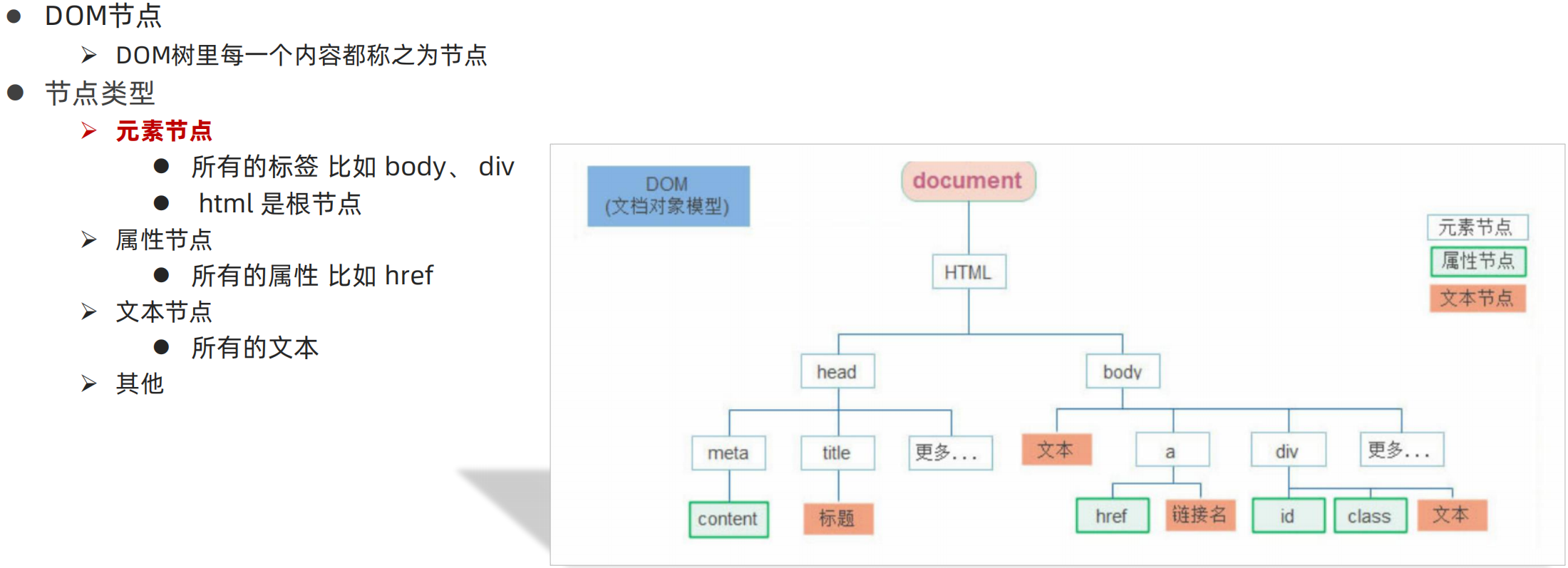
回顾之前 DOM 的操作都是针对元素节点的属性或文本的,除此之外也有专门针对元素节点本身的操作,如插入、复制、删除、替换等。
插入节点
在已有的 DOM 节点中插入新的 DOM 节点时,需要关注两个关键因素:首先要得到新的 DOM 节点,其次在哪个位置插入这个节点。
如下代码演示:
 1
 2
 3
 4
 5
 6
 7
 8
 9
10
11
12
13
14
15
16
17
18
19
20
21
22
23
24
25
26
27
|
<body>
  <h3>插入节点</h3>
  <p>在现有 dom 结构基础上插入新的元素节点</p>
  <hr>
  <!-- 普通盒子 -->
  <div class="box"></div>
  <!-- 点击按钮向 box 盒子插入节点 -->
  <button class="btn">插入节点</button>
  <script>
    // 点击按钮,在网页中插入节点
    const btn = document.querySelector('.btn')
    btn.addEventListener('click', function () {
      // 1. 获得一个 DOM 元素节点
      const p = document.createElement('p')
      p.innerText = '创建的新的p标签'
      p.className = 'info'

      // 复制原有的 DOM 节点
      const p2 = document.querySelector('p').cloneNode(true)
      p2.style.color = 'red'

      // 2. 插入盒子 box 盒子
      document.querySelector('.box').appendChild(p)
      document.querySelector('.box').appendChild(p2)
    })
  </script>
</body>
|
结论:
-
createElement() 动态创建任意 DOM 节点
-
cloneNode() 复制现有的 DOM 节点,传入参数 true 会复制所有子节点,传入false只会复制元素节点
-
appendChild() 在末尾(结束标签前)插入节点
再来看另一种情形的代码演示:
 1
 2
 3
 4
 5
 6
 7
 8
 9
10
11
12
13
14
15
16
17
18
19
20
21
22
23
24
25
26
27
28
29
30
31
32
33
|
<body>
  <h3>插入节点</h3>
  <p>在现有 dom 结构基础上插入新的元素节点</p>
	<hr>
  <button class="btn1">在任意节点前插入</button>
  <ul>
    <li>HTML</li>
    <li>CSS</li>
    <li>JavaScript</li>
  </ul>
  <script>
    // 点击按钮,在已有 DOM 中插入新节点
    const btn1 = document.querySelector('.btn1')
    btn1.addEventListener('click', function () {

      // 第 2 个 li 元素
      const relative = document.querySelector('li:nth-child(2)')

      // 1. 动态创建新的节点
      const li1 = document.createElement('li')
      li1.style.color = 'red'
      li1.innerText = 'Web APIs'

      // 复制现有的节点
      const li2 = document.querySelector('li:first-child').cloneNode(true)
      li2.style.color = 'blue'

      // 2. 在 relative 节点前插入
      document.querySelector('ul').insertBefore(li1, relative)
      document.querySelector('ul').insertBefore(li2, relative)
    })
  </script>
</body>
|
结论:
-
createElement() 动态创建任意 DOM 节点
-
cloneNode() 复制现有的 DOM 节点,传入参数 true 会复制所有子节点,传入false只会复制元素节点
-
insertBefore(要插入的元素,在哪个元素前面) 在父节点中任意子节点之前插入新节点
小练习:网页在线渲染
需求:按照数据渲染页面
分析:
①:准备好空的ul 结构
②:根据数据的个数,创建一个新的空li
③:li里面添加内容 img 标题等
④:追加给ul
重点练习:创建节点和追加节点
请在下方基础上渲染出如图所示效果:
  1
  2
  3
  4
  5
  6
  7
  8
  9
 10
 11
 12
 13
 14
 15
 16
 17
 18
 19
 20
 21
 22
 23
 24
 25
 26
 27
 28
 29
 30
 31
 32
 33
 34
 35
 36
 37
 38
 39
 40
 41
 42
 43
 44
 45
 46
 47
 48
 49
 50
 51
 52
 53
 54
 55
 56
 57
 58
 59
 60
 61
 62
 63
 64
 65
 66
 67
 68
 69
 70
 71
 72
 73
 74
 75
 76
 77
 78
 79
 80
 81
 82
 83
 84
 85
 86
 87
 88
 89
 90
 91
 92
 93
 94
 95
 96
 97
 98
 99
100
101
102
103
104
105
106
107
108
109
110
111
112
113
114
115
116
117
118
119
120
121
122
123
124
125
126
127
128
129
130
131
132
133
134
135
136
137
138
139
140
141
142
143
144
145
146
147
148
149
150
151
152
153
154
155
156
|
<!DOCTYPE html>
<html lang="zh-CN">
<head>
    <meta charset="UTF-8">
    <title>学车在线首页</title>
    <style>
    * {
        margin: 0;
        padding: 0;
    }
    .w {
        width: 1200px;
        margin: auto;
    }
    body {
        background-color: #f3f5f7;
    }
    li {
        list-style: none;
    }
    a {
        text-decoration: none;
    }
    .clearfix:before,.clearfix:after {
        content:"";
        display:table;
    }
    .clearfix:after {
        clear:both;
    }
    .clearfix {
        zoom:1;
    }


    .box {
        margin-top: 30px;
    }
    .box-hd {
        height: 45px;
    }
    .box-hd h3 {
        float: left;
        font-size: 20px;
        color: #494949;
    }
    .box-hd a {
        float: right;
        font-size: 12px;
        color: #a5a5a5;
        margin-top: 10px;
        margin-right: 30px;
    }
    /* 把li 的父亲ul 修改的足够宽一行能装开5个盒子就不会换行了 */
    .box-bd ul {
        width: 1225px;
    }
    .box-bd ul li {
        position: relative;
        top: 0;
        float: left;
        width: 228px;
        height: 270px;
        background-color: #fff;
        margin-right: 15px;
        margin-bottom: 15px;
        transition: all .3s;

    }
    .box-bd ul li a {
        display: block;
    }
    .box-bd ul li:hover {
        top: -8px;
        box-shadow: 0 15px 30px rgb(0 0 0 / 10%);
    }
    .box-bd ul li img {
        width: 100%;
    }
    .box-bd ul li h4 {
        margin: 20px 20px 20px 25px;
        font-size: 14px;
        color: #050505;
        font-weight: 400;
    }
    .box-bd .info {
        margin: 0 20px 0 25px;
        font-size: 12px;
        color: #999;
    }
    .box-bd .info span {
        color: #ff7c2d;
    }
    </style>
</head>
<body>

    <!-- 4. box核心内容区域开始 -->
    <div class="box w">
        <div class="box-hd">
            <h3>精品推荐</h3>
            <a href="#">查看全部</a>
        </div>
        <div class="box-bd">
            <ul class="clearfix"></ul>
        </div>
    </div>
    <script>
        // 重构
        // 已知数据
        let data = [
            {
                src: 'images/course01.png',
                title: 'Think PHP 5.0 博客系统实战项目演练',
                num: 1125
            },
            {
                src: 'images/course02.png',
                title: 'Android 网络动态图片加载实战',
                num: 357
            },
            {
                src: 'images/course03.png',
                title: 'Angular2 大前端商城实战项目演练',
                num: 22250
            },
            {
                src: 'images/course04.png',
                title: 'Android APP 实战项目演练',
                num: 389
            },
            {
                src: 'images/course05.png',
                title: 'UGUI 源码深度分析案例',
                num: 124
            },
            {
                src: 'images/course06.png',
                title: 'Kami2首页界面切换效果实战演练',
                num: 432
            },
            {
                src: 'images/course07.png',
                title: 'UNITY 从入门到精通实战案例',
                num: 888
            },
            {
                src: 'images/course08.png',
                title: 'Cocos 深度学习你不会错过的实战',
                num: 590
            },
        ]
        // 在此进行代码补充
    </script>
</body>
</html>
|
效果图:

删除节点
l 若一个节点在页面中已不需要时,可以删除它
l 在 JavaScript 原生DOM操作中,要删除元素必须通过父元素删除
l 语法
父元素.removeChild(要删除的元素)
删除现有的 DOM 节点,也需要关注两个因素:首先由父节点删除子节点,其次是要删除哪个子节点。
 1
 2
 3
 4
 5
 6
 7
 8
 9
10
11
12
13
14
15
16
17
18
19
20
21
22
|
<body>
  <!-- 点击按钮删除节点 -->
  <button>删除节点</button>
  <ul>
    <li>HTML</li>
    <li>CSS</li>
    <li>Web APIs</li>
  </ul>

  <script>
    const btn = document.querySelector('button')
    btn.addEventListener('click', function () {
      // 获取 ul 父节点
      let ul = document.querySelector('ul')
      // 待删除的子节点
      let lis = document.querySelectorAll('li')

      // 删除节点
      ul.removeChild(lis[0])
    })
  </script>
</body>
|
结论:removeChild() 删除节点时一定是由父子关系。
l 注:
Ø 如不存在父子关系则删除不成功
Ø 删除节点和隐藏节点(display:none) 有区别的: 隐藏节点还是存在的,但是删除,则从html中删除节点
查找节点
DOM 树中的任意节点都不是孤立存在的,它们要么是父子关系,要么是兄弟关系,不仅如此,我们可以依据节点之间的关系查找节点。
父子关系
 1
 2
 3
 4
 5
 6
 7
 8
 9
10
11
12
13
14
15
16
17
18
19
20
21
22
|
<body>
  <button class="btn1">所有的子节点</button>
  <!-- 获取 ul 的子节点 -->
  <ul>
    <li>HTML</li>
    <li>CSS</li>
    <li>JavaScript 基础</li>
    <li>Web APIs</li>
  </ul>
  <script>
    const btn1 = document.querySelector('.btn1')
    btn1.addEventListener('click', function () {
      // 父节点
      const ul = document.querySelector('ul')

      // 所有的子节点
      console.log(ul.childNodes)
      // 只包含元素子节点
      console.log(ul.children) // 得到伪数组
    })
  </script>
</body>
|
结论:
childNodes 获取全部的子节点,回车换行会被认为是空白文本节点children 只获取元素类型节点(常用这个)
 1
 2
 3
 4
 5
 6
 7
 8
 9
10
11
12
13
14
15
16
17
18
19
20
21
22
23
24
25
26
27
28
29
30
31
32
33
34
35
36
37
38
39
|
<body>
  <table>
    <tr>
      <td width="60">序号</td>
      <td>课程名</td>
      <td>难度</td>
      <td width="80">操作</td>
    </tr>
    <tr>
      <td>1</td>
      <td><span>HTML</span></td>
      <td>初级</td>
      <td><button>变色</button></td>
    </tr>
    <tr>
      <td>2</td>
      <td><span>CSS</span></td>
      <td>初级</td>
      <td><button>变色</button></td>
    </tr>
    <tr>
      <td>3</td>
      <td><span>Web APIs</span></td>
      <td>中级</td>
      <td><button>变色</button></td>
    </tr>
  </table>
  <script>
    // 获取所有 button 节点,并添加事件监听
    const buttons = document.querySelectorAll('table button')
    for(let i = 0; i < buttons.length; i++) {
      buttons[i].addEventListener('click', function () {
        // console.log(this.parentNode); // 父节点 td
        // console.log(this.parentNode.parentNode); // 爷爷节点 tr
        this.parentNode.parentNode.style.color = 'red'
      })
    }
  </script>
</body>
|
结论:parentNode 获取父节点,以相对位置查找节点,实际应用中非常灵活。
兄弟关系
 1
 2
 3
 4
 5
 6
 7
 8
 9
10
11
12
13
14
15
16
17
18
19
20
21
22
|
<body>
  <ul>
    <li>HTML</li>
    <li>CSS</li>
    <li>JavaScript 基础</li>
    <li>Web APIs</li>
  </ul>
  <script>
    // 获取所有 li 节点
    const lis = document.querySelectorAll('ul li')

    // 对所有的 li 节点添加事件监听
    for(let i = 0; i < lis.length; i++) {
      lis[i].addEventListener('click', function () {
        // 前一个节点
        console.log(this.previousSibling)
        // 下一下节点
        console.log(this.nextSibling)
      })
    }
  </script>
</body>
|
结论:
-
previousSibling 获取前一个节点,以相对位置查找节点,实际应用中非常灵活。
-
nextSibling 获取后一个节点,以相对位置查找节点,实际应用中非常灵活。
上面两个都是获取全部的子节点,回车换行会被认为是空白文本节点
一般下面的两个更常用,下面两个只获取元素节点
-
previousElementSibling
-
nextElementSibling
移动端事件
目标:了解M端常见的事件
移动端也有自己独特的地方。比如触屏事件 touch(也称触摸事件),Android 和 IOS 都有。

 1
 2
 3
 4
 5
 6
 7
 8
 9
10
11
12
13
14
15
16
17
18
19
20
21
22
23
24
25
26
27
28
29
30
31
32
|
<!DOCTYPE html>
<html lang="zh-CN">
<head>
  <meta charset="UTF-8">
  <title>Document</title>
  <style>
    div {
      width: 300px;
      height: 300px;
      background-color: pink;
    }
  </style>
</head>
<body>
  <div></div>
  <script>
    const div = document.querySelector('div')
    // 1. 触摸
    div.addEventListener('touchstart', function () {
      console.log('开始摸我了')
    })
    // 2. 离开
    div.addEventListener('touchend', function () {
      console.log('离开了')
    })
    // 3. 移动
    div.addEventListener('touchmove', function () {
      console.log('一直摸,移动')
    })
  </script>
</body>
</html>
|
swiper插件的使用
l 插件: 就是别人写好的一些代码,我们只需要复制对应的代码,就可以直接实现对应的效果
l 学习插件的基本过程
Ø 熟悉官网,了解这个插件可以完成什么需求 https://www.swiper.com.cn/
Ø 看在线演示,找到符合自己需求的demo https://www.swiper.com.cn/demo/index.html
Ø 查看基本使用流程 https://www.swiper.com.cn/usage/index.html
Ø 查看APi文档,去配置自己的插件 https://www.swiper.com.cn/api/index.html
Ø 注意: 多个swiper同时使用的时候, 类名需要注意区分
综合案例:学生信息表
业务模块:
①: 点击录入按钮可以录入数据
②: 点击删除可以删除当前的数据
说明:
本次案例,我们尽量减少dom操作,采取操作数据的形式
增加和删除都是针对于数组的操作,然后根据数组数据渲染页面
①: 声明一个空的数组
②: 点击录入模块
(1). 首先取消表单默认提交事件
(2). 创建新的对象,里面存储 表单获取过来的数据,格式如右图
(3). 追加给数组
(4). 渲染数据。 遍历数组, 动态生成tr, 里面填写对应td数据, 并追加给 tbody
(5). 重置表单
(6). 注意防止多次生成多条数据,先清空 tbody
③: 点击删除模块
(1). 采用事件委托形式,给 tbody 注册点击事件
(2). 点击链接,要删除的是对应数组里面的这个数据,而不是删除dom节点,如何找到这个数据?
(3). 前面渲染数据的时候,动态给a链接添加 自定义属性 data-id=“0”,这样点击当前对象就知道索引号了
(4). 根据索引号,利用 splice 删除这条数据
(5). 重新渲染
④: 点击新增需要验证表单
(1). 获取所有需要填写的表单, 他们共同特点都有 name属性
(2). 遍历这些表单,如果有一个值为空,则return 返回提示输入为空中断程序
(3). 注意书写的位置,应该放到新增数据的前面, 阻止默认行为的后面
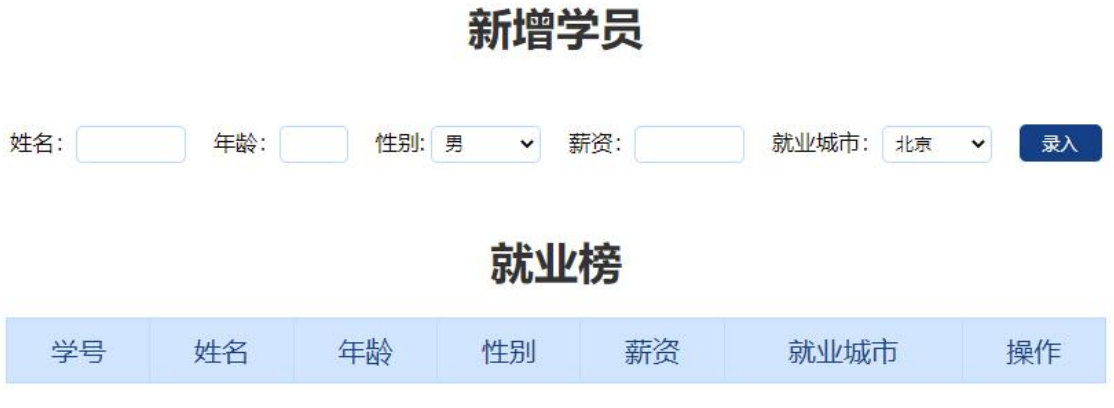
代码:
  1
  2
  3
  4
  5
  6
  7
  8
  9
 10
 11
 12
 13
 14
 15
 16
 17
 18
 19
 20
 21
 22
 23
 24
 25
 26
 27
 28
 29
 30
 31
 32
 33
 34
 35
 36
 37
 38
 39
 40
 41
 42
 43
 44
 45
 46
 47
 48
 49
 50
 51
 52
 53
 54
 55
 56
 57
 58
 59
 60
 61
 62
 63
 64
 65
 66
 67
 68
 69
 70
 71
 72
 73
 74
 75
 76
 77
 78
 79
 80
 81
 82
 83
 84
 85
 86
 87
 88
 89
 90
 91
 92
 93
 94
 95
 96
 97
 98
 99
100
101
102
103
104
105
106
107
108
109
110
111
112
113
114
115
116
117
118
119
120
121
122
123
124
125
126
127
128
129
130
131
132
133
134
135
136
137
138
139
140
141
142
143
144
145
146
147
148
149
150
151
152
153
154
155
156
157
158
159
160
161
162
163
164
165
166
167
168
169
170
171
172
173
174
175
176
177
178
179
180
181
182
183
184
185
186
187
188
189
190
191
192
193
194
195
196
197
198
199
200
201
202
203
204
205
206
207
208
209
210
211
212
213
|
<!DOCTYPE html>
<html lang="zh-CN">
<head>
  <meta charset="UTF-8" />
  <title>学生信息管理</title>
  <style>
    * {
      margin: 0;
      padding: 0;
    }

    a {
      text-decoration: none;
      color:#721c24;
    }
    h1 {
      text-align: center;
      color:#333;
      margin: 20px 0;

    }
    table {
      margin:0 auto;
      width: 800px;
      border-collapse: collapse;
      color:#004085;
    }
    th {
      padding: 10px;
      background: #cfe5ff;

      font-size: 20px;
      font-weight: 400;
    }
    td,th {
      border:1px solid #b8daff;
    }
    td {
      padding:10px;
      color:#666;
      text-align: center;
      font-size: 16px;
    }
    tbody tr {
      background: #fff;
    }
    tbody tr:hover {
      background: #e1ecf8;
    }
    .info {
      width: 900px;
      margin: 50px auto;
      text-align: center;
    }
    .info  input, .info select {
      width: 80px;
      height: 27px;
      outline: none;
      border-radius: 5px;
      border:1px solid #b8daff;
      padding-left: 5px;
      box-sizing: border-box;
      margin-right: 15px;
    }
    .info button {
      width: 60px;
      height: 27px;
      background-color: #004085;
      outline: none;
      border: 0;
      color: #fff;
      cursor: pointer;
      border-radius: 5px;
    }
    .info .age {
      width: 50px;
    }
  </style>
</head>
<body>
  <h1>新增学员</h1>
  <form class="info" autocomplete="off">
    姓名:<input type="text" class="uname" name="uname" />
    年龄:<input type="text" class="age" name="age" />
    性别:
    <select name="gender" class="gender">
      <option value="男">男</option>
      <option value="女">女</option>
    </select>
    薪资:<input type="text" class="salary" name="salary" />
    就业城市:<select name="city" class="city">
      <option value="北京">北京</option>
      <option value="上海">上海</option>
      <option value="广州">广州</option>
      <option value="深圳">深圳</option>
      <option value="曹县">曹县</option>
    </select>
    <button class="add">录入</button>
  </form>

  <h1>就业榜</h1>
  <table>
    <thead>
      <tr>
        <th>学号</th>
        <th>姓名</th>
        <th>年龄</th>
        <th>性别</th>
        <th>薪资</th>
        <th>就业城市</th>
        <th>操作</th>
      </tr>
    </thead>
    <tbody>
      <!--
        <tr>
          <td>1001</td>
          <td>欧阳霸天</td>
          <td>19</td>
          <td>男</td>
          <td>15000</td>
          <td>上海</td>
          <td>
            <a href="javascript:">删除</a>
          </td>
        </tr>
        -->
    </tbody>
  </table>
  <script>
    // 获取元素
    const uname = document.querySelector('.uname')
    const age = document.querySelector('.age')
    const gender = document.querySelector('.gender')
    const salary = document.querySelector('.salary')
    const city = document.querySelector('.city')
    const tbody = document.querySelector('tbody')
    // 获取所有带有name属性的元素
    const items = document.querySelectorAll('[name]')
    // 声明一个空数组,后续增加和删除都是对这个数组进行操作
    const arr = []
    // 录入模块
    // 表单提交事件
    const info = document.querySelector('.info')
    info.addEventListener('submit', function(e) {
      // 阻止表单跳转
      e.preventDefault()
      // 判断表单是否填写完整,若有数据未填写,则中断函数
      // 遍历表单内需要填写的元素,即带有name属性的元素
      for (let i = 0; i < items.length; i++) {
        if (items[i].value.trim() === '') {// 用trim()来消除空格
          return alert('输入内容不能为空')
        }
      }
      // 通过获取的元素内容创建对象
      const obj = {
        stuId: arr.length + 1,// 一开始数组是空的,所以长度是0
        uname: uname.value,
        age: age.value,
        gender: gender.value,
        salary: salary.value,
        city: city.value,
      }
      // 把对象内的数据存入数组
      arr.push(obj)
      // 清空表单,方便下次填写
      this.reset()
      // 调用自己写的渲染函数,渲染页面
      render(arr)
    })

    // 删除操作
    // 事件委托tbody
    tbody.addEventListener('click', function(e) {
      if (e.target.tagName === 'A') {
        // 得到点击元素的自定义属性,即这条数据在数组中的下标
        const id = e.target.dataset.id
        // 删除数组中对应的数据
        arr.splice(id, 1) // 从id的位置(要删除数据在数组中的下标)开始,删除一个
        // 调用渲染函数,重新渲染页面
        render(arr)
      }
    })


    // 写一个渲染页面函数,便于使用
    function render(arr = []) {
        // 先清空tbody已有的行,因为渲染时是把数组的所有内容都打印出来,不清空就会有冗余bug
        tbody.innerHTML = ''
        // 遍历数组
        for (let i = 0; i < arr.length; i++) {
          // 生成tr
          const tr = document.createElement('tr')
          // 给a加自定义属性,并把自定义属性的值设得与这条数据在数组中的下标相同
          // 是为了后续删除时方便找到具体是哪一条
          tr.innerHTML = `
            <td>${arr[i].stuId}</td>
            <td>${arr[i].uname}</td>
            <td>${arr[i].age}</td>
            <td>${arr[i].gender}</td>
            <td>${arr[i].salary}</td>
            <td>${arr[i].city}</td>
            <td>
              <a href="javascript:" data-id="${i}">删除</a>
            </td>
          `
          // 将生成的tr追加到tbody中
          tbody.appendChild(tr)
        }
      }
  </script>
</body>
</html>
|
Web APIs - 第5天笔记
目标: 能够利用JS操作浏览器,具备利用本地存储实现学生就业表的能力
js组成
JavaScript的组成
-
ECMAScript:
- 规定了js基础语法核心知识。
- 比如:变量、分支语句、循环语句、对象等等
-
Web APIs :
- DOM 文档对象模型, 定义了一套操作HTML文档的API
- BOM 浏览器对象模型,定义了一套操作浏览器窗口的API
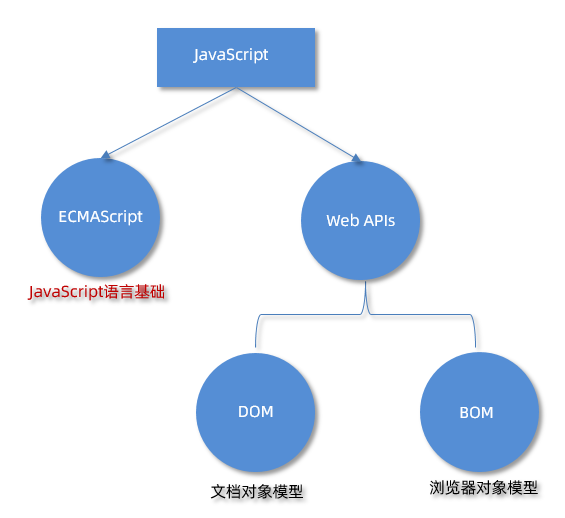
window对象
BOM (Browser Object Model ) 是浏览器对象模型
- window对象是一个全局对象,也可以说是JavaScript中的顶级对象
- 像document、alert()、console.log()这些都是window的属性,基本BOM的属性和方法都是window的
- 所有通过var定义在全局作用域中的变量、函数都会变成window对象的属性和方法
- window对象下的属性和方法调用的时候可以省略window
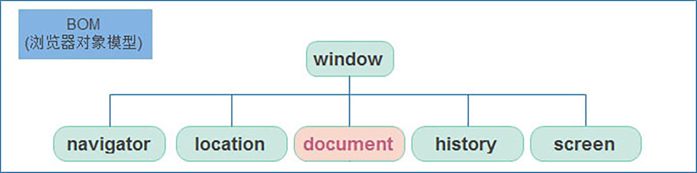
定时器-延迟函数
JavaScript 内置的一个用来让代码延迟执行的函数,叫 setTimeout
语法:
setTimeout 仅仅只执行一次,所以可以理解为就是把一段代码延迟执行, 平时省略window
间歇函数 setInterval : 每隔一段时间就执行一次, , 平时省略window
清除延时函数:
注意点
- 延时函数需要等待,所以后面的代码先执行
- 返回值是一个正整数,表示定时器的编号
 1
 2
 3
 4
 5
 6
 7
 8
 9
10
11
12
13
14
15
16
17
18
19
|
<body>
  <script>
    // 定时器之延迟函数

    // 1. 开启延迟函数
    let timerId = setTimeout(function () {
      console.log('我只执行一次')
    }, 3000)

    // 1.1 延迟函数返回的还是一个正整数数字,表示延迟函数的编号
    console.log(timerId)

    // 1.2 延迟函数需要等待时间,所以下面的代码优先执行

    // 2. 关闭延迟函数
    clearTimeout(timerId)

  </script>
</body>
|
小练习:5秒后自动消失的广告
 1
 2
 3
 4
 5
 6
 7
 8
 9
10
11
12
13
14
15
16
17
18
19
20
21
22
23
24
|
<!DOCTYPE html>
<html lang="zh-CN">
<head>
  <meta charset="UTF-8">
  <title>Document</title>
  <style>
    img {
      position: fixed;
      right: 0;
      bottom: 0;
    }
  </style>
</head>
<body>
  <img src="./images/ad.png" alt="">
  <script>
    const img = document.querySelector('img')
    // 5秒后执行函数
    setTimeout(function() {
      img.style.display = 'none'
    }, 5000)
  </script>
</body>
</html>
|
JS执行机制
JavaScript 语言的一大特点就是单线程,也就是说,同一个时间只能做一件事。
这是因为 Javascript 这门脚本语言诞生的使命所致——JavaScript 是为处理页面中用户的交互,以及操作DOM 而诞生的。比如我们对某个 DOM 元素进行添加和删除操作,不能同时进行。 应该先进行添加,之后再删除。
单线程就意味着,所有任务需要排队,前一个任务结束,才会执行后一个任务。这样所导致的问题是:
如果 JS 执行的时间过长,这样就会造成页面的渲染不连贯,导致页面渲染加载阻塞的感觉。
为了解决这个问题,利用多核 CPU 的计算能力,HTML5 提出 Web Worker 标准,允许 JavaScript 脚本创建多个线程。于是,JS 中出现了同步和异步。
同步
前一个任务结束后再执行后一个任务,程序的执行顺序与任务的排列顺序是一致的、同步的。比如做饭的同步做法:我们要烧水煮饭,等水开了(10分钟之后),再去切菜,炒菜。
异步
你在做一件事情时,因为这件事情会花费很长时间,在做这件事的同时,你还可以去处理其他事情。比如做饭的异步做法,我们在烧水的同时,利用这10分钟,去切菜,炒菜。
他们的本质区别: 这条流水线上各个流程的执行顺序不同。
同步任务
同步任务都在主线程上执行,形成一个执行栈。
异步任务
JS 的异步是通过回调函数实现的。
一般而言,异步任务有以下三种类型:
1、普通事件,如 click、resize 等
2、资源加载,如 load、error 等
3、定时器,包括 setInterval、setTimeout 等
异步任务相关添加到任务队列中(任务队列也称为消息队列)。
执行机制
- 先执行执行栈中的同步任务。
- 异步任务放入任务队列中。
- 一旦执行栈中的所有同步任务执行完毕,系统就会按次序读取任务队列中的异步任务,于是被读取的异步任务结束等待状态,进入执行栈,开始执行。
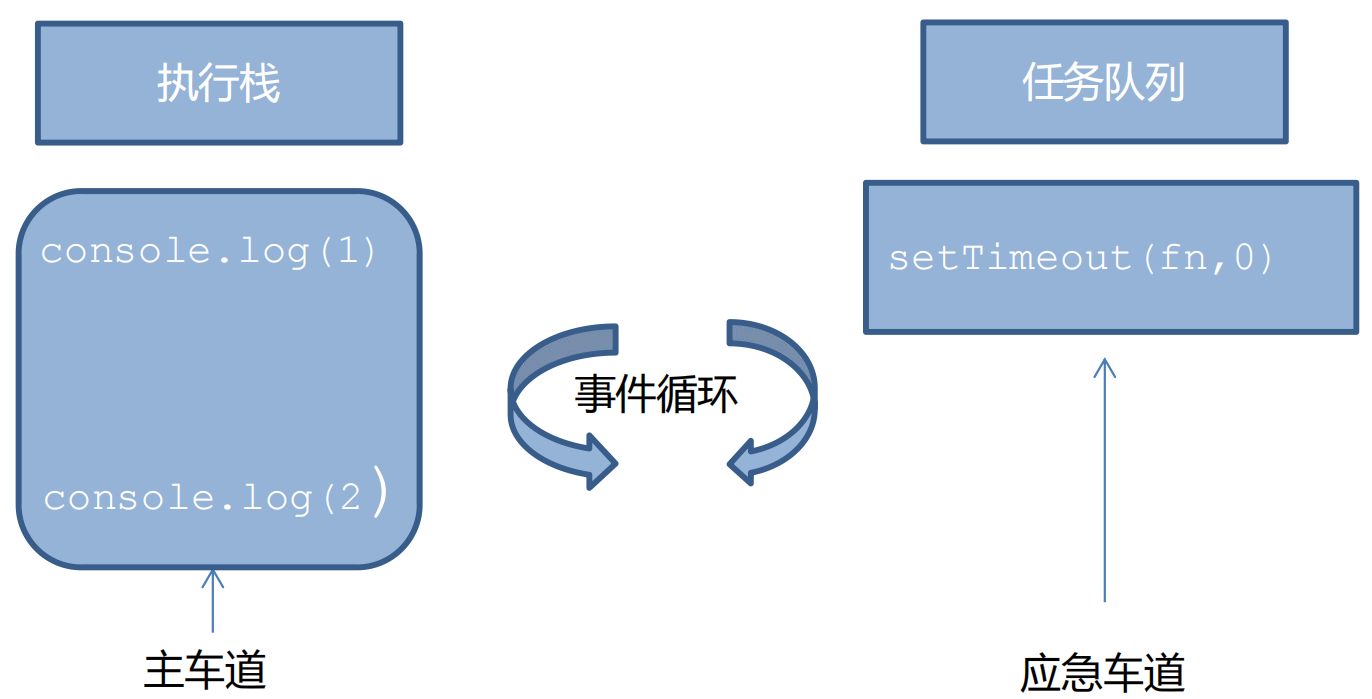
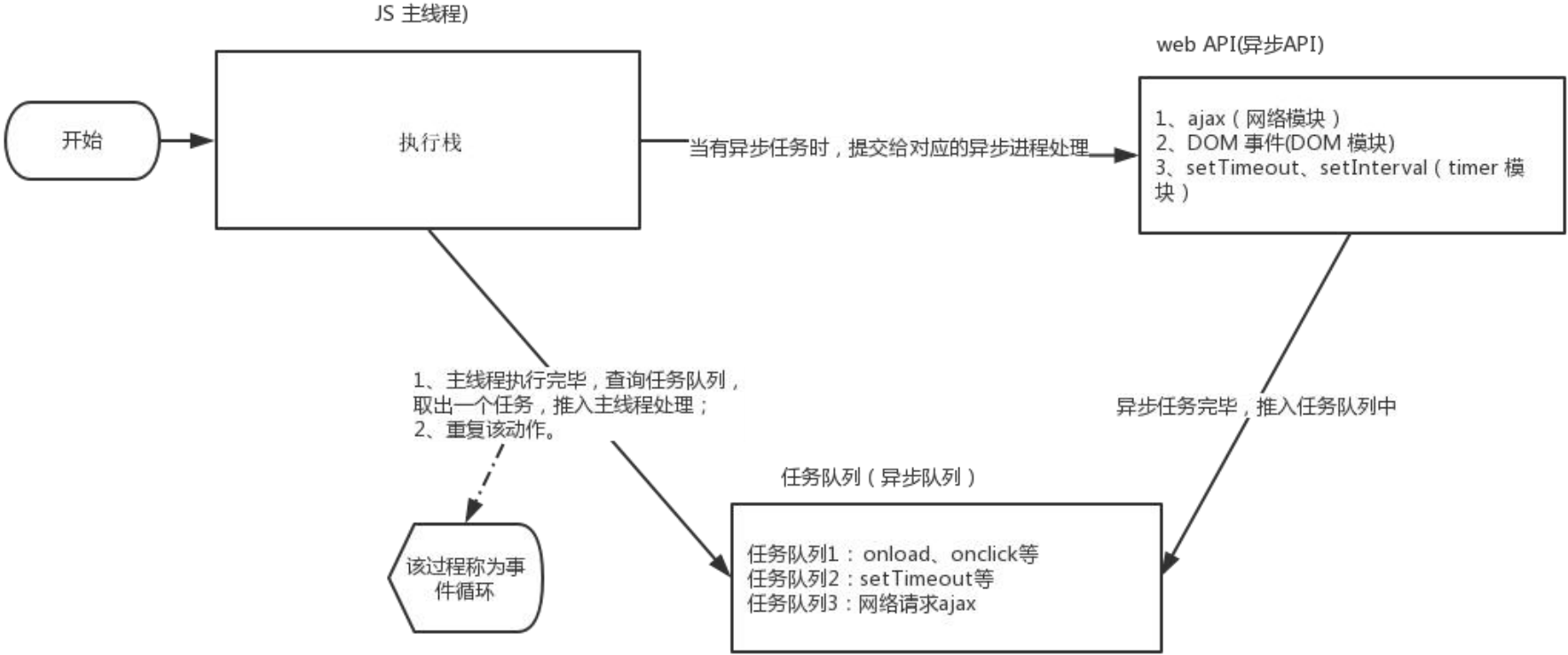
由于主线程不断的重复获得任务、执行任务、再获取任务、再执行,所以这种机制被称为事件循环(event loop)。
location对象
location (地址) 它拆分并保存了 URL 地址的各个组成部分, 它是一个对象
| 属性/方法 |
说明 |
| href |
属性,获取完整的 URL 地址,赋值时用于地址的跳转 |
| search |
属性,获取地址中携带的参数,符号 ?后面部分 |
| hash |
属性,获取地址中的啥希值,符号 # 后面部分 |
| reload() |
方法,用来刷新当前页面,传入参数 true 时表示强制刷新 |
 1
 2
 3
 4
 5
 6
 7
 8
 9
10
11
12
13
14
15
16
17
18
19
20
21
22
23
24
25
26
27
28
|
<body>
  <form>
    <input type="text" name="search"> <button>搜索</button>
  </form>
  <a href="#/music">音乐</a>
  <a href="#/download">下载</a>

  <button class="reload">刷新页面</button>
  <script>
    // location 对象
    // 1. href属性 (重点) 得到完整地址,赋值则是跳转到新地址
    console.log(location.href)
    // location.href = 'http://www.itcast.cn'

    // 2. search属性  得到 ? 后面的地址
    console.log(location.search)  // ?search=笔记本

    // 3. hash属性  得到 # 后面的地址
    console.log(location.hash)

    // 4. reload 方法  刷新页面
    const btn = document.querySelector('.reload')
    btn.addEventListener('click', function () {
      // location.reload() // 页面刷新
      location.reload(true) // 强制页面刷新 ctrl+f5
    })
  </script>
</body>
|
小练习:5秒之后跳转的页面
需求:用户点击可以跳转,如果不点击,则5秒之后自动跳转,要求里面有秒数倒计时
分析:
①:目标元素是链接
②:利用定时器设置数字倒计时
③:时间到了,自动跳转到新的页面
 1
 2
 3
 4
 5
 6
 7
 8
 9
10
11
12
13
14
15
16
17
18
19
20
21
22
23
24
25
26
27
28
29
30
31
|
<!DOCTYPE html>
<html lang="zh-CN">
<head>
  <meta charset="UTF-8">
  <title>Document</title>
  <style>
    span {
      color: red;
    }
  </style>
</head>
<body>
  <a href="https://www.bilibili.com/"><span>5</span>秒后将会跳转</a>
  <script>
    // 获取元素
    const a = document.querySelector('a')
    // 声明倒计时变量
    let num = 5
    // 开启定时器
    let timerId = setInterval(function() {
      num--
      a.innerHTML = `<span>${num}</span>秒后将会跳转`
      // 当num为0时停止定时器,并进行跳转
      if (num === 0) {
        clearInterval(timerId)
        location.href = 'https://www.bilibili.com/'
      }
    }, 1000)
  </script>
</body>
</html>
|
navigator对象
navigator是对象,该对象下记录了浏览器自身的相关信息
常用属性和方法:
 1
 2
 3
 4
 5
 6
 7
 8
 9
10
11
|
// 检测 userAgent(浏览器信息)
(function () {
  const userAgent = navigator.userAgent
  // 验证是否为Android或iPhone
  const android = userAgent.match(/(Android);?[\s\/]+([\d.]+)?/)
  const iphone = userAgent.match(/(iPhone\sOS)\s([\d_]+)/)
  // 如果是Android或iPhone,则跳转至移动站点
  if (android || iphone) {
    location.href = 'http://m.itcast.cn'
  }
})();
|
立即执行函数写法补充
之前已知有两种立即执行函数写法
1
2
3
4
|
// 方法一
(function(形参) {函数方法})(实参)
// 方法二
(function(形参) {函数方法} (实参))
|
现补充第三种写法,也可以说是第二种写法简略版
1
2
3
|
// 第三种写法,就是第二种写法不写最外面的括号
// 而是在最前面加上!或+、-、~、=等等算数符都行,让编译器识别出这是个立即执行函数
!function(){}()
|
histroy对象
history (历史)是对象,主要管理历史记录, 该对象与浏览器地址栏的操作相对应,如前进、后退等
使用场景
history对象一般在实际开发中比较少用,但是会在一些OA 办公系统中见到。
常见方法:
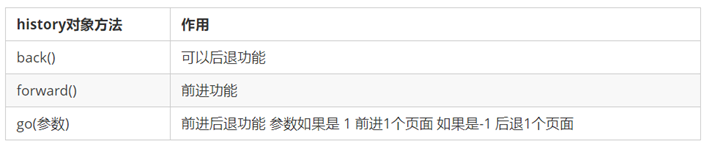
 1
 2
 3
 4
 5
 6
 7
 8
 9
10
11
12
13
14
15
16
17
18
19
20
|
<body>
  <button class="back">←后退</button>
  <button class="forward">前进→</button>
  <script>
    // histroy对象

    // 1.前进
    const forward = document.querySelector('.forward')
    forward.addEventListener('click', function () {
      // history.forward()
      history.go(1)
    })
    // 2.后退
    const back = document.querySelector('.back')
    back.addEventListener('click', function () {
      // history.back()
      history.go(-1)
    })
  </script>
</body>
|
本地存储(今日重点)
本地存储:将数据存储在本地浏览器中
常见的使用场景:
https://todomvc.com/examples/vanilla-es6/ 页面刷新数据不丢失
好处:
1、页面刷新或者关闭不丢失数据,实现数据持久化
2、容量较大,sessionStorage和 localStorage 约 5M 左右
localStorage(重点)
作用: 数据可以长期保留在本地浏览器中,刷新页面和关闭页面,数据也不会丢失
**特性:**同一浏览器共享,以键值对的形式存储,并且存储的是字符串, 省略了window
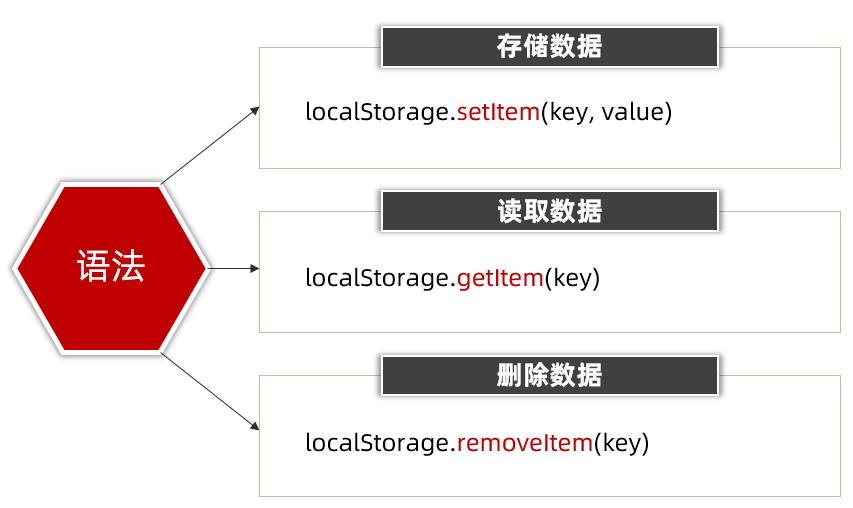
 1
 2
 3
 4
 5
 6
 7
 8
 9
10
11
12
13
14
15
16
17
18
19
20
21
22
23
24
25
26
27
28
|
<!DOCTYPE html>
<html lang="en">

<head>
  <meta charset="UTF-8">
  <meta http-equiv="X-UA-Compatible" content="IE=edge">
  <meta name="viewport" content="width=device-width, initial-scale=1.0">
  <title>本地存储-localstorage</title>
</head>

<body>
  <script>
    // 本地存储 - localstorage 存储的是字符串, key(键)一定要带''号
    // 1. 存储,非字符串类型会自动转换为字符串
    localStorage.setItem('age', 18)

    // 2. 获取
    console.log(typeof localStorage.getItem('age'))

    // 3. 删除
    localStorage.removeItem('age')

    // 4.修改,对已有的键进行存储操作就是修改
    localStorage.setItem('age', 20)
  </script>
</body>

</html>
|
sessionStorage(了解)
特性:
- 用法跟localStorage基本相同
- 区别是:当页面浏览器被关闭时,存储在 sessionStorage 的数据会被清除
存储:sessionStorage.setItem(key,value)
获取:sessionStorage.getItem(key)
删除:sessionStorage.removeItem(key)
localStorage 存储复杂数据类型
**问题:**本地只能存储字符串,无法存储复杂数据类型.
**解决:**需要将复杂数据类型转换成 JSON字符串,在存储到本地
语法:JSON.stringify(复杂数据类型)
JSON字符串:
- 首先是1个字符串
- 属性名使用双引号引起来,不能单引号
- 属性值如果是字符串型也必须双引号
 1
 2
 3
 4
 5
 6
 7
 8
 9
10
11
12
13
14
15
16
|
<body>
  <script>
    // 本地存储复杂数据类型
    const goods = {
      name: '小米',
      price: 1999
    }
    // localStorage.setItem('goods', goods)
    // console.log(localStorage.getItem('goods'))

    // 1. 把对象转换为JSON字符串  JSON.stringify
    localStorage.setItem('goods', JSON.stringify(goods))
    // console.log(typeof localStorage.getItem('goods'))

  </script>
</body>
|
**问题:**因为本地存储里面取出来的是字符串,不是对象,无法直接使用
**解决: **把取出来的字符串转换为对象
语法:JSON.parse(JSON字符串)
 1
 2
 3
 4
 5
 6
 7
 8
 9
10
11
12
13
14
15
16
17
18
19
|
<body>
  <script>
    // 本地存储复杂数据类型
    const goods = {
      name: '小米',
      price: 1999
    }
    // localStorage.setItem('goods', goods)
    // console.log(localStorage.getItem('goods'))

    // 1. 把对象转换为JSON字符串  JSON.stringify
    localStorage.setItem('goods', JSON.stringify(goods))
    // console.log(typeof localStorage.getItem('goods'))

    // 2. 把JSON字符串转换为对象  JSON.parse
    console.log(JSON.parse(localStorage.getItem('goods')))

  </script>
</body>
|
综合案例
数组map 方法
使用场景:
map 可以遍历数组处理数据,并且返回新的数组
语法:
 1
 2
 3
 4
 5
 6
 7
 8
 9
10
11
12
|
<body>
  <script>
  const arr = ['red', 'blue', 'pink']
  // 1. 数组 map方法 处理数据并且 返回一个数组
  const newArr = arr.map(function (ele, index) {
    // console.log(ele)  // 数组元素
    // console.log(index) // 索引号
    return ele + '颜色'
  })
  console.log(newArr) // ['red颜色', 'blue颜色', 'pink颜色']
</script>
</body>
|
map 也称为映射。映射是个术语,指两个元素的集之间元素相互“对应”的关系。
map重点在于有返回值,forEach没有返回值(undefined)
数组join方法
**作用:**join() 方法用于把数组中的所有元素转换一个字符串
语法:
 1
 2
 3
 4
 5
 6
 7
 8
 9
10
11
12
13
14
15
16
17
18
19
20
|
<body>
  <script>
    const arr = ['red', 'blue', 'pink']

    // 1. 数组 map方法 处理数据并且 返回一个数组
    const newArr = arr.map(function (ele, index) {
      // console.log(ele)  // 数组元素
      // console.log(index) // 索引号
      return ele + '颜色'
    })
    console.log(newArr)

    // 2. 数组join方法  把数组转换为字符串
    // 小括号为空则逗号分割
    console.log(newArr.join())  // red颜色,blue颜色,pink颜色
    // 小括号是空字符串,则元素之间没有分隔符
    console.log(newArr.join(''))  //red颜色blue颜色pink颜色
    console.log(newArr.join('|'))  //red颜色|blue颜色|pink颜色
  </script>
</body>
|
综合练习:学生就业统计表
需求: 录入学生信息,页面刷新数据不丢失
模块分析:
①:新增模块, 输入学生信息,数据会存储到本地存储中
如果本地存储有数据,则返回 JSON.parse() 之后的对象
如果本地存储没有数据,则声明一个空的数组
②:渲染模块,数据会渲染到页面中
(1) 遍历数组, td里面填写对应td数据, 并追加给 tbody
(2) 尽量减少dom操作,所以此处我们不在使用创建节点,追加节点方式(后面vue的做法)
(3) 我们使用map方法遍历数组,直接返回 整个tr, 里面包含所有修改后的 tr 标签, 里面更换数据
(4) 但是map方法返回的是一个修改后的数组,怎么办?所以我们通过join方法转换为字符串
(5) 把返回的结果, 通过 innerHTML 赋值给 tbody
③:录入模块,将页面输入的数据录入数组
(1) 事件是提交事件,同样阻止默认提交事件
(2) 非空判断。
- 获取所有需要填写的表单, 他们共同特点都有 name属性
- 遍历这些表单,如果有一个值为空,则return 返回提示输入为空中断程序
(3) 创建新的对象,里面存储表单获取过来的数据
- 创建一个空的对象
- 给对象追加一个 stuId
- 利用刚才非空判断的循环,采取对象追加 属性 = 值的方式,顺便 把表单值 赋值给相应的对象
(4) 追加给数组
(5) 放入本地存储里面, 记得一定要把数组 利用 JSON.stringify()存储为字符串
(6) 渲染页面
(7) 重置表单
④:删除模块,点击删除按钮,会删除对应的数据
(1) 采用事件委托形式,给 tbody 注册点击事件
(2) 点击链接,要删除的是对应数组里面的这个数据,而不是删除dom节点,如何找到这个数据?
(3) 前面渲染数据的时候,动态给a链接添加 自定义属性 data-id=“0”,这样点击当前对象就知道索引号了
(4) 根据索引号,利用 splice 删除这条数据
(5) 写入本地存储, 记得一定要把数组 利用 JSON.stringify()存储为字符串
(6) 重新渲染
需求⑤: 关于stuId 处理的问题
当有多条数据时,删除前面的数据,再添加新数据时会导致新数据的id与之前的相同的bug
(1) 最好的做法: 新增加序号应该是最后一条数据的序号 + 1
即,数组[数组的长度-1].stuId + 1
(2) 但是要判断, 如果数组中没有数据则是直接赋值为1,否则就采用上面的做法
效果图:
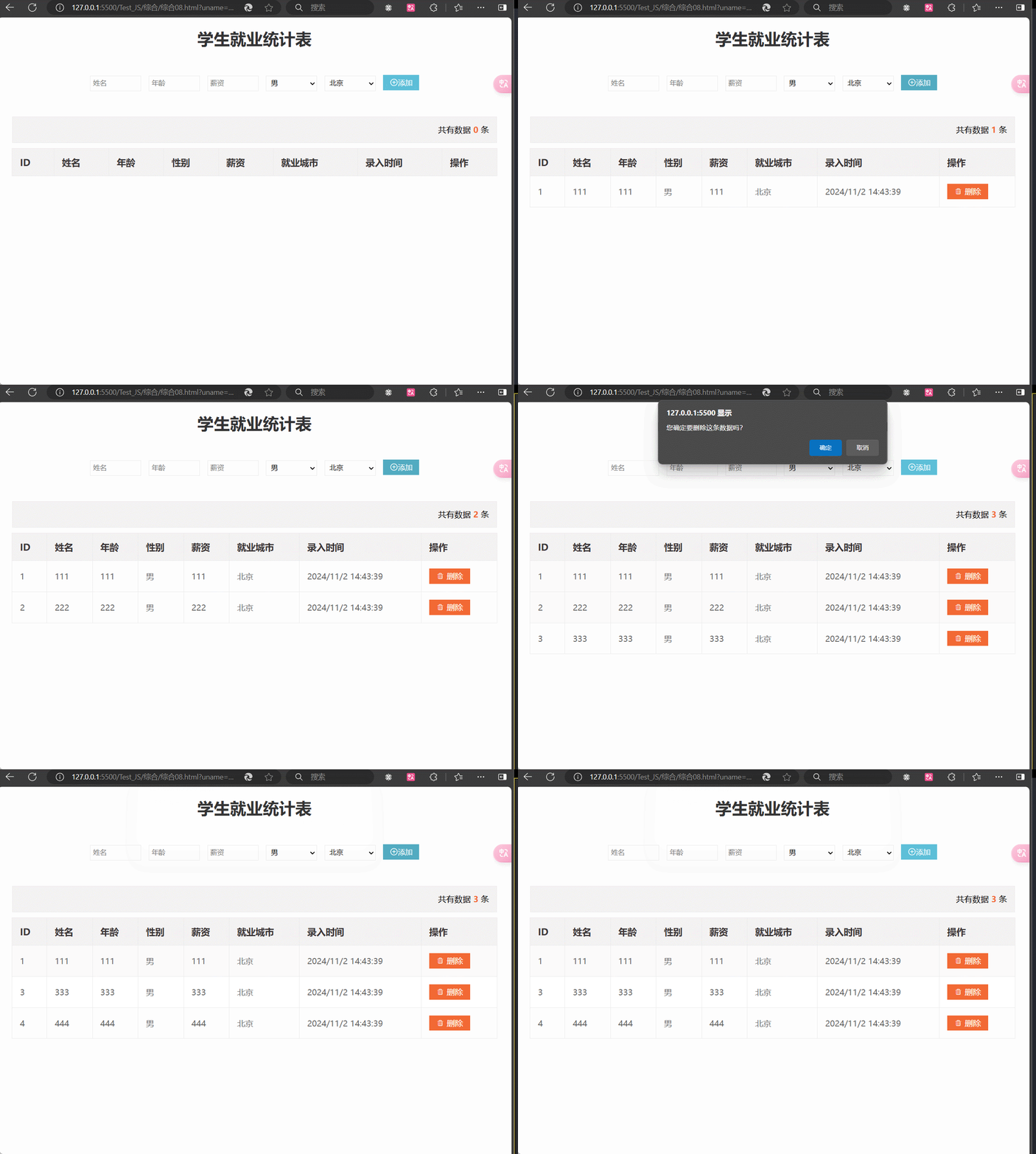
代码:
  1
  2
  3
  4
  5
  6
  7
  8
  9
 10
 11
 12
 13
 14
 15
 16
 17
 18
 19
 20
 21
 22
 23
 24
 25
 26
 27
 28
 29
 30
 31
 32
 33
 34
 35
 36
 37
 38
 39
 40
 41
 42
 43
 44
 45
 46
 47
 48
 49
 50
 51
 52
 53
 54
 55
 56
 57
 58
 59
 60
 61
 62
 63
 64
 65
 66
 67
 68
 69
 70
 71
 72
 73
 74
 75
 76
 77
 78
 79
 80
 81
 82
 83
 84
 85
 86
 87
 88
 89
 90
 91
 92
 93
 94
 95
 96
 97
 98
 99
100
101
102
103
104
105
106
107
108
109
110
111
112
113
114
115
116
117
118
119
120
121
122
123
124
125
126
127
128
129
130
131
132
133
134
135
136
137
138
139
140
141
142
143
144
145
146
147
148
149
150
151
152
153
154
155
156
157
158
159
160
161
|
<!DOCTYPE html>
<html lang="zh-CN">
<head>
  <meta charset="UTF-8" />
  <title>学生就业统计表</title>
  <link rel="stylesheet" href="./iconfont/iconfont.css">
  <link rel="stylesheet" href="css/index.css" />
</head>
<body>
  <h1>学生就业统计表</h1>
  <form class="info" autocomplete="off">
    <input type="text" class="uname" name="uname" placeholder="姓名" />
    <input type="text" class="age" name="age" placeholder="年龄" />
    <input type="text" class="salary" name="salary" placeholder="薪资" />
    <select name="gender" class="gender">
      <option value="男">男</option>
      <option value="女">女</option>
    </select>
    <select name="city" class="city">
      <option value="北京">北京</option>
      <option value="上海">上海</option>
      <option value="广州">广州</option>
      <option value="深圳">深圳</option>
      <option value="曹县">曹县</option>
    </select>
    <button class="add">
      <i class="iconfont icon-tianjia"></i>添加
    </button>
  </form>

  <div class="title">共有数据<span>0</span>条</div>
  <table>
    <thead>
      <tr>
        <th>ID</th>
        <th>姓名</th>
        <th>年龄</th>
        <th>性别</th>
        <th>薪资</th>
        <th>就业城市</th>
        <th>录入时间</th>
        <th>操作</th>
      </tr>
    </thead>
    <tbody>
      <!-- <tr>
        <td>1</td>
        <td>迪丽热巴</td>
        <td>23</td>
        <td>女</td>
        <td>12000</td>
        <td>北京</td>
        <td>2099/9/9 08:08:08</td>
        <td>
          <a href="javascript:">
            <i class="iconfont icon-shanchu"></i>
            删除
          </a>
        </td>
      </tr> -->
    </tbody>
  </table>
  <script>
    // 封装一个渲染函数,方便多次使用
    function render(arr = []) {
      // 利用map和join方法来渲染页面
      // 利用map遍历数组,放回对应tr的数组
      // 给删除按钮一个与数组下标相同的自定义属性值,方便删除时定位数据位置
      const trArr = arr.map(function(ele, index) {
        return `
          <tr>
            <td>${ele.stuId}</td>
            <td>${ele.uname}</td>
            <td>${ele.age}</td>
            <td>${ele.gender}</td>
            <td>${ele.salary}</td>
            <td>${ele.city}</td>
            <td>${ele.time}</td>
            <td>
              <a href="javascript:" data-id="${index}">
                <i class="iconfont icon-shanchu"></i>
                删除
              </a>
            </td>
          </tr>
        `
      })
      // 再把数组用join转换为字符串
      // 把生成的字符串追加给tbody
      const tbody = document.querySelector('tbody')
      tbody.innerHTML = trArr.join('')
      // 修改页面上的共有几条数据
      document.querySelector('.title span').innerHTML = arr.length
    }

    // 渲染模块
    // 读取本地数据并存入数组,读取时把字符串还原成复杂数据类型
    // 为了防止本地无数据时导致数组出现bug,利用逻辑中断的原理,当本地数据为空(false)时,将生成空数组
    const arr = JSON.parse(localStorage.getItem('data')) || []
    // 读取完数据,渲染一下页面,这样才能保证刷新后数据不丢失
    render(arr)

    // 录入模块
    const info = document.querySelector('.info')
    const uname = document.querySelector('.uname')
    const age = document.querySelector('.age')
    const salary = document.querySelector('.salary')
    const gender = document.querySelector('.gender')
    const city = document.querySelector('.city')
    const time = new Date().toLocaleString()// 获取当前时间
    // 设置表单提交事件
    info.addEventListener('submit', function(e) {
      // 阻止表单的默认提交行为
      e.preventDefault()
      // 非空判断
      if (!uname.value || !age.value || !salary.value) {// 三者有一个为空就会满足条件
        return alert('输入内容不能为空')
      }

      // 给arr数组追加对象,对象里存储着从表单中获取的信息
      arr.push({
        // 为了防止出现id重复的bug,stuId为数组中最后一条数据的id+1
        // 但是要判断, 如果数组中没有数据则是直接赋值为1,否则就采用上面的做法
        stuId: arr.length ? arr[arr.length - 1].stuId + 1 : 1,
        uname: uname.value,
        age: age.value,
        salary: salary.value,
        gender: gender.value,
        city: city.value,
        time: time
      })
      // 渲染页面并重置表单
      render(arr)
      this.reset()

      // 把数组重新存入本地数据,存入是要把对象转换为JSON字符串
      localStorage.setItem('data', JSON.stringify(arr))
    })

    // 删除模块
    const tbody = document.querySelector('tbody')
    // 采用事件委托形式,给tbody注册点击事件
    tbody.addEventListener('click', function(e) {
      // 判断点击的是否是删除按钮(删除按钮被a标签包裹)
      if (e.target.tagName === 'A') {
        // 为了防止误操作,点击后弹出确认框
        if (confirm('您确定要删除这条数据吗?')) {
          // 得到当前点击链接的索引号,利用渲染数据时给的自定义属性获取
          const deleIndex = e.target.dataset.id
          // 根据得到的索引号进行删除,利用splice方法进行删除
          arr.splice(deleIndex, 1)
          // 把进行删除操作后的新数组重新存入本地数据,对本地数据进行更新
          localStorage.setItem('data', JSON.stringify(arr))
          // 重新渲染页面
          render(arr)
        }
      }
    })
  </script>
</body>
</html>
|
css部分:
  1
  2
  3
  4
  5
  6
  7
  8
  9
 10
 11
 12
 13
 14
 15
 16
 17
 18
 19
 20
 21
 22
 23
 24
 25
 26
 27
 28
 29
 30
 31
 32
 33
 34
 35
 36
 37
 38
 39
 40
 41
 42
 43
 44
 45
 46
 47
 48
 49
 50
 51
 52
 53
 54
 55
 56
 57
 58
 59
 60
 61
 62
 63
 64
 65
 66
 67
 68
 69
 70
 71
 72
 73
 74
 75
 76
 77
 78
 79
 80
 81
 82
 83
 84
 85
 86
 87
 88
 89
 90
 91
 92
 93
 94
 95
 96
 97
 98
 99
100
101
102
103
104
105
106
107
108
109
110
111
112
113
114
115
|
* {
  margin: 0;
  padding: 0;
}

a {
  text-decoration: none;
  color: #721c24;
}

h1 {
  text-align: center;
  color: #333;
  margin: 20px 0;

}

.title {
  width: 933px;
  height: 50px;
  line-height: 50px;
  padding-right: 15px;
  border: 1px solid #ebebeb;
  margin: 10px auto;
  background-color: #f2f2f2;
  text-align: right;
}

.title span {
  display: inline-block;
  vertical-align: middle;
  height: 20px;
  margin: -3px 5px 0;
  text-align: center;
  line-height: 20px;
  color: #f26934;
  font-weight: 700;
}

table {
  margin: 0 auto;
  width: 950px;
  border-collapse: collapse;
  color: #3c3637;
}

th {
  padding: 10px;
  background: #f2f2f2;
  font-size: 18px;
  text-align: left;
}

td,
th {
  border: 1px solid #ebebeb;
  padding: 15px;
}

td {

  color: #666;
  font-size: 16px;

}

tbody tr {
  background: #fff;
}

tbody tr:hover {
  background: #fbfafa;
}

tbody a {
  display: inline-block;
  width: 80px;
  height: 30px;
  text-align: center;
  line-height: 30px;
  color: #fff;
  background-color: #f26934;
}

.info {
  width: 900px;
  margin: 50px auto;
  text-align: center;
}

.info input,
.info select {
  width: 100px;
  height: 30px;
  outline: none;
  border: 1px solid #ebebeb;
  padding-left: 5px;
  box-sizing: border-box;
  margin-right: 10px;
}

.info button {
  width: 70px;
  height: 30px;
  background-color: #5dbfd8;
  outline: none;
  border: 0;
  color: #fff;
  cursor: pointer;
  font-size: 14px;
}

.info button:hover {
  background-color: #52abc1;
}
|
Web APIs - 第6天笔记
目标:能够利用正则表达式完成小兔鲜注册页面的表单验证,具备常见的表单验证能力
正则表达式
正则表达式(Regular Expression)是一种字符串匹配的模式(规则)
使用场景:
- 例如验证表单:手机号表单要求用户只能输入11位的数字 (匹配)
- 过滤掉页面内容中的一些敏感词(替换),或从字符串中获取我们想要的特定部分(提取)等
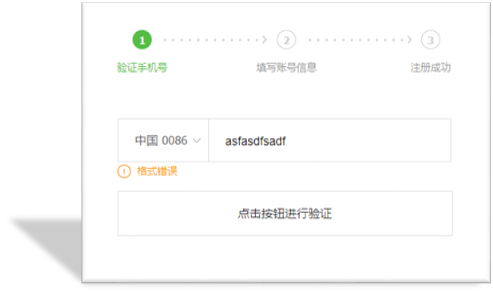
正则基本使用
-
定义规则
-
使用正则
test()方法 用来查看正则表达式与指定的字符串是否匹配- 如果正则表达式与指定的字符串匹配 ,返回
true,否则false
 1
 2
 3
 4
 5
 6
 7
 8
 9
10
11
12
|
<body>
  <script>
    // 正则表达式的基本使用
    const str = 'web前端开发'
    // 1. 定义规则
    const reg = /web/

    // 2. 使用正则  test()
    console.log(reg.test(str))  // true  如果符合规则匹配上则返回true
    console.log(reg.test('java开发'))  // false  如果不符合规则匹配上则返回 false
  </script>
</body>
|
3.检索(查找)符合规则的字符串:
exec() 方法 在一个指定字符串中执行一个搜索匹配
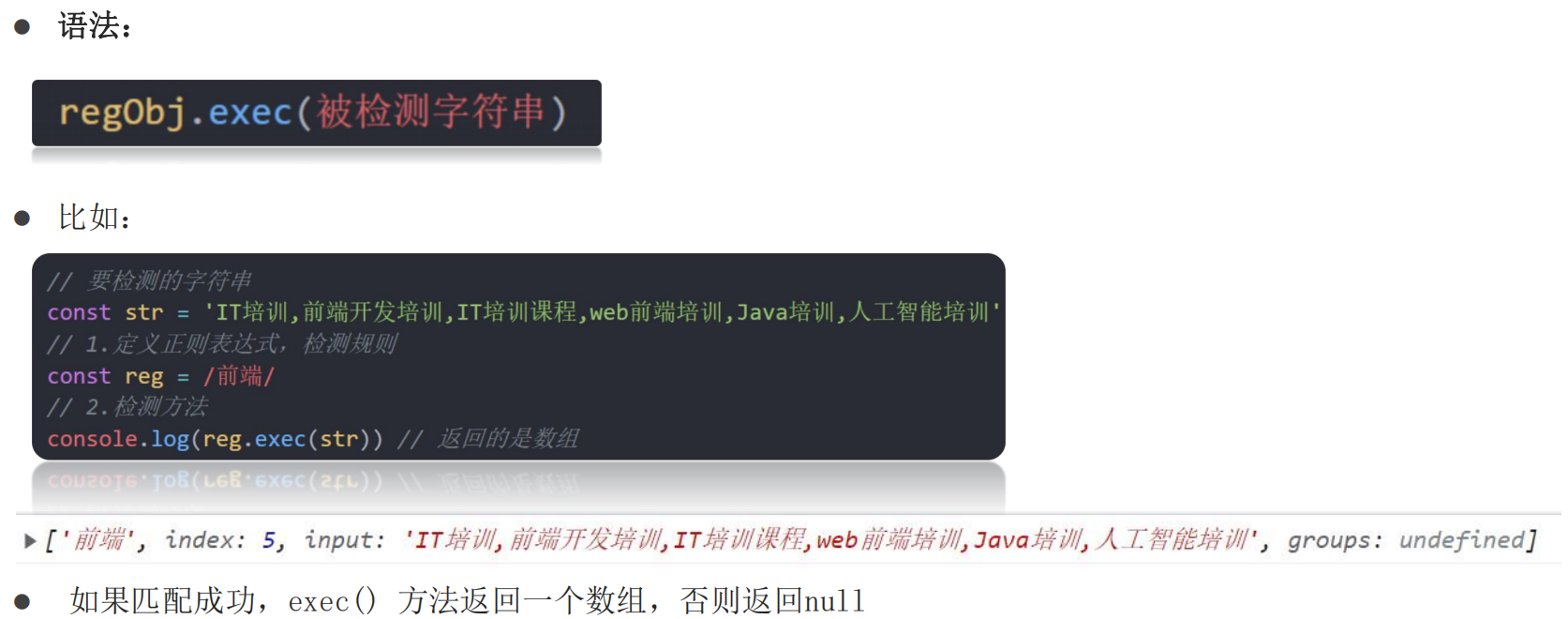
元字符
- 普通字符:
- 大多数的字符仅能够描述它们本身,这些字符称作普通字符,例如所有的字母和数字。
- 普通字符只能够匹配字符串中与它们相同的字符。
- 比如,规定用户只能输入英文26个英文字母,普通字符的话 /[abcdefghijklmnopqrstuvwxyz]/
- 元字符(特殊字符)
- 是一些具有特殊含义的字符,可以极大提高了灵活性和强大的匹配功能。
- 比如,规定用户只能输入英文26个英文字母,换成元字符写法: /[a-z]/
参考文档:
Ø MDN:https://developer.mozilla.org/zh-CN/docs/Web/JavaScript/Guide/Regular_Expressions
Ø 正则测试工具: http://tool.oschina.net/regex
边界符
正则表达式中的边界符(位置符)用来提示字符所处的位置,主要有两个字符

如果 ^ 和 $ 在一起,表示必须是精确匹配
 1
 2
 3
 4
 5
 6
 7
 8
 9
10
11
12
13
14
15
16
17
18
19
20
21
22
23
24
25
26
27
|
<body>
  <script>
    // 元字符之边界符
    // 1. 匹配开头的位置 ^
    const reg = /^web/
    console.log(reg.test('web前端'))  // true
    console.log(reg.test('前端web'))  // false
    console.log(reg.test('前端web学习'))  // false
    console.log(reg.test('we'))  // false

    // 2. 匹配结束的位置 $
    const reg1 = /web$/
    console.log(reg1.test('web前端'))  //  false
    console.log(reg1.test('前端web'))  // true
    console.log(reg1.test('前端web学习'))  // false
    console.log(reg1.test('we'))  // false

    // 3. 精确匹配 ^ $
    const reg2 = /^web$/
    console.log(reg2.test('web前端'))  //  false
    console.log(reg2.test('前端web'))  // false
    console.log(reg2.test('前端web学习'))  // false
    console.log(reg2.test('we'))  // false
    console.log(reg2.test('web'))  // true
    console.log(reg2.test('webweb'))  // flase
  </script>
</body>
|
量词
量词用来设定某个模式重复次数
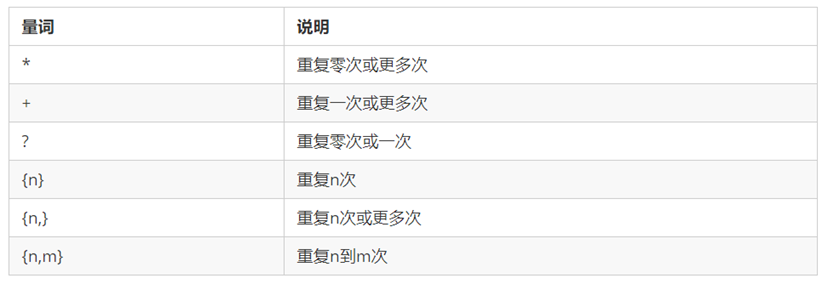
注意: 逗号左右两侧千万不要出现空格
 1
 2
 3
 4
 5
 6
 7
 8
 9
10
11
12
13
14
15
16
17
18
19
20
21
22
23
24
25
26
27
28
29
30
31
32
33
34
35
36
37
38
39
40
41
42
43
44
45
46
47
48
49
50
51
52
53
54
|
<body>
  <script>
    // 元字符之量词
    // 1. * 重复次数 >= 0 次
    const reg1 = /^w*$/
    console.log(reg1.test(''))  // true
    console.log(reg1.test('w'))  // true
    console.log(reg1.test('ww'))  // true
    console.log(reg1.test('waw')) // false
    console.log('-----------------------')

    // 2. + 重复次数 >= 1 次
    const reg2 = /^w+$/
    console.log(reg2.test(''))  // false
    console.log(reg2.test('w'))  // true
    console.log(reg2.test('ww'))  // true
    console.log('-----------------------')

    // 3. ? 重复次数  0 || 1
    const reg3 = /^w?$/
    console.log(reg3.test(''))  // true
    console.log(reg3.test('w'))  // true
    console.log(reg3.test('ww'))  // false
    console.log('-----------------------')


    // 4. {n} 重复 n 次
    const reg4 = /^w{3}$/
    console.log(reg4.test(''))  // false
    console.log(reg4.test('w'))  // flase
    console.log(reg4.test('ww'))  // false
    console.log(reg4.test('www'))  // true
    console.log(reg4.test('wwww'))  // false
    console.log('-----------------------')

    // 5. {n,} 重复次数 >= n
    const reg5 = /^w{2,}$/
    console.log(reg5.test(''))  // false
    console.log(reg5.test('w'))  // false
    console.log(reg5.test('ww'))  // true
    console.log(reg5.test('www'))  // true
    console.log('-----------------------')

    // 6. {n,m}   n =< 重复次数 <= m
    const reg6 = /^w{2,4}$/
    console.log(reg6.test('w'))  // false
    console.log(reg6.test('ww'))  // true
    console.log(reg6.test('www'))  // true
    console.log(reg6.test('wwww'))  // true
    console.log(reg6.test('wwwww'))  // false

    // 7. 注意事项: 逗号两侧千万不要加空格否则会匹配失败

  </script>
|
范围
表示字符的范围,定义的规则限定在某个范围,比如只能是英文字母,或者数字等等,用表示范围
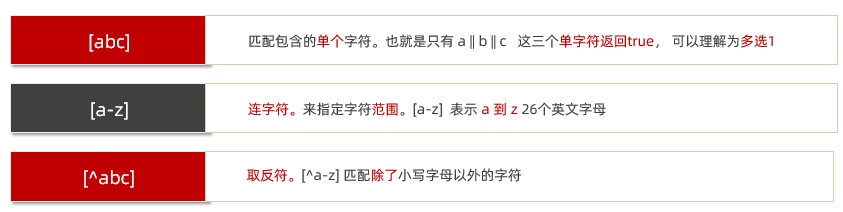
 1
 2
 3
 4
 5
 6
 7
 8
 9
10
11
12
13
14
15
16
17
18
19
20
21
22
23
24
25
26
27
28
29
30
31
32
33
34
35
36
37
38
39
|
<body>
  <script>
    // 元字符之范围  []
    // 1. [abc] 匹配包含的单个字符, 多选1
    const reg1 = /^[abc]$/
    console.log(reg1.test('a'))  // true
    console.log(reg1.test('b'))  // true
    console.log(reg1.test('c'))  // true
    console.log(reg1.test('d'))  // false
    console.log(reg1.test('ab'))  // false

    // 2. [a-z] 连字符 单个
    const reg2 = /^[a-z]$/
    console.log(reg2.test('a'))  // true
    console.log(reg2.test('p'))  // true
    console.log(reg2.test('0'))  // false
    console.log(reg2.test('A'))  // false
    // 想要包含小写字母,大写字母 ,数字
    const reg3 = /^[a-zA-Z0-9]$/
    console.log(reg3.test('B'))  // true
    console.log(reg3.test('b'))  // true
    console.log(reg3.test(9))  // true
    console.log(reg3.test(','))  // flase

    // 用户名可以输入英文字母,数字,可以加下划线,要求 6~16位
    const reg4 = /^[a-zA-Z0-9_]{6,16}$/
    console.log(reg4.test('abcd1'))  // false
    console.log(reg4.test('abcd12'))  // true
    console.log(reg4.test('ABcd12'))  // true
    console.log(reg4.test('ABcd12_'))  // true

    // 3. [^a-z] 取反符
    const reg5 = /^[^a-z]$/
    console.log(reg5.test('a'))  // false
    console.log(reg5.test('A'))  // true
    console.log(reg5.test(8))  // true

  </script>
</body>
|
字符类
某些常见模式的简写方式,区分字母和数字
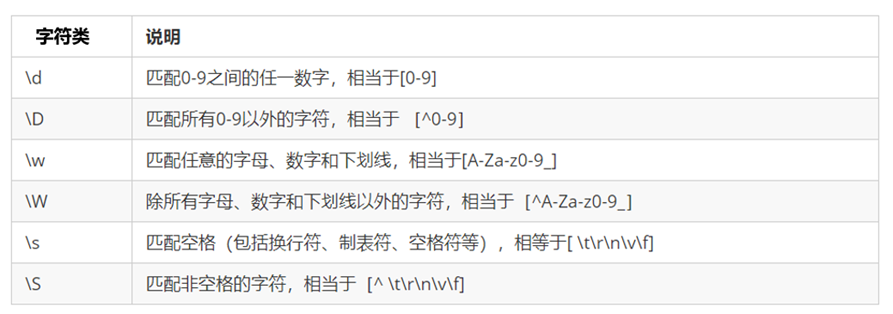

补充:. (点)匹配除换行符之外的任何单个字符
小练习:用户名验证案例
需求:用户名要求用户英文字母,数字,下划线或者短横线组成,并且用户名长度为 6~16位
分析:
①:首先准备好这种正则表达式模式 /^[a-zA-Z0-9-_]{6,16}$/
②:当表单失去焦点就开始验证.
③:如果符合正则规范, 则让后面的span标签添加 right 类.
④:如果不符合正则规范, 则让后面的span标签添加 wrong 类
效果图:
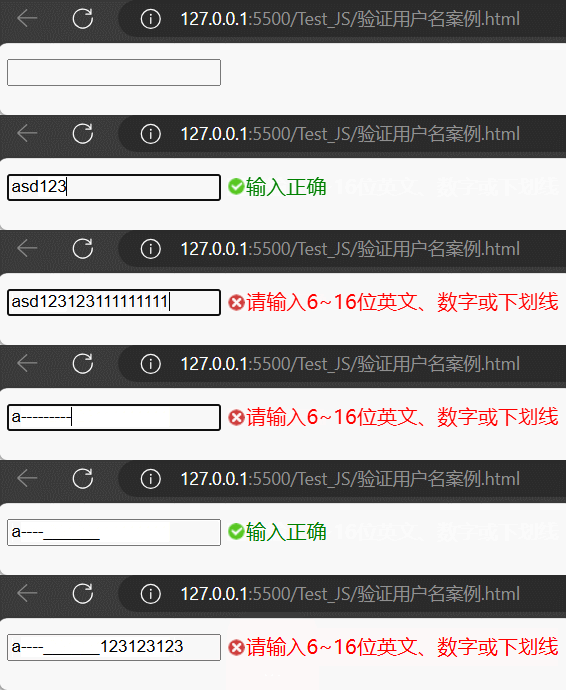
代码:
 1
 2
 3
 4
 5
 6
 7
 8
 9
10
11
12
13
14
15
16
17
18
19
20
21
22
23
24
25
26
27
28
29
30
31
32
33
34
35
36
37
38
39
40
41
42
43
44
45
46
|
<!DOCTYPE html>
<html lang="zh-CN">
<head>
    <meta charset="UTF-8">
    <title>用户名验证案例</title>
    <style>
        span {
            display: inline-block;
            width: 250px;
            height: 30px;
            vertical-align: middle;
            line-height: 30px;
            padding-left: 15px;
        }

        .error {
            color: red;
            background: url(./images/error1.png) no-repeat left center;
        }

        .right {
            color: green;
            background: url(./images/right.png) no-repeat left center;
        }
    </style>
</head>
<body>
    <input type="text">
    <span></span>
    <script>
        const reg = /^[a-zA-Z0-9-_]{6,16}$/
        const input = document.querySelector('input')
        const span = document.querySelector('span')
        // 输入框失去焦点时触发事件
        input.addEventListener('blur', function() {
            if(reg.test(this.value)) {
                span.innerHTML = '输入正确'
                span.className = 'right'
            }else {
                span.innerHTML = '请输入6~16位英文、数字或下划线'
                span.className = 'error'
            }
        })
    </script>
</body>
</html>
|
替换和修饰符
replace() 替换方法,可以完成字符的替换
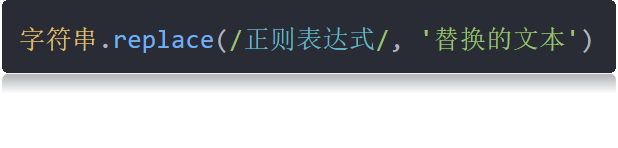
 1
 2
 3
 4
 5
 6
 7
 8
 9
10
|
<body>
  <script>
    // 替换和修饰符
    const str = '欢迎大家学习前端,相信大家一定能学好前端,都成为前端大神'
    // 1. 替换  replace  需求:把前端替换为 web
    // 1.1 replace 返回值是替换完毕的字符串
    const strEnd = str.replace(/前端/, 'web') // 欢迎大家学习web,相信大家一定能学好前端,都成为前端大神
    // 只能替换一个
  </script>
</body>
|
修饰符约束正则执行的某些细节行为,如是否区分大小写、是否支持多行匹配等
- i 是单词 ignore 的缩写,正则匹配时字母不区分大小写
1
2
3
|
console.log(/a/.test('a'))  // true
console.log(/a/.test('A'))  // false
console.log(/a/i.test('A')) // true
|
- g 是单词 global 的缩写,匹配所有满足正则表达式的结果
 1
 2
 3
 4
 5
 6
 7
 8
 9
10
11
12
13
|
<body>
  <script>
    // 替换和修饰符
    const str = '欢迎大家学习前端,相信大家一定能学好前端,都成为前端大神'
    // 1. 替换  replace  需求:把前端替换为 web
    // 1.1 replace 返回值是替换完毕的字符串
    // const strEnd = str.replace(/前端/, 'web') 只能替换一个

    // 2. 修饰符 g 全部替换
    const strEnd = str.replace(/前端/g, 'web')
    console.log(strEnd) // 欢迎大家学习web,相信大家一定能学好web,都成为web大神
  </script>
</body>
|
注: i 和 g 可以同时写
小练习:过滤敏感字
需求:要求用户不能输入敏感字
比如,pink老师上课很有**
分析:
①:用户输入内容
②:内容进行正则替换查找,找到敏感词,进行**
③:要全局替换使用修饰符 g
效果图:
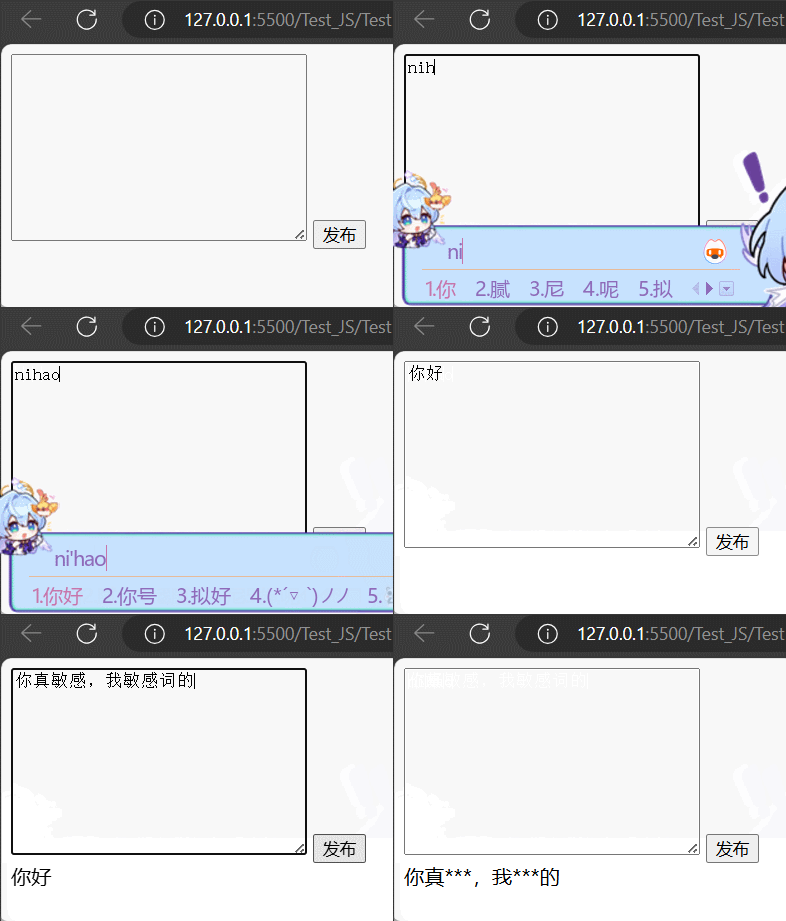
代码:
1
2
3
4
5
6
7
8
9
10
11
12
13
14
15
16
17
18
19
20
21
22
23
|
<!DOCTYPE html>
<html lang="zh-CN">
<head>
<meta charset="UTF-8">
<title>Document</title>
</head>
<body>
<textarea cols="30" rows="10"></textarea>
<button>发布</button>
<div></div>
<script>
const tx = document.querySelector('textarea')
const btn = document.querySelector('button')
const div = document.querySelector('div')
btn.addEventListener('click', function() {
// 过滤所有敏感词
div.innerHTML = tx.value.replace(/敏感词|敏感/g, '***')
// 清空文本区
tx.value = ''
})
</script>
</body>
</html>
|
正则插件
change 事件
给input注册 change 事件,值被修改并且失去焦点后触发
判断是否有类
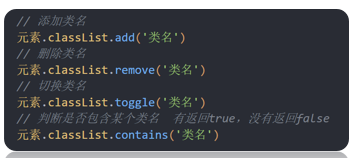
元素.classList.contains() 看看有没有包含某个类,如果有则返回true,么有则返回false
综合案例:页面注册
分析业务模块:
①: 发送验证码模块
②: 各个表单验证模块
③: 勾选已经阅读同意模块
④: 下一步验证全部模块
只要上面有一个input验证不通过就不同意提交
用户点击之后,显示 05秒后重新获取
时间到了,自动改为 重新获取
- 需求②: 用户名验证(注意封装函数 verifyxxx) , 失去焦点触发这个函数
正则 /^[a-zA-Z0-9-_]{6,10}$/
如果不符合要求,则出现提示信息 并 return false 中断程序
否则 则返回return true
之所以返回 布尔值,是为了 最后的提交按钮做准备
侦听使用change事件,当鼠标离开了表单,并且表单值发生了变化时触发(类似京东效果)
正则: /^1(3\d|4[5-9]|5[0-35-9]|6[567]|7[0-8]|8\d|9[0-35-9])\d{8}$/
其余同上
正则 /^\d{6}$/
其余同上
正则 /^[a-zA-Z0-9-_]{6,20}$/
其余同上
如果本次密码不等于上面输入的密码则返回错误信息
其余同上
添加类 .icon-queren2 则是默认选中样式 可以使用 toggle切换类
使用 submit 提交事件
如果没有勾选同意协议,则提示 需要勾选
classList.contains()看看有没有包含某个类,如果有则返回true,么有则返回false
如果上面input表单 只要有模块,返回的是 false 则 阻止提交
效果图:
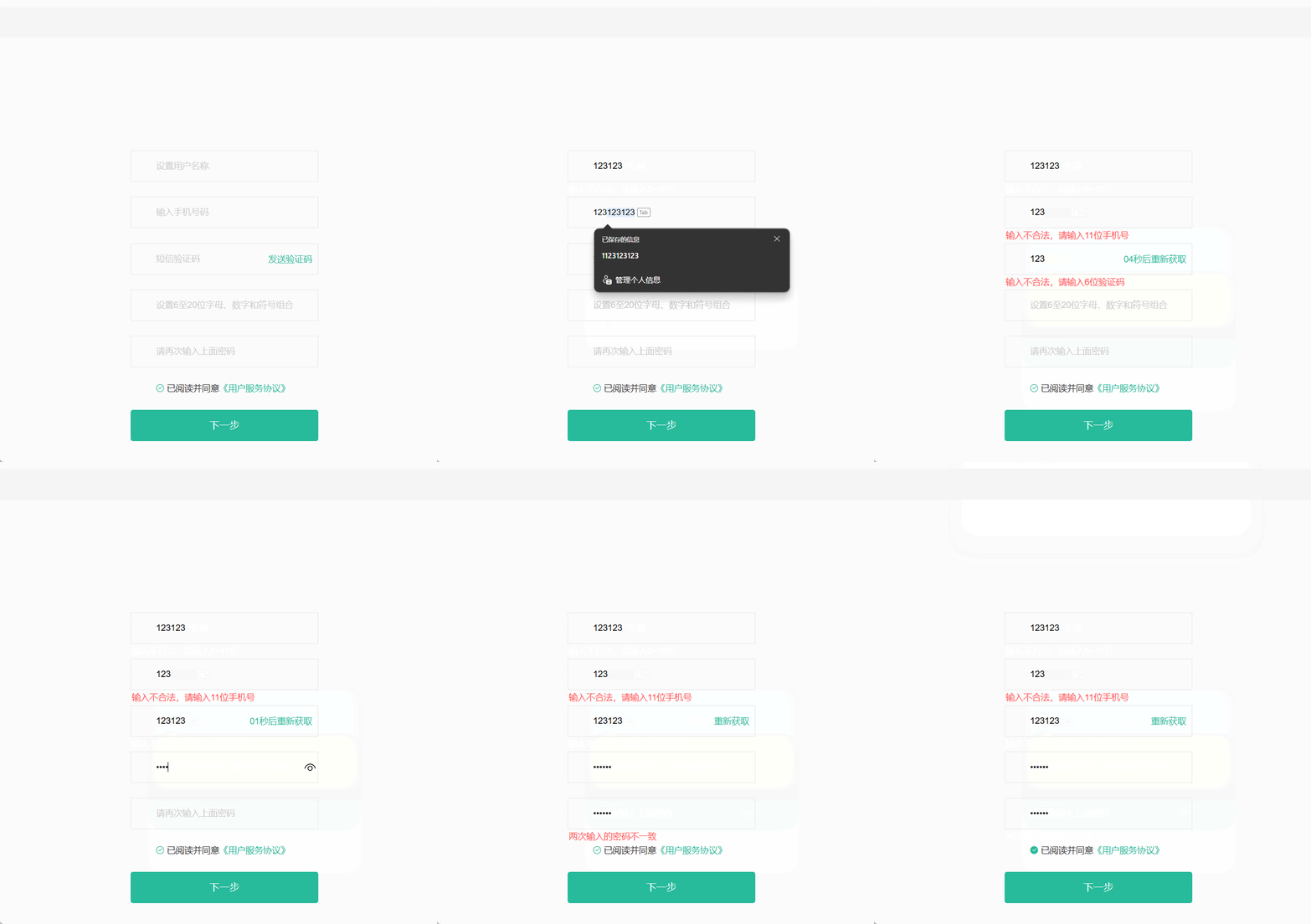
代码: